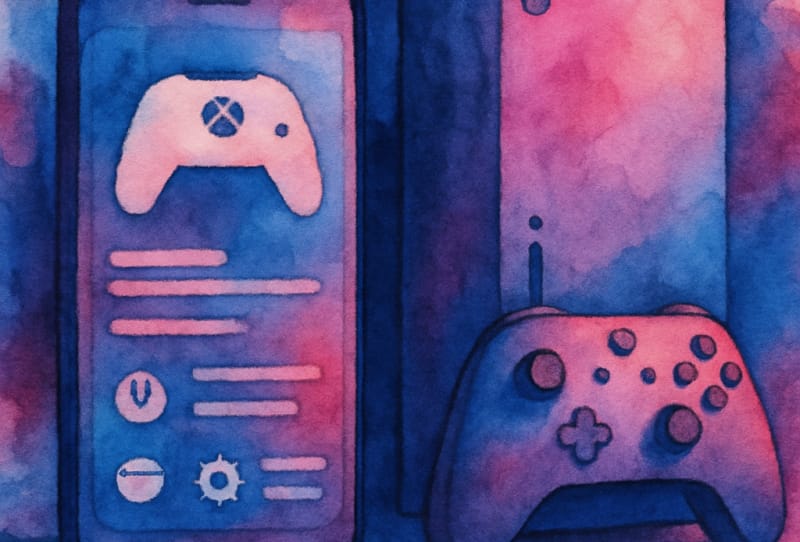
Setting up Xbox app console settings lets you manage your Xbox from a phone, tablet or PC instead of digging through menus on the console itself. This guide walks through pairing your console with the app and configuring the settings that matter most, including power mode, storage, updates and notifications. It suits anyone who has just set up a new Xbox or wants more control over their console without picking up a controller every time.
Table of Contents
What you’ll need
- An Xbox console that has already been through initial setup with a Microsoft account
- A phone, tablet or PC with the Xbox app installed
- The same Microsoft account signed in on both the console and the app
- A stable home Wi-Fi or wired network connection for both devices
How to connect your console to the Xbox app
- Download and install the Xbox app on your device, then sign in using the Microsoft account linked to your console.
- Make sure your console is powered on (or in standby, if using instant-on mode) and connected to the same network as your app, at least for the first setup.
- Open the app and go to the Consoles or Devices section, where the app should automatically detect any Xbox linked to your account.
- Select your console from the list to pair it. If it does not appear automatically, check that both devices are online and try refreshing the list.
- Once paired, tap the console’s settings icon to open the remote management screen where power, storage and update options live.
How to adjust power and startup settings
- From the console’s settings page in the app, look for the power mode option.
- Choose between an energy-saving mode, which fully shuts the console down between sessions, and an instant-on style mode, which keeps it in a low-power standby so it starts faster and can be woken remotely.
- Keep in mind that instant-on style modes draw a small amount of power even when the console appears off, while energy-saving modes use less power but take longer to boot and generally cannot be turned on remotely.
- Confirm your choice. The console may need a moment to apply the new setting, and in some cases it will restart.
How to manage storage and updates
- Open the storage section for your console within the app to see a list of installed games and apps along with how much space each one uses.
- Select any title you no longer play and uninstall it directly from the app to free up space, without needing to turn on the console first.
- Check the storage screen for any connected external drives if you have expanded your console’s storage.
- Look for a system update option in the app’s console settings and install any pending updates so the console stays current when you next turn it on.
How to customise notifications and other preferences
- In the app’s settings menu, review notification options for things like friend requests, game invites and achievement alerts, and turn off any you find distracting.
- If you play with others, check sharing and privacy options here too, which tie in closely with features covered in the guide on how to enable console sharing on the Xbox app.
- Review controller settings in the app if a firmware update is available, since keeping controllers updated helps avoid input lag or connection drops.
- If you manage more than one console on the same account, switch between them from the Consoles list to apply settings individually to each one.
Tips and troubleshooting
If the app cannot find your console, double-check that both devices are on the same network and that your router is not isolating devices from each other, a common setting on guest networks. Persistent connection drops or slow app response are often a sign of a wider network issue, so it is worth reading through the advice on setting up a gaming router for low lag if problems continue. Remember that remote power-on only works when the console is left in an instant-on style standby mode, since a fully powered-down console cannot receive the wake signal. If storage management options seem greyed out, make sure the app has fully synced with the console at least once by opening it while the console is on.
Frequently asked questions
Can I turn on my Xbox from the app if it is fully powered off?
No. Remote power-on through the app only works when the console is set to an instant-on style standby mode. If the console has been fully shut down using energy-saving mode, you will need to switch it on manually using the console’s power button or a paired controller.
Why can’t the Xbox app find my console?
This is usually a network problem. Confirm the console and your device are on the same Wi-Fi network, restart the app, and check that your router is not blocking device discovery. Signing out and back into the Microsoft account on both devices can also resolve pairing issues.
Does changing power mode affect gaming performance?
No. Power mode only controls how the console behaves when idle or in standby, such as startup speed and background updates. It has no effect on in-game performance, frame rates or graphics quality once the console is running.
Can I manage multiple Xbox consoles from one app?
Yes. As long as each console is linked to the same Microsoft account, they will all appear in the app’s Consoles list, and you can select each one individually to adjust its own power, storage and notification settings.