To manage Plex watched status across devices, turn on the “Sync Watch State and Ratings” option in your Plex account settings. Once enabled, marking a movie or episode as watched on one server or app updates that status everywhere you use that same Plex account, instead of leaving separate watch histories stuck on each device. This guide is for anyone who uses Plex on more than one server, app, or screen and is tired of re-watching the “unwatched” badge on a show they already finished elsewhere.
Key takeaways
- ✓Plex syncs watched status via your account, not per device, once Sync Watch State and Ratings is enabled
- ✓Servers need Plex Media Server version 1.27.2 or higher for watch state sync to work
- ✓Movie and TV libraries must use the Plex Movie or Plex TV Series metadata agent to sync properly
- ✓Changes between servers can take up to 30 minutes to appear, while Discover updates almost instantly
- ✓Partially watched titles do not sync; only fully completed items update your watched status
Table of Contents
What you’ll need
- A Plex account that you sign into on every device and server
- Access to a Plex Media Server running version 1.27.2 or newer
- Movie libraries using the Plex Movie metadata agent, and TV libraries using the Plex TV Series agent
- A stable internet connection on the server, since syncing happens through your online Plex account
Turn on Plex watched status sync
- Sign in to your Plex account through the web app or a supported player app such as the mobile or desktop apps.
- Open Settings, then go to the Account section.
- Find the option labelled Sync Watch State and Ratings and switch it on. This option only appears if you have access to a server running a compatible version of Plex Media Server.
- If you manage the server yourself, restart Plex Media Server, or simply wait a few hours for it to recognise the account change on its own.
- Mark a title as watched or add a star rating on one device, then check a different app or server after a short wait to confirm the change has carried over.
Once this is switched on for your account, it stays applied across any server you own or any server where someone else has granted you access, provided that server also meets the version and metadata agent requirements.
How syncing behaves across servers and apps
Understanding the timing helps you avoid thinking something is broken when it is simply catching up. Plex pushes changes through your online account rather than directly between devices, so there is always a small delay somewhere in the chain.
| Action | Typical sync time |
|---|---|
| Change on a Plex Media Server appearing on Discover | Almost immediate |
| Change on Discover appearing on another Plex service | Almost immediate |
| Change on Discover appearing back on a Plex Media Server | Up to 30 minutes |
| Change on one personal server appearing on a different personal server | Up to 30 minutes |
| Initial sync after first enabling the feature | Up to a few hours |
One detail catches people out: pausing a movie halfway through does not sync an “in progress” status. Plex only syncs a title once it is fully marked as watched, which is a deliberate privacy measure so the source server cannot be inferred from partial viewing data.
Check that your libraries meet the requirements
Watch state sync will not work properly if a library is using an older or mismatched metadata source, because Plex needs each title to carry a consistent identifier (its GUID) that matches across every server. If you manage the server, confirm your movie library uses the Plex Movie agent and your TV library uses the Plex TV Series agent, then refresh metadata for both libraries before relying on sync. If you are a user with access to someone else’s server, you can ask the admin to check this, or review how libraries are organised through a guide on creating and managing multiple Plex libraries if that link is relevant to your setup. Note: only use that internal link if truly relevant.
Clear or reset synced watch data
- Open your account’s Privacy settings in the web app, desktop app, or mobile app.
- To wipe your activity log entirely, choose Delete Data, then select Delete Watch History. Confirm in the follow-up window. This resets watch counts on your profile but does not change current watched/unwatched status.
- To remove synced watched status and ratings specifically, first turn off Sync Watch State and Ratings.
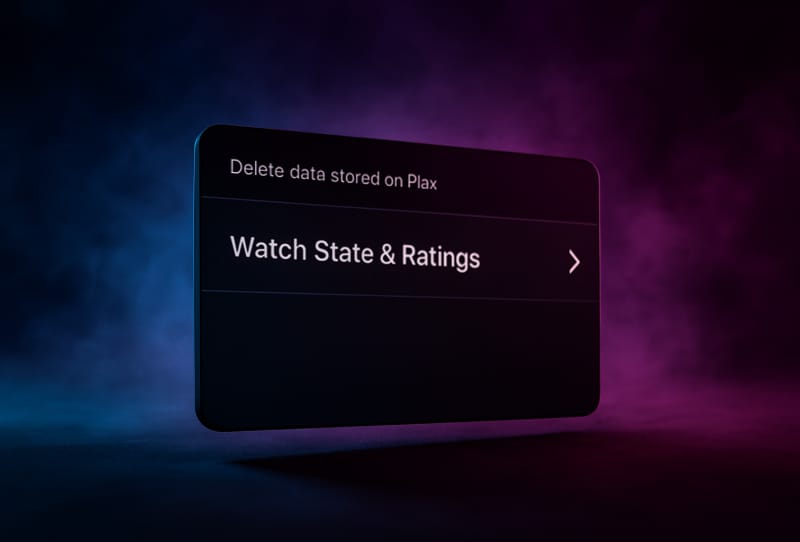
- Then select Delete Watch State & Ratings under Delete Data and confirm the action.
- Understand that this only clears data stored against your online Plex account; it will not remove watched flags already stored locally on a personal Plex Media Server.
Tips and troubleshooting
- If statuses are not matching between servers, confirm both servers are updated and that the sync toggle is still switched on, since it can silently revert if you are removed and re-added as a friend.
- Allow a full 30 minutes before assuming sync has failed between two personal servers, as this delay is normal.
- Each user profile on a shared server has its own independent watched status, so check you are comparing the same Plex user on both ends. A related guide on how to manage Plex user permissions and roles explains how separate profiles work.
- If sync never appears as an option, double check the server version and library metadata agents, since the feature simply will not show up otherwise.
- Persistent connection problems can also interrupt syncing. If the server seems to drop offline intermittently, see this guide on how to troubleshoot Plex server connection timeouts.
- If you recently claimed a new server or switched accounts, revisit the steps to claim your Plex server and link accounts to make sure sync is tied to the right profile.
Frequently asked questions
Why is my Plex watched status not syncing across devices?
The most common causes are an outdated Plex Media Server version, a library still using an older metadata agent, or the sync toggle being switched off after a permissions change. Confirm the server runs a compatible version and that the toggle is active in Account settings, then allow up to 30 minutes for changes to appear.
Does Plex watch state sync work with partially watched titles?
No. Only a title marked fully watched gets synced. Progress partway through an episode or movie stays local to that device and does not update your account-wide status.
Will turning off sync delete my watch history?
Turning off the toggle only stops future updates from syncing; it does not erase anything already recorded. To actually remove stored data, use the separate Delete Watch History or Delete Watch State & Ratings options in your account’s privacy settings.
Does watched status sync affect every server I have access to?
Yes, as long as each server meets the version and metadata agent requirements. This includes servers you own and any server where a friend or family member has given you access, once your account has the feature enabled.