Setting up Plex remote access lets you stream your own movies, shows, and music from your home server to any device, anywhere you have an internet connection. This guide walks you through enabling it properly, from checking prerequisites to fixing common connection failures, so you can watch your library on the road, at a friend’s place, or on holiday.
Table of Contents
What you’ll need
- A working Plex Media Server installed on a computer or NAS device that stays powered on and connected to your network
- A Plex account, with your server signed in to that account
- Access to your router’s settings (in case automatic setup fails and you need to forward a port manually)
- Your server’s internal IP address on the local network
- A reasonably fast, stable internet connection, particularly for upload speed
Step 1: Confirm your server is signed in
Remote access will not work unless your Plex Media Server is signed in to your Plex account, so this is the first thing to check before touching any settings.
- Open the Plex Web App on the computer or device running your server.
- Check that you are signed in with your Plex account, and that the server appears under your account in the sidebar.
- If it is not signed in, sign in now and wait for the server to sync with your account before continuing.
Step 2: Enable remote access
Once you have confirmed you are signed in, you can move on to the actual setup. This is where you set up Plex remote access through the server settings menu.
- In the Plex Web App, click the wrench or settings icon, then go to Settings.
- Select Server from the left-hand menu, then click Remote Access.
- Click Enable Remote Access. Plex will attempt to automatically configure a connection using UPnP or NAT-PMP on your router.
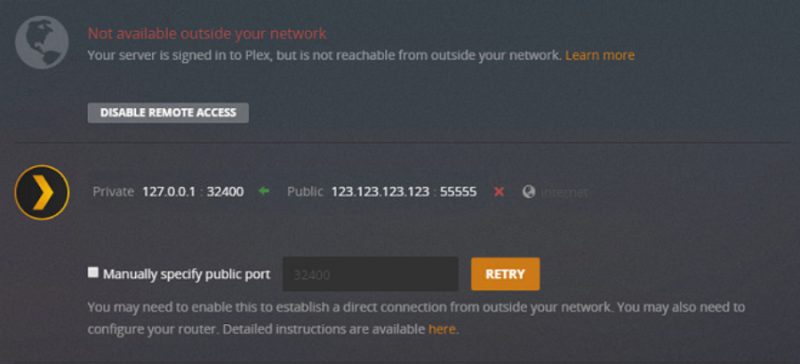
- Wait a moment while the server tests the connection. If it succeeds, you will see a message confirming remote access is enabled, along with your server’s public and private IP mapping.
If your router supports UPnP or NAT-PMP and it is switched on, this automatic process usually handles everything without any further input from you.
Step 3: Manually forward a port if automatic setup fails
Some routers do not support UPnP, or have it disabled for security reasons. If the automatic attempt does not succeed, you will need to forward a port manually.
- Log in to your router’s admin panel and locate the port forwarding section (the exact wording varies by router brand).
- Choose an external port number for the forward. Point that external port to internal port 32400, using the internal IP address of the device running Plex Media Server.
- Save the change in your router and allow it a minute or two to apply.
- Back in Plex, go to Settings > Server > Remote Access, tick Manually specify public port, and enter the external port number you just configured.
- Click Retry to test the connection again.
If your network sits behind a “double NAT” setup, such as a modem and a separate router both handling network address translation, port forwarding can be more complicated and may need adjustments on both devices.
Step 4: Adjust bandwidth settings for smoother streaming
Once remote access is working, it is worth tuning a couple of settings so remote streams do not overwhelm your home internet connection.
- Run a speed test (for example at speedtest.net) to find your connection’s actual upload speed.
- In Plex Settings under Remote Access, set the Internet upload speed field to match your tested upload speed in Mbps, rather than the number advertised by your internet provider.
- If you want to prevent any single remote viewer from using too much bandwidth, set a value under Limit remote stream bitrate as well.
Note that both of these bandwidth controls require an active Plex Pass subscription tied to the server’s admin account. Without Plex Pass, remote access itself still works, but you will not have this level of control over streaming bandwidth.
Step 5: Check the server mapping status
Plex includes an advanced view that shows exactly how your server is connected to the outside world.
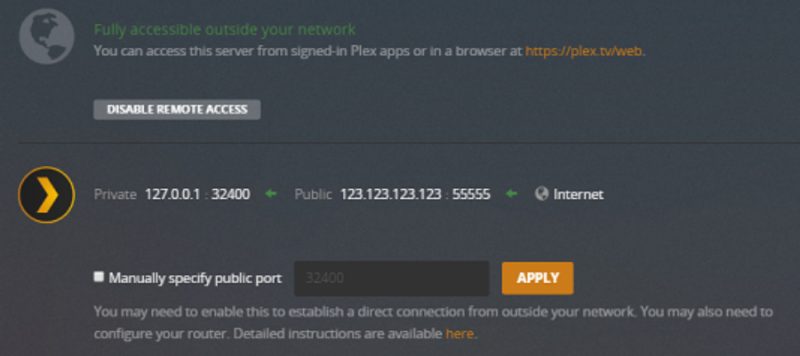
- In the Remote Access settings screen, click Show Advanced.
- Look at the Server Mapping section, which displays your server’s private (local network) IP and its public (internet-facing) IP.
- If both addresses appear and remote access shows as enabled, your setup is complete and working correctly.
Tips and troubleshooting
- If remote access keeps failing automatically, disable the automatic attempt, forward the port manually as described above, and make sure the manual port option is ticked in Plex, otherwise the server will keep trying to auto-map and fail.
- Restart your router after making any port forwarding changes if the connection still will not establish.
- Double-check that the internal IP address you forwarded the port to has not changed. Many routers assign IP addresses dynamically, so consider setting a static or reserved IP for your server.
- If playback is choppy from outside your home, it is often an upload bandwidth issue rather than a remote access problem. Revisit the bandwidth settings in Step 4, or look into ways to speed up your Plex server on your network.
- A sluggish or bloated media library can also affect remote performance. It is worth taking time to optimise your Plex database for better performance if browsing feels slow even after remote access is working.
- If you are running Plex on a NAS and considering an upgrade, it helps to compare the best NAS options for running Plex before committing to new hardware.
- Older or budget routers sometimes lack reliable UPnP support, which can make remote access unstable. In persistent cases, upgrading your home networking hardware can resolve recurring connection drops.
Frequently asked questions
Why does Plex say remote access is not available?
This usually means the automatic UPnP or NAT-PMP configuration failed, often because your router has this feature disabled or does not support it. Try enabling UPnP in your router settings, or set up a manual port forward and enter that port under Manually specify public port in Plex.
Do I need Plex Pass to use remote access?
No, basic remote access is available without a subscription. Plex Pass is only required for the extra bandwidth controls, such as setting your internet upload speed limit or capping the bitrate of individual remote streams.
Is it safe to forward a port for Plex?
Forwarding port 32400 for Plex is generally considered low risk, since it only exposes your Plex server rather than your entire network, and Plex requires an account sign-in to access content. Keeping your router’s firmware updated and using a strong Plex account password adds an extra layer of protection.
Can I use remote access on a mobile data connection?
Yes, once remote access is properly configured, you can stream from your Plex server over mobile data as well as Wi-Fi, provided your home upload speed can support the stream quality being requested.