Refreshing your Plex library is how you fix missing posters, update stale metadata, or force Plex to notice changes you have made to your files. This guide walks you through the difference between scanning and refreshing, when to use each one, and how to trigger both manually or on a schedule. It is written for anyone running a Plex Media Server who has noticed outdated artwork, missing episodes, or a library that simply will not update itself.
Table of Contents
What you’ll need
- A working Plex Media Server, either self-hosted on a PC or NAS, or accessed remotely
- Admin access to the Plex Web App or the Plex app connected to your server
- Media files already added to a library, or new files ready to be added
Understand scan versus refresh before you start
Before you click anything, it helps to know that “scan” and “refresh” are not the same action, even though people often use the words interchangeably. Scanning tells Plex to check the folders in a library for new, moved, or deleted files, then pull in metadata only for anything new or unmatched. Refreshing goes further: it re-fetches metadata for items that already have it, which is useful when something looks wrong rather than missing entirely.
Knowing which one you need saves time, because a full refresh of a large library can take a long time to complete. A quick scan is usually enough after adding or removing files.
| Situation | Action to use |
|---|---|
| Added new movies or episodes to a folder | Scan Library Files |
| Deleted or moved media files | Scan Library Files |
| Renamed a file or folder | Scan Library Files |
| Changed the metadata agent settings | Refresh All Metadata |
| Added local artwork, subtitles, or theme music | Refresh All Metadata |
| Wrong or missing poster on one title | Refresh Metadata on that item |
| Interrupted refresh left items without artwork | Refresh All Metadata |
How to scan a library for new or changed files
- Open the Plex Web App and sign in as the server admin.
- In the left sidebar, find the library you want to update.
- Click the three-dot menu (…) next to the library name.
- Select Scan Library Files.
- Wait for Plex to check the folders and pull in any new or changed content. This is usually quick unless the library is very large.
How to refresh your Plex library metadata
- Open the Plex Web App and sign in as the server admin.
- In the left sidebar, click the three-dot menu (…) next to the library, or open Settings and go to the Libraries section.
- Choose Manage Library, then select Refresh All Metadata.
- Confirm the action if prompted. Plex will scan for changes first, then re-fetch metadata for every item in the library, including titles that already have complete information.
- Let the process run in the background. A large library can take a considerable amount of time, so avoid restarting the server while it works.
How to refresh a single movie, show, or album
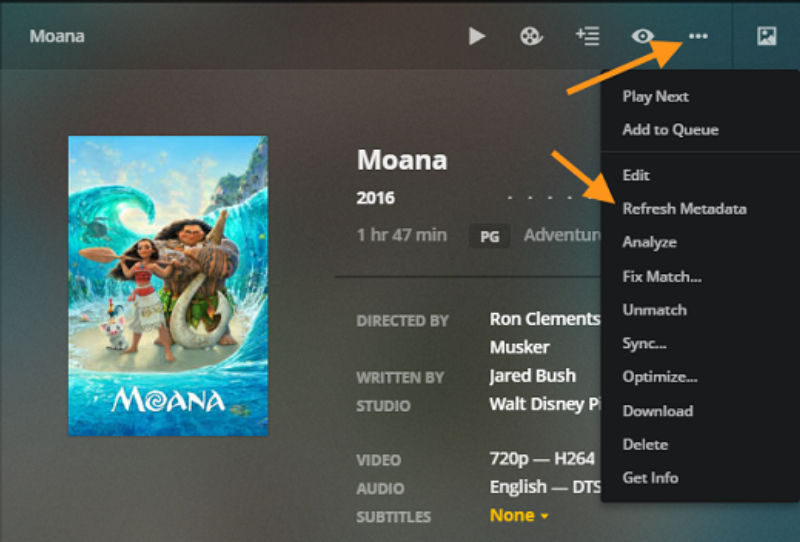
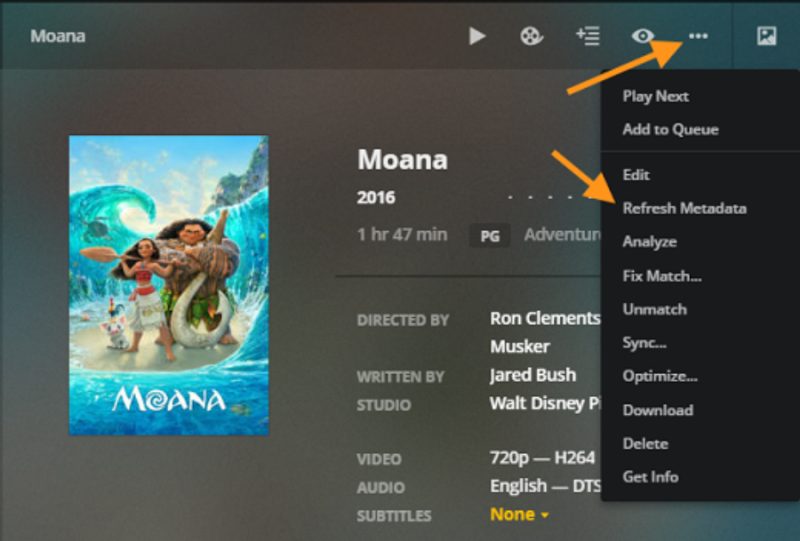
- Navigate to the specific item’s details page, or hover over its poster in the library view.
- Click the three-dot menu (…) that appears on the item.
- Select Refresh Metadata.
- Plex will check for local media assets such as artwork or subtitles, then pull fresh metadata for that title, episode, series, artist, or album.
This targeted refresh is handy when only one title looks wrong, since it avoids re-processing an entire library unnecessarily.
Set up automatic and periodic scanning
Rather than manually scanning every time you add a file, you can let Plex handle it for you.
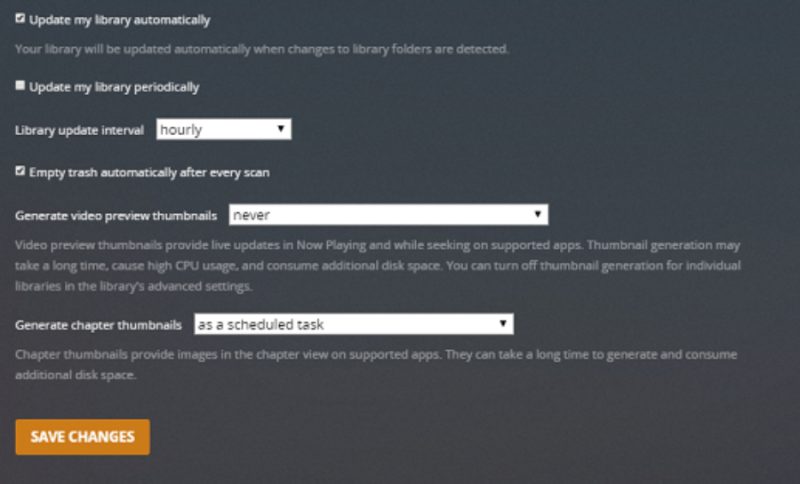
- Go to Settings, then Server, then Library in the Plex Web App.
- Turn on Update my library automatically if your media sits on a local filesystem. This uses your operating system to detect changes and trigger a scan, though it generally does not work reliably over network shares such as SMB or NFS.
- If automatic detection does not work for your setup, enable Update my library periodically instead.
- Set the Library update interval to a frequency that suits you, such as every 30 minutes, hourly, every 6 hours, or daily.
- Remember that periodic scans are timed from when the server last started, not from midnight or a fixed clock time.
Tips and troubleshooting
- If a scan is not finding new files, double-check the folder structure and naming, since poorly named files can fail to match correctly. See the guide on naming your TV shows and movies correctly for Plex for the accepted conventions.
- If posters or summaries look wrong after a refresh, the metadata agent may have matched the wrong title. Try refreshing that single item again or check the match manually.
- Automatic updates rely on your operating system’s file change notifications, which often fail over network-mounted drives. Switch to periodic scanning if you use NAS storage accessed via SMB or NFS.
- A refresh that gets interrupted, for example by the server shutting down mid-process, can leave items without artwork. Simply run Refresh All Metadata again once the server is back online.
- Large libraries can take a long time to fully refresh, so run this task when you do not need to stream immediately afterwards.
- If your whole server feels sluggish during scans and refreshes, it is worth optimising your Plex database for better performance and speeding up your Plex server over the network.
Frequently asked questions
What is the difference between scanning and refreshing in Plex?
Scanning checks your library folders for new, moved, or deleted files and only fetches metadata for anything new. Refreshing re-fetches metadata for everything in the library, including items that already have complete information, which is useful for fixing artwork or details that look wrong.
Why won’t my Plex library update automatically?
Automatic updates depend on your operating system detecting file changes, and this generally does not work over network shares such as SMB, NFS, or AFP. If your media is stored on a NAS or network drive, switch to periodic scanning instead, which runs on a fixed schedule regardless of file system notifications.
How long does refreshing a Plex library take?
It depends on the size of the library and the number of items involved. A small library might finish in minutes, while a large collection with thousands of titles can take a considerable amount of time, since Plex re-fetches metadata for every single item.
Will refreshing my library delete my watch history or ratings?
No. Refreshing metadata updates artwork, summaries, and other descriptive information, but it does not affect your watch history, ratings, or playlists. Those are stored separately in your Plex account and server database.