Watching a movie or show at the same time as friends and family who live somewhere else is trickier than it sounds, especially once someone hits pause to answer the door. Plex’s Watch Together feature solves this by syncing playback across everyone’s screens, so a pause, skip, or scrub on one device updates everyone else’s player at the same time. This guide walks you through setting up a session, inviting friends, and troubleshooting the common hiccups that come with group streaming.
Table of Contents
What you’ll need
- A Plex account, with everyone in the session also having their own Plex account
- An established Plex friendship with each person you want to watch with
- Access to the content you want to watch, either through Plex’s free streaming library or a personal Plex Media Server that has been shared with your friends
- A supported app or device, such as a phone, smart TV, streaming box, games console, or the Plex web app, updated to its latest version
- A stable internet connection for everyone joining the session
Setting up a Watch Together session
Once you have friends added on Plex and any personal media shared with them, starting a session takes only a few taps.
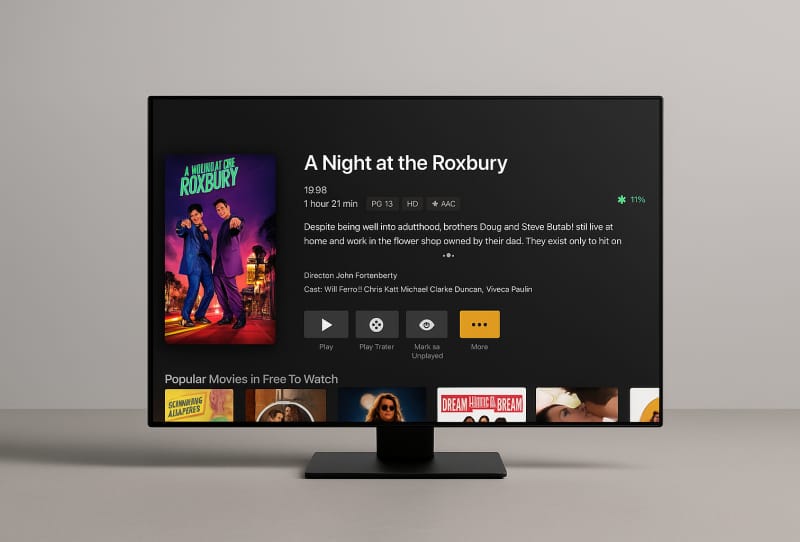
- Open the Plex app and find the movie or show you want to watch, then go to its details screen.
- Select the “More” (usually shown as three dots) button on that screen.
- Choose “Watch Together” from the menu that appears.
- Pick the friends you want to invite from your Plex friends list. If someone you want to invite isn’t listed, you’ll need to send them a friend request first and wait for them to accept.
- Send the invitation and wait in the lobby while your friends join.
- Once everyone has joined and marked themselves ready, playback will begin automatically for the whole group. You can also choose to start the session yourself and let others catch up from their own lobby screen.
Joining a Watch Together session
If a friend invites you to a session, Plex makes it easy to jump in.
- Look for a “Watch Together” row near the top of your Plex home screen after receiving an invite.
- Select the session to enter the lobby.
- If you have push notifications enabled on mobile, tap the notification to go straight into the lobby.
- Wait for the host to start playback, or mark yourself ready if the group is waiting on you.
If the invite doesn’t seem to show up, try restarting the app. Both the host and the invited friend sometimes need to relaunch their app after a new friendship or content share is approved before Watch Together will recognise it.
Controlling playback during the session
Any member of a Watch Together session can pause, resume, skip, or scrub through the timeline, and that action instantly applies to every other screen in the group. This means there is no single “host” controlling playback once the session is running. It also means a stray tap from any participant can pause the film for everyone, so it helps to agree on playback etiquette before you start, particularly with a larger group.
Tips and troubleshooting
- Make sure everyone is running an up-to-date version of their Plex app. Watch Together relies on all participants supporting the same syncing features, and an outdated app is the most common reason a session fails to line up.
- If personal media won’t play for an invited friend, double check that you’ve actually shared that library with them, not just added them as a friend.
- Availability of Watch Together can vary between platforms and app updates over time, since Plex periodically shifts which features live in which apps. If a device stops offering the option, the Plex web app is generally the most consistent place to find it.
- Large groups can suffer from buffering mismatches if one person has a much slower connection. If sync keeps drifting, ask the person with the weakest connection to lower their streaming quality manually.
- Restart the app on both ends if an invitation or a shared library doesn’t appear straight away. Plex often needs a fresh session to pick up recent permission changes.
Frequently asked questions
Does everyone need a Plex subscription to use Watch Together?
No paid subscription is required for the feature itself, though everyone needs a free Plex account and must be added as friends. If you’re watching personal media rather than Plex’s free streaming library, the host also needs to have shared that specific library with each participant.
Can I use Watch Together across different types of devices?
Yes. One friend can join from a phone, another from a smart TV, and another from the web app, as long as each device runs a supported and updated version of the Plex app. Mixing device types is common and generally works without issue.
Why can’t I find the Watch Together option on my device?
Support for the feature has shifted over time and isn’t guaranteed on every platform or app version. If it’s missing from your usual app, try the Plex web app, which tends to retain the feature most reliably, or check that your app is fully updated.
What happens if someone loses connection mid-session?
Playback continues for the rest of the group. The disconnected participant can usually rejoin the same session from the Watch Together row on their home screen and will be resynced to the current playback position automatically.