Getting Plex to correctly identify your movies and shows comes down to one thing more than any other: how you name your files and folders. This guide walks you through how to name files for Plex so the scanner can match your content to the right poster, summary, and metadata, without manual fixes or mismatched titles. It’s written for anyone setting up a new Plex library or cleaning up an existing one that keeps misidentifying content.
Table of Contents
What you’ll need
- A Plex Media Server already installed and running
- Access to the folder or drive where your media files are stored
- Your video files in a common format (such as MKV or MP4)
- A file manager or renaming tool on your computer or NAS
Why file naming matters for Plex
Plex relies on scanners and metadata agents to work out what each file actually is. These tools read the folder and file names rather than the video itself, so if a name is vague, misspelled, or mixes content types, Plex can match it to the wrong title or skip it entirely. Keeping movies, TV shows, and music in completely separate top-level folders is essential, since mixing them under one path often leads to poor matches or files being ignored altogether.
Set up separate library folders
- Create a main media folder on your drive, for example a folder called Media.
- Inside it, create separate subfolders for each content type, such as Movies, TV Shows, and Music.
- In Plex, point each library (Movies, TV Shows, and so on) to its matching top-level folder, not to the parent Media folder.
- Avoid placing any other content types inside these folders, even temporarily, as it can confuse the scanner.
Name your movie files and folders correctly
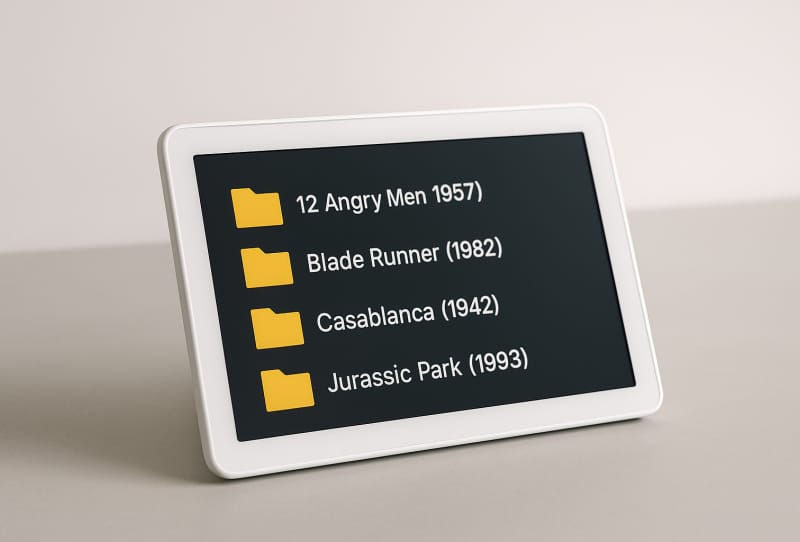
Plex recommends giving each movie its own folder, named the same as the file inside it. This speeds up scanning and gives you a tidy place to store extras like custom posters or subtitle files. The standard format looks like this:
- /Movies/Movie Name (release year)/Movie Name (release year).ext
For example, a folder named “Avatar (2009)” containing a file named “Avatar (2009).mkv” will be matched almost instantly. If you would rather skip individual folders, you can place movie files loosely in the main Movies folder using the same naming pattern, though Plex still recommends folders whenever you have extra files like posters or subtitles to keep alongside the video.
| Content type | Folder structure | File naming example |
|---|---|---|
| Standard movie | /Movies/Movie Name (Year)/ | Movie Name (Year).mkv |
| Stand-alone movie | /Movies/ | Movie Name (Year).mp4 |
| Movie with edition | /Movies/Movie Name (Year) {edition-Director’s Cut}/ | Movie Name (Year) {edition-Director’s Cut}.mkv |
| Movie with matching ID | /Movies/Movie Name (Year) {imdb-tt0000000}/ | Movie Name (Year) {imdb-tt0000000}.mp4 |
Add an IMDb or TMDb ID for tricky matches
Some titles are hard for Plex to match automatically, especially if they share a name with another film or use unusual characters. When using the current Plex Movie metadata agent, you can add the IMDb or TheMovieDB ID straight into the folder and file name using curly braces, in the form {imdb-ttXXXXXXX} or {tmdb-XXXXX}. This tells Plex exactly which title to pull metadata for, removing any guesswork.
Handle multiple editions of the same film
If you keep more than one version of a movie, such as a theatrical cut and a director’s cut, Plex can display them as separate editions rather than duplicate matches. Add the edition name in curly braces using the format {edition-Edition Name}, for example {edition-Final Cut}. It is best to include this tag in both the folder name and the file name for consistency, and you can combine it with an IMDb or TMDb ID if needed. This feature depends on the newer Plex Movie agent and generally requires a Plex Pass subscription for the server admin account.
Dealing with movies split across multiple files
Occasionally a film is stored as separate parts rather than one file. Plex can sometimes stitch these together for playback, but support is limited and can affect features like chapter thumbnails or subtitle selection. If you do use split files, keep them in the movie’s own folder and label each part with a suffix such as pt1, pt2, cd1, cd2, or part1, part2, keeping the same file format and matching audio and subtitle tracks across all parts. Wherever possible, it is more reliable to join the parts into a single file using a video merging tool before adding it to your library.
Naming TV show files
TV content follows its own conventions around season and episode numbering, which differ enough from movies to deserve their own explanation. For full details on structuring show folders and episode file names, see this guide on naming TV shows correctly for Plex, or this broader guide covering naming TV shows and movies for Plex if you are setting up both libraries at once.
Tips and troubleshooting
- Double check that hidden file extensions are not throwing off your naming, since some operating systems hide them by default.
- Keep release years accurate, as an incorrect year is one of the most common causes of mismatched movies.
- Avoid extra text in file names, such as resolution tags or release group names, directly before the file extension where possible.
- If a title still will not match after renaming, add an IMDb or TMDb ID to force the correct result.
- After renaming files, remember to refresh your Plex library after adding content so the changes are picked up.
- If you are still building out your collection, this guide on how to add and organise movies in your Plex library covers the next steps once naming is sorted.
Frequently asked questions
Why does Plex keep matching my movie to the wrong title?
This usually happens when the release year is missing or wrong, or when the file name contains extra clutter that confuses the scanner. Adding an IMDb or TMDb ID in curly braces is the most reliable fix.
Do I need to put every movie in its own folder?
Not strictly, but it is recommended. Individual folders scan faster and give you a tidy place to store posters, subtitles, or edition tags alongside the main video file.
Can I mix movies and TV shows in the same library folder?
No. Plex expects each content type in its own top-level folder. Mixing them can lead to poor matches or files being skipped by the scanner entirely.
What file extension should I use?
Plex supports most common video formats, including MKV and MP4. The naming rules apply regardless of format, so keep the extension as is and focus on getting the title, year, and folder structure right.