Adding new movies or episodes to your media folder does not always mean they appear in Plex straight away. This guide walks you through how to refresh your Plex library after adding content, so your new files show up with the correct posters, descriptions, and other details. It is written for anyone running a Plex Media Server, whether on a home PC, a NAS, or a dedicated server box.
Table of Contents
What you’ll need
- A working Plex Media Server with at least one library already set up
- Admin access to the Plex Web App or server owner login
- New media files already copied into the correct library folder
- Files named in a way Plex can recognise (see the guide on naming your TV shows and movies correctly for Plex if content is being matched incorrectly)
Scan versus refresh: know the difference first
Before you click anything, it helps to understand that Plex actually offers two separate actions, and picking the wrong one wastes time. A scan checks your library folders for new, moved, or deleted files and pulls in anything new. A refresh, on the other hand, re-fetches metadata for items that are already in the library, even if they already have artwork and details. Whenever you have just added content, a scan is almost always what you want first.
| Action | What it does | When to use it |
|---|---|---|
| Scan Library Files | Checks folders for new, renamed, moved, or deleted files and fetches metadata for anything new | After adding, moving, renaming, or deleting media files |
| Refresh Metadata | Re-downloads metadata, posters, and summaries for items, even ones that already have this information | After changing agent settings, adding local artwork or subtitles, or fixing broken posters |
How to scan your library after adding content
- Open the Plex Web App and sign in with your server account.
- In the left-hand navigation sidebar, find the library you added content to (for example, Movies or TV Shows).
- Hover over the library name and click the three-dot menu (…) that appears.
- Select “Scan Library Files” from the menu.
- Wait for Plex to finish checking the folder. Larger libraries or slow network storage can take a while, so give it a few minutes before assuming something is wrong.
- Refresh the library view in your Plex app to confirm the new titles now appear.
How to refresh metadata if content still looks wrong
If your new files have appeared but are missing posters, have the wrong summary, or show incorrect artwork, a metadata refresh will usually fix it.
- Go to the library or specific title that needs fixing.
- For an entire library, open the three-dot menu next to the library name and choose “Manage Library,” then select “Refresh All Metadata.”
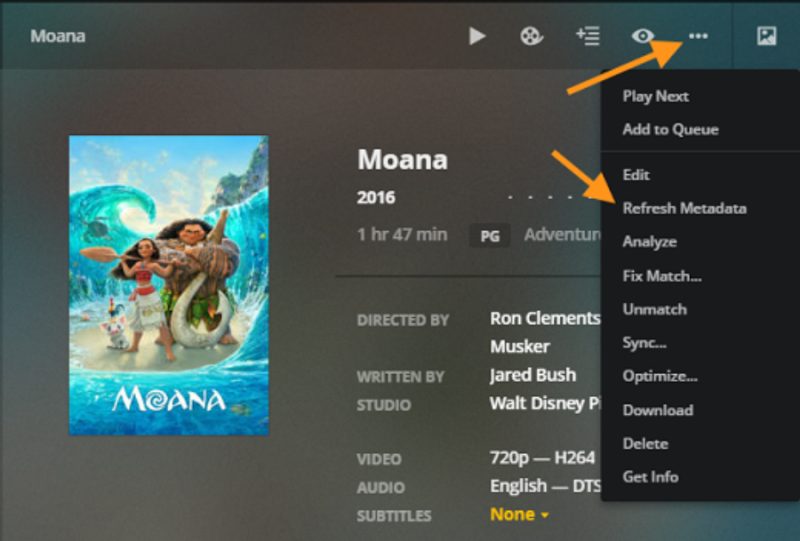
- For a single item, hover over its poster or open its details page, click the three-dot menu, and choose “Refresh Metadata.”
- Allow Plex time to re-fetch details from its metadata agents. Refreshing an entire library can take considerably longer than a single item, since every file is reprocessed.
Automate future scans
Rather than manually scanning every time you add content, you can let Plex handle it automatically. Under Settings > Server > Library, enable “Update my library automatically” so Plex detects new files on local drives without any input from you. This does not reliably work for content stored on network shares such as SMB or NFS, so if your media lives on network-attached storage, turn on “Update my library periodically” instead and choose an interval, such as every 30 minutes or hourly, that suits how often you add new files.
Tips and troubleshooting
- If a scan finds nothing new, double check the files are actually inside the folder path Plex is monitoring for that library, not a subfolder it does not watch.
- Automatic scanning generally does not work over network shares, so periodic scanning is the more reliable option for NAS-based libraries.
- If posters or summaries look outdated after a refresh, it may be a temporary connection issue with the metadata agent rather than a problem with your files.
- Renaming files incorrectly is one of the most common reasons new content fails to match properly during a scan.
- A slow or unresponsive scan on a large library can sometimes be improved by optimising your Plex database or checking your speed up your Plex server over the network settings.
Frequently asked questions
Why doesn’t my new content show up in Plex automatically?
This usually happens because the automatic scanning feature does not work reliably over network shares, or because the library has not been scanned since the file was added. Manually scanning the library files, or switching to periodic scanning, generally resolves it.
Should I use scan or refresh after adding a new movie?
Use a scan first, since it is designed to detect new files and pull them into the library. Only use refresh afterwards if the item appears but is missing artwork or has incorrect details.
How long does refreshing an entire Plex library take?
It depends heavily on the size of the library and your server’s hardware, since every single item gets its metadata re-fetched. Small libraries may finish in minutes, while very large collections can take considerably longer.
Can I refresh just one TV show instead of the whole library?
Yes. Open the show’s details page, use the three-dot menu, and choose “Refresh Metadata” to update that series alone without touching the rest of your library.