If your games feel sluggish, stutter during busy scenes, or just don’t look as smooth as you’d expect from your hardware, the fix often has nothing to do with buying new parts. This guide walks you through how to optimise your PC gaming settings for better performance, covering graphics options, drivers, background processes, and display settings, so you can get more consistent frame rates from the hardware you already own.
Table of Contents
What you’ll need
- A Windows PC with a dedicated or integrated graphics card
- Administrator access to install driver updates and change system settings
- A game or benchmark tool to test changes as you make them
- Roughly 30 to 60 minutes to work through settings methodically
Update your graphics drivers first
Outdated drivers are one of the most common causes of poor performance and stuttering, so this step comes before anything else.
- Identify whether your system uses an NVIDIA, AMD, or Intel graphics card.
- Download and install the latest driver directly from the manufacturer’s official software, such as NVIDIA GeForce Experience or AMD Software Adrenalin Edition.
- Restart your PC after installation, even if it isn’t strictly required, to clear out any lingering processes.
- Check for Windows updates separately, since chipset and system drivers can also affect performance.
Adjust in-game graphics settings
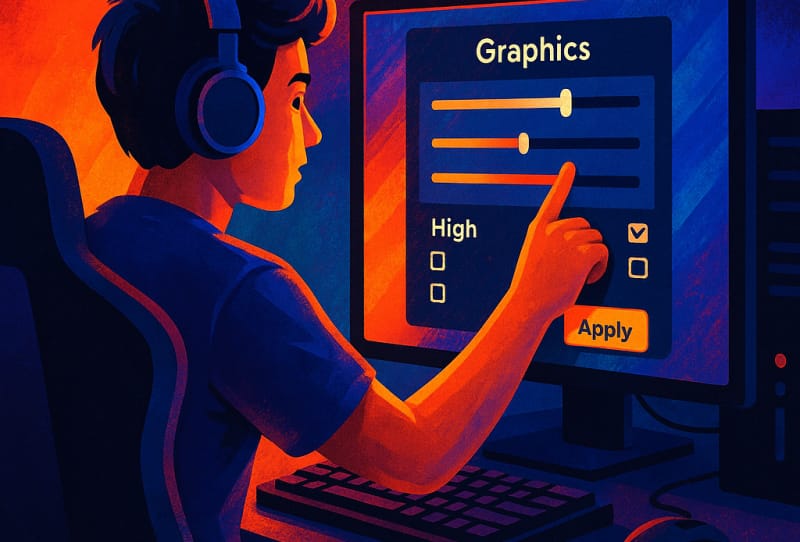
Once your drivers are current, the biggest performance gains usually come from adjusting individual graphics settings inside each game rather than relying on a single global toggle.
- Open the game’s video or graphics settings menu before starting a session.
- Lower or disable shadows and ambient occlusion first, as these tend to be expensive for frame rate relative to their visual impact.
- Reduce anti-aliasing to a lighter method or turn it off if edges aren’t a priority for you.
- Set texture quality based on your available video memory rather than your overall GPU power, since textures mostly affect VRAM usage.
- Turn down or disable ray tracing and other advanced lighting effects if your frame rate drops significantly with them enabled.
- Enable an upscaling technology if the game supports one, since this can noticeably boost frame rates with a modest quality trade-off.
- Test after each change rather than adjusting everything at once, so you know exactly which setting made the difference.
Match your resolution and refresh rate
Running a resolution or refresh rate mismatched to your hardware wastes potential performance or leaves visual quality on the table.
- Set your monitor to its native resolution in both Windows display settings and in-game options.
- Confirm your monitor’s refresh rate is set correctly in Windows display settings, particularly after connecting a new cable or monitor.
- If frame rates are consistently below your monitor’s refresh rate, consider lowering resolution slightly rather than dropping multiple graphics settings at once.
- Enable a frame rate limiter close to your monitor’s refresh rate to reduce input lag and avoid unnecessary GPU strain.
Reduce background load on your system
Even a powerful graphics card can be held back by background software competing for CPU time, memory, or disk access.
- Close unnecessary browser tabs, chat overlays, and recording software before launching a game.
- Check Task Manager for high CPU or memory usage from background applications and close anything non-essential.
- Disable startup programs you don’t need running constantly, especially update checkers and cloud sync tools.
- Pause large downloads or cloud backups while gaming, since they compete for disk and network resources.
Fine-tune Windows and power settings
- Set your Windows power plan to a high-performance or balanced option rather than a power-saving mode while gaming.
- Ensure your GPU control panel is set to prioritise performance for games rather than power saving, particularly on laptops.
- Keep your PC’s storage drive with enough free space, since a nearly full drive can slow load times and background operations.
- Check that your GPU isn’t thermal throttling by monitoring temperatures during a demanding session, as overheating silently reduces performance.
Tips and troubleshooting
- Change one setting at a time and note the effect, since stacking multiple changes makes it hard to identify what actually helped.
- Use an on-screen frame rate counter or overlay to see real numbers rather than judging smoothness by feel alone.
- If performance suddenly drops after a Windows or driver update, rolling back the driver can sometimes resolve regressions.
- Dust build-up inside a PC can raise temperatures and cause throttling, so a physical clean-out is worth doing periodically.
- If you’ve optimised software settings and still see poor performance, the bottleneck may be your CPU, RAM, or storage rather than the graphics card. If you’re at that point, it may be worth reviewing upgrading your processor and RAM.
- If you’re building or recently finished setting up a gaming PC after building it, apply these optimisation steps early so you have a performance baseline to compare against later.
Frequently asked questions
What is the single most effective setting to change for better FPS?
Shadow quality and ambient occlusion usually offer the best trade-off, since they demand significant GPU resources but often have limited visible impact once lowered a step or two.
Should I use ultra settings if my PC can handle them?
Not necessarily. Many ultra presets offer minimal visual improvement over high settings while costing a disproportionate amount of frame rate, so it’s worth testing high settings first.
Does upgrading hardware make more difference than adjusting settings?
It depends on your bottleneck. If your graphics card is several generations old or your CPU is underpowered, software tweaks will only go so far, and matching your PC’s budget to performance goals can help you decide whether an upgrade is worthwhile.
Why does my frame rate drop even after optimising settings?
Background applications, overheating, insufficient RAM, or an ageing storage drive can all cause drops that settings changes alone won’t fix. Check Task Manager and temperatures before assuming the game itself is the problem.