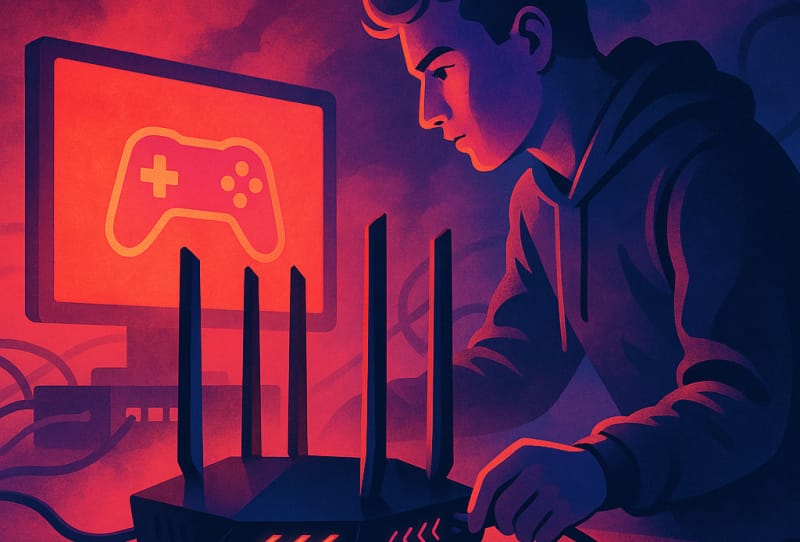
Lag during a match usually comes down to how your network is set up, not just your internet plan. This guide walks you through configuring a gaming router for low lag, covering placement, wired connections, Quality of Service settings, and firmware tweaks that actually make a difference. It is written for anyone gaming on PC or console at home who wants steadier ping and fewer dropped packets, whether you already own a dedicated gaming router or are configuring a standard one with gaming in mind.
Table of Contents
What you’ll need
- A router that supports Quality of Service (QoS) or gaming priority features
- An ethernet cable long enough to reach your gaming PC or console
- Access to your router’s admin settings (usually via a web browser or companion app)
- The IP address or hostname of the device you want to prioritise
- A way to test your connection, such as an online speed and latency tool
Start with placement and wiring
Before touching any settings, deal with the physical basics. Wireless signal strength and interference cause more lag spikes than most software settings ever will.
- Position the router in a central, elevated, open spot, away from walls, metal cabinets, and other electronics that can interfere with the signal.
- Keep the router away from microwaves, cordless phones, and baby monitors, which share similar frequencies and can cause interference.
- Wherever possible, connect your gaming PC or console directly to the router using an ethernet cable rather than relying on Wi-Fi. A wired connection removes wireless interference entirely and gives you the most consistent ping.
- If a wired connection is not practical, use the 5GHz or 6GHz band instead of 2.4GHz, since these bands typically offer lower latency and less congestion, provided you are within a reasonable range of the router.
Configure Quality of Service (QoS)
QoS lets your router prioritise gaming traffic over less time-sensitive activity like downloads or streaming, which is one of the most effective ways to build a gaming router for low lag.
- Log into your router’s admin panel, usually through a web browser using the router’s IP address, or through its dedicated app.
- Find the QoS or traffic prioritisation section. On many gaming-focused routers, this may be labelled as a gaming mode or gaming priority feature.
- Add your gaming device (PC or console) to the priority list, either by selecting it from a connected devices list or entering its IP address manually.
- Set the priority level for that device to the highest available option, so gaming traffic gets first access to bandwidth during busy periods.
- Save the changes and restart the router if prompted, so the new rules take effect properly.
Reduce network congestion
Even with QoS enabled, too many devices competing for bandwidth at once can still introduce delay.
- Pause or limit large downloads, cloud backups, and 4K streaming on other devices while gaming, since these can consume bandwidth QoS has not fully deprioritised.
- Disconnect devices you are not actively using, particularly ones that run background updates, like smart TVs or game consoles left in standby.
- If your router supports it, set up a separate network band or guest network for smart home devices and general browsing, keeping your gaming device’s bandwidth clearer.
- Check for a wired backhaul option if you use a mesh Wi-Fi system, since wireless mesh backhauls can add latency compared to a wired connection between nodes.
Fine-tune router and connection settings
- Update your router’s firmware to the latest version through its admin panel, since manufacturers regularly release updates that improve stability and reduce latency issues.
- Disable features you do not need, such as guest networks or unnecessary smart home integrations, which can add background traffic.
- If your router offers a “gaming mode” or similar toggle, enable it, as this often adjusts buffer settings and prioritisation automatically.
- Set up port forwarding for the specific game or platform you play most, following the game’s documentation for which ports to open, so your connection type shows as open rather than restricted.
- Avoid unnecessary VPN use while gaming unless required, since routing traffic through a VPN server usually adds extra distance and delay to your connection.
Test and confirm the improvement
- Run a baseline test before changes using an online tool, so you have a reference point for ping, jitter, and download and upload speeds.
- After making changes, run the same test again and compare the results, paying close attention to ping and jitter rather than just download speed.
- Test during peak usage hours, such as evenings, when household internet use is highest, since this is when lag is most noticeable.
- Load into a match or online session and monitor in-game ping if the title displays it, to confirm the real-world result matches your test.
Tips and troubleshooting
If lag persists after configuring QoS and switching to a wired connection, check whether your internet plan itself has enough bandwidth for your household’s combined usage. A router cannot compensate for a connection that is genuinely oversubscribed. If you notice lag spikes at specific times, it may be your internet provider’s network experiencing congestion rather than anything happening inside your home. Restarting the router periodically also helps, since some routers slow down or develop memory issues after extended uptime. If you are gaming on a desktop, it is worth reviewing your setup more broadly, including how you arranged everything after setting up a gaming PC after building it, since cable routing and desk placement can affect how easily you connect directly to the router. For console gamers, the same wiring principles apply whether you are setting up a gaming console in your bedroom or in a shared living space.
Frequently asked questions
Does a gaming router actually reduce lag?
A gaming router does not change your internet speed, but its QoS features, stronger processors, and prioritisation tools can noticeably reduce jitter and lag spikes, especially in a busy household with multiple devices online at once.
Is a wired connection really better than Wi-Fi for gaming?
Yes, in almost all cases. Ethernet removes wireless interference and provides a more stable, consistent connection, which matters more for lag than raw speed alone.
What is a good ping for online gaming?
Generally, under 20 milliseconds is excellent, 20 to 50 milliseconds is good for most competitive games, and anything above 100 milliseconds is likely to feel noticeably delayed.
Should I enable QoS on all my devices?
No, QoS works best when you prioritise only the device you are actively gaming on. Prioritising too many devices at once defeats the purpose, since the router can no longer clearly favour your gaming traffic over everything else.
Getting a gaming router for low lag right is mostly about consistency rather than chasing the fastest possible numbers. Combine sensible placement, a wired connection where possible, and properly configured QoS, and you should notice steadier ping and far fewer frustrating spikes during play. For further reference on wireless standards affecting your setup, the Wi-Fi Alliance is a useful resource, and you can always run a speed and latency test to confirm your changes are working.