Setting up Plex remote access lets you stream your own movies, TV shows, and music from your home server to any device with an internet connection, whether you are at work, travelling, or staying with family. This guide walks you through enabling remote access on your Plex Media Server, configuring your router if needed, and fixing the most common problems that stop it from working.
Table of Contents
What you’ll need
- A working Plex Media Server, signed in to your Plex account (remote access will not work without this)
- Administrator access to your home router
- A reasonably stable internet connection with enough upload speed to stream video
- The Plex Web App, or the Plex app on your computer, to access server settings
If you have not yet installed Plex on your home computer or NAS, it helps to work through setting up a Plex Media Server on your PC first, since remote access is configured from within the server settings once it is running.
Enabling Plex remote access
- Open the Plex Web App and sign in with the same account used on your Plex Media Server.
- Go to Settings, then select Server, and click on Remote Access.
- Click Enable Remote Access. Plex will attempt to automatically configure a connection through your router using UPnP or NAT-PMP.
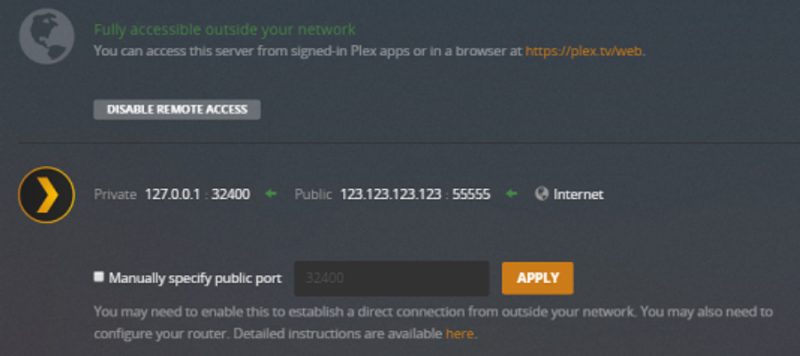
- Wait for the server to test the connection. If successful, the page will show that remote access is enabled, along with your public address details.
- If the automatic setup fails, note the failure and move on to manual port forwarding below.
Many home routers support UPnP or NAT-PMP, which allows Plex to open the necessary port automatically without any manual configuration. If your router supports one of these and it is switched on, this step is often all you need.
Setting up manual port forwarding
If automatic configuration does not work, you will need to forward a port manually through your router. This is common on routers with UPnP disabled, on certain ISP-supplied modems, or in a double-NAT setup where two routers sit between your server and the internet.
- Log in to your router’s admin interface, usually through a web browser at its local IP address.
- Find the port forwarding section, sometimes labelled Virtual Server or NAT forwarding.
- Create a rule that forwards an external port of your choosing to internal port 32400 on the local IP address of the device running your Plex Media Server.
- Save the rule and restart the router if prompted.
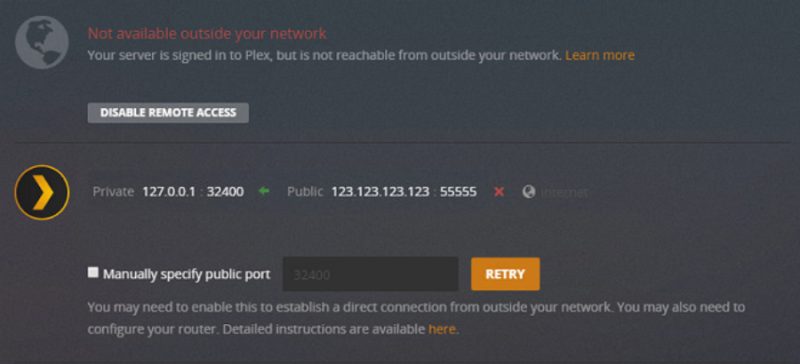
- Back in Plex, go to Settings, Server, Remote Access, and tick Manually specify public port.
- Enter the external port number you chose in your router, then click Retry.
It is important to give your server device a static or reserved local IP address before forwarding a port, otherwise the forward can break if your router assigns a different address later. Most routers allow you to reserve an IP address for a specific device through DHCP settings.
Checking your connection and speeds
Once remote access shows as enabled, it is worth reviewing a couple of extra settings so remote streaming actually performs well, not just connects.
- Internet upload speed: set this to match your actual upload speed, which you can check using a speed testing service. Setting it too high can cause buffering for remote viewers, since Plex will try to stream at a bitrate your connection cannot sustain.
- Limit remote stream bitrate: this caps how much bandwidth any single remote stream can use, which is useful if multiple people might watch at once.
The Server Mapping section under Advanced Settings shows your private and public IP addresses, which is a handy way to confirm the connection is actually established between your server, your router, and the internet.
Tips and troubleshooting
- Always make sure your server is signed in to your Plex account first. Remote access simply will not function if the server is not signed in.
- If you manually forwarded a port, you must tick the manual port option in Plex settings. Leaving it unticked means the server keeps trying to auto-configure and will likely fail.
- Double-NAT situations, such as having a modem and a separate router both handling network address translation, often block automatic setup. Check whether your modem has a bridge mode you can enable to remove one layer of NAT.
- If streams buffer constantly, lower the internet upload speed setting or the remote stream bitrate limit, since an overestimated upload speed is a common cause.
- Firewall software on your server computer can also block the required port, so check that Plex is allowed through both your router and any local firewall.
- If your library seems out of date after adding new content, a Plex library refresh can help make sure remote viewers see the latest additions.
If you still cannot get a connection after trying the steps above, working through a dedicated remote access troubleshooting guide or Plex’s own troubleshooting guide can help pinpoint router-specific issues.
Frequently asked questions
Why does Plex remote access keep saying it is not available?
This usually means the automatic port mapping failed, often due to UPnP being disabled on your router, a double-NAT setup, or an ISP that blocks incoming connections. Try manual port forwarding, and confirm your server is signed in to your Plex account.
Do I need a Plex Pass to use remote access?
Basic remote access itself does not require a subscription. However, features like setting a custom internet upload speed or limiting remote stream bitrate do require an active Plex Pass on the server’s admin account.
Is it safe to open a port on my router for Plex?
Forwarding a single port to your Plex server is a common and generally low-risk setup, provided you keep your server software updated and use a unique account password. Avoid forwarding unnecessary ports, and only expose port 32400 (or your chosen external port) as required.
Can I watch Plex remotely on my phone or a smart TV?
Yes, once remote access is working, you can stream through the Plex app on phones, tablets, smart TVs, streaming boxes, and dedicated media players. Devices like those discussed in the Dune HD Solo 8K review can also connect to a remote Plex server for playback away from home.