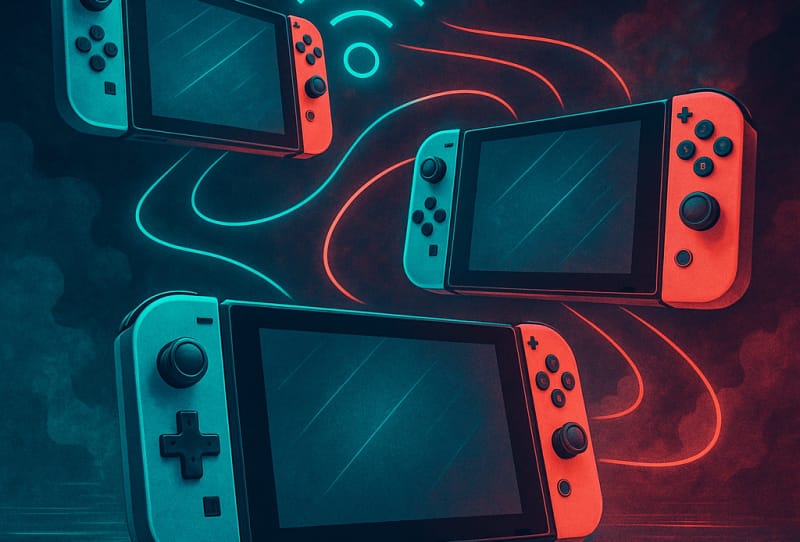
Playing Mario Kart, Splatoon, or Super Smash Bros with friends on separate screens is one of the best reasons to own a Nintendo Switch. To do this, you need to link multiple Nintendo Switch systems together over local wireless, which lets nearby consoles talk to each other without a router or internet connection. This guide walks you through setting that up correctly, whether everyone owns their own copy of the game or you want to share it using Download Play.
Table of Contents
What you’ll need
- Two or more Nintendo Switch consoles (any mix of models will generally work together)
- A compatible game that supports local wireless multiplayer, installed on at least one console
- One set of controllers per console, or per player if playing solo per system
- All consoles updated to a recent system software version
- Enough space to sit the consoles within a few metres of each other, with no major obstructions between them
How to link multiple Nintendo Switch systems for local play
- Update the system software on every console you plan to use. Go into System Settings, select System, then Update Software, and confirm each console is current. Mismatched software versions can occasionally block local wireless connections between consoles.
- Check that each console has the same game installed, or confirm the game supports Download Play if you want to share it from a single copy. Not every title supports Download Play, so check the game’s multiplayer menu if you are unsure.
- Place all the Switch consoles close together, ideally within a few metres, and remove any large metal objects or thick walls between them, since these can weaken the wireless signal.
- Power on every console and launch the same game on each one.
- From the game’s main menu, select the multiplayer or local wireless option. Most titles list this separately from online play, so look for wording like “Local Wireless” or “Local Play”.
- On one console, create a new local wireless group or room. This console effectively acts as the host for that session.
- On each of the other consoles, choose to search for or join a local wireless group. The host’s session should appear in a list within a few seconds.
- Select the host’s group to connect. Repeat this step for every additional console joining the match.
- Once all consoles show as connected, have each player choose their character, vehicle, or loadout as required by the game.
- Confirm everyone is ready, then start the match from the host console.
Using Download Play to share a single game copy
Some games let one console with the full game temporarily share a scaled-down version with other nearby Switch consoles that do not own it. This is called Download Play, and it is handy for casual sessions where not everyone has purchased the title.
- On the console that owns the game, open it and look for a Download Play or local play option in the main menu.
- Select the mode you want to share, then let the other consoles search for and download the temporary data over local wireless.
- Keep in mind that Download Play sessions are usually limited in scope compared with the full game, often restricting things like save data, extra modes, or online features.
- Once every console has finished downloading, follow the same steps as a normal local wireless match to start playing.
Tips and troubleshooting
- If a console cannot find the host’s session, move the systems closer together and make sure none of them are in airplane mode.
- Some apartment buildings and offices have heavy wireless interference from other networks, which can make local wireless connections drop out. Moving to a different room sometimes solves this.
- Consoles registered to different regions can sometimes run into compatibility issues with certain game versions. If you are connecting consoles bought overseas, it is worth reading about changing your Switch region to understand how region settings can affect shared play.
- Battery life drops faster during local wireless multiplayer, so top up each console beforehand, and consider learning how to keep your controllers charged without a dock if you are playing away from a TV setup.
- If you are hosting a group session in a shared household, it can help to look at adding family members to your Nintendo account so everyone has their own profile and save data on hand.
- For anyone still finalising their main console setup before hosting a multiplayer night, the basics of setting up a Switch on your TV are worth revisiting first.
Frequently asked questions
How many Nintendo Switch systems can be linked at once?
This depends entirely on the game. Many titles support anywhere from two to eight consoles in a single local wireless session, so check the specific game’s multiplayer details for its exact limit.
Do all players need their own copy of the game?
Not always. If the game supports Download Play, one console with the full game can share a temporary copy with others nearby. Otherwise, each console generally needs its own installed copy to join a local wireless match.
Does linking multiple Switch systems require an internet connection?
No. Local wireless play works directly between nearby consoles using their own wireless radios, so you do not need Wi-Fi, a router, or mobile data for it to work.
Why can’t my consoles find each other for local play?
This is usually caused by distance, physical obstructions, outdated system software, or airplane mode being switched on. Moving the consoles closer together and checking for pending software updates resolves most connection issues.