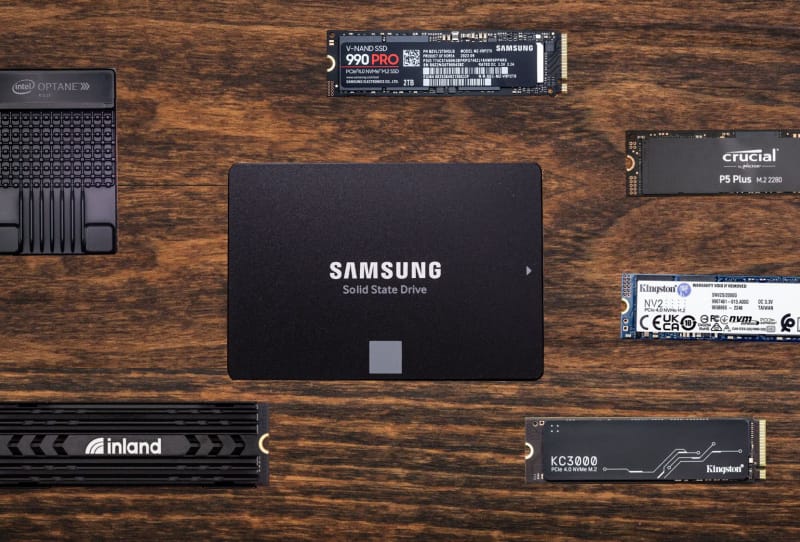
The best PCIe Gen 5 SSD for gaming is whichever drive your motherboard and CPU actually support at full speed, paired with enough cooling to avoid throttling and enough capacity for your games library. This guide walks you through how to choose one properly, rather than just picking the model with the biggest number on the box, and it is written for anyone building or upgrading a gaming PC who is wondering whether Gen 5 storage is worth the jump.
Key takeaways
- ✓A PCIe Gen 5 SSD only reaches its full speed on a motherboard and CPU combination that officially supports Gen 5 NVMe.
- ✓Most Gen 5 drives need a heatsink or active cooling, since sustained transfers can push them into thermal throttling.
- ✓PlayStation 5 officially requires a PCIe Gen 4 NVMe SSD for storage expansion, so Gen 5 drives are not a supported fit there.
- ✓Game load times benefit far less from raw sequential speed than large file transfers and content creation workloads do.
- ✓2TB or 4TB capacity suits most gaming builds better than chasing maximum bandwidth on a smaller drive.
Table of Contents
What you’ll need
- A motherboard and CPU platform that officially supports PCIe Gen 5 NVMe, not just a Gen 5 graphics slot
- A free M.2 slot wired for Gen 5 speeds (check your motherboard manual, since some boards only wire one slot that fast)
- A Phillips-head screwdriver and the small mounting screw that came with your motherboard
- Thermal paste or pads if your chosen SSD does not already include a heatsink
- Your Windows installation media or an existing OS drive, if this will be a secondary storage drive
Step 1: Confirm your platform actually supports PCIe Gen 5 storage
- Check your motherboard’s specification sheet for an M.2 slot explicitly listed as PCIe 5.0 x4, since Gen 4 and Gen 5 slots often look identical.
- Confirm your CPU generation supports Gen 5 lanes for storage, as some platforms only route Gen 5 to the graphics card slot and leave M.2 storage on Gen 4.
- Look up which specific M.2 slot on the board is Gen 5 rated, since boards frequently have one fast slot closest to the CPU and slower slots further away.
- Update your motherboard’s BIOS to the latest version before installing a new drive, since early firmware on some boards has had compatibility issues with newer Gen 5 SSDs.
Step 2: Match the SSD to your actual gaming workload
- Decide on capacity first. Most current game installations comfortably fit on a 2TB drive, while anyone installing dozens of large titles should look at 4TB.
- Check the drive’s sustained write performance, not just its peak sequential read number, since many Gen 5 drives slow down once their fast cache fills on long transfers.
- Look at whether the controller and NAND combination is aimed at consumer gaming use or data centre workloads, since some Gen 5 drives are tuned for sustained server style writes rather than typical gaming bursts.
- Check for DirectStorage support if you want faster game asset streaming, though remember most of today’s titles still see a modest real-world benefit from the jump beyond Gen 4 speeds.
Step 3: Plan for heat before you buy
- Assume you will need a heatsink. Gen 5 SSDs run considerably hotter than Gen 4 drives under sustained load, and throttling can undo any speed advantage.
- Choose a drive with an included heatsink if your case has limited clearance under the graphics card, since aftermarket heatsinks can be too tall for some M.2 slots.
- Check your motherboard’s own M.2 heatsink or active fan accessory if one is included, as many boards now ship with dedicated cooling for the primary Gen 5 slot.
- Avoid stacking the SSD directly beneath a graphics card with no airflow gap, since trapped heat from the GPU can push an already warm SSD further into throttling.
Step 4: Install and set up the drive
- Power down the PC, unplug it, and ground yourself before handling any components.
- Remove the existing M.2 heatsink cover if present, insert the SSD at an angle into the correct Gen 5 slot, then press it flat and secure it with the mounting screw.
- Reattach any heatsink or thermal pad, making sure contact is firm and even across the chips.
- Boot into BIOS to confirm the drive is detected at the correct PCIe generation and lane width before installing an operating system or formatting it for games.
- Initialise and format the drive in Windows, then move or reinstall games onto it as needed.
Where Gen 5 storage makes the most difference
Desktop gaming PCs are the main place PCIe Gen 5 SSDs currently make sense, particularly builds based on high core count chips such as a Ryzen 9 9950X3D mini PC style build, where fast storage pairs well with strong CPU and GPU performance for streaming, large asset libraries, or content creation alongside gaming. Thin and light laptops are a different story. Devices like the Gigabyte AORUS 15 BKG, along with many business-focused machines such as the HP ZBook, HP OmniBook 5, HP ZBook Ultra G3A, Panasonic Let’s Note SC7, and compact machines like the Okinos Air Cross, generally rely on PCIe Gen 4 drives rather than Gen 5, since battery life and thinner cooling systems make Gen 5’s extra heat output a harder trade-off to justify. The same applies to handheld gaming devices and modded builds, including the trend of turning a Mac mini chassis into a handheld gaming mod, where thermal headroom and battery capacity matter more than chasing peak sequential speeds.
| PCIe generation | Approximate bandwidth per lane | Typical gaming use case |
|---|---|---|
| PCIe 3.0 | ~1 GB/s | Older gaming PCs, budget builds |
| PCIe 4.0 | ~2 GB/s | Current consoles, most gaming laptops, mainstream desktops |
| PCIe 5.0 | ~4 GB/s | High-end desktops, content creation, future-proofing |
Tips and troubleshooting
- If your drive is detected at a slower PCIe generation than expected, reseat it fully and check that the BIOS has the slot set to automatic or native PCIe 5.0 mode.
- If game load times barely improve over your old Gen 4 drive, that is expected for most titles today, since few games are built to push Gen 5 bandwidth fully.
- If your SSD runs hot and throttles during long installs or transfers, add a better heatsink or improve case airflow before assuming the drive is faulty.
- If you are building around a motherboard like an ASUS TUF Gaming B850M-Plus WiFi, check the manual for which specific M.2 slot carries full Gen 5 bandwidth before installing your fastest drive there.
Frequently asked questions
Do I need a PCIe Gen 5 SSD for gaming right now?
Most games today do not fully use the extra bandwidth a Gen 5 drive offers over Gen 4, so it is more of a future-proofing choice than a requirement for smoother gameplay right now.
Can I use a PCIe Gen 5 SSD in a PS5?
No. PS5 storage expansion officially calls for a PCIe Gen 4 NVMe SSD that meets Sony’s specific speed and form factor requirements, and Gen 5 drives are not a supported fit for that console.
Will a PCIe Gen 5 SSD work in a Gen 4 motherboard slot?
Yes, Gen 5 drives are backward compatible and will run in a Gen 4 slot, but they will operate at Gen 4 speeds rather than their full rated performance.
Why do PCIe Gen 5 SSDs need heatsinks?
The higher data transfer rates generate more heat in the controller and NAND chips, and without adequate cooling the drive can throttle its speed to protect itself during sustained use.