Watching movies or shows from a friend’s Plex server is one of the easiest ways to enjoy their collection without copying a single file to your own device. This guide walks you through how to access a friend’s Plex library remotely, from accepting their invitation to finding the shared content and playing it back on your phone, tablet, or smart TV, wherever you happen to be.
Table of Contents
What you’ll need
- A free Plex account (or the willingness to create one when you accept the invite)
- An invitation from your friend to their shared library, sent by email or as a direct link
- The Plex app installed on your device, or access to the Plex Web App through a browser
- A reasonably stable internet connection, since you’ll be streaming over the internet rather than a local network
- Confirmation from your friend that their server has remote access enabled
Before you start: what your friend needs to do
Before you can watch anything, your friend has to grant you access from their end. If you’re the one hosting the server instead, this section is for you.
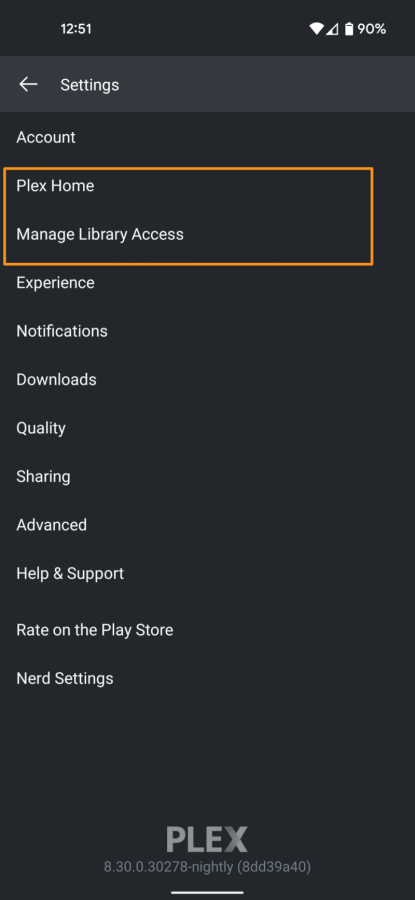
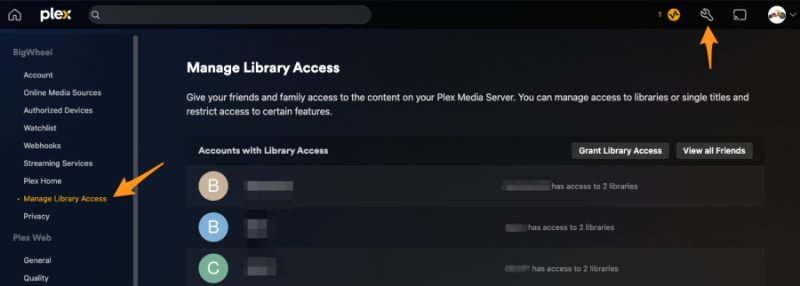
- Your friend signs into the Plex Web App and opens Settings, then goes to Manage Library Access.
- They select Grant Library Access and enter your username or the email address linked to your Plex account.
- They choose which server and which specific libraries to share, rather than giving blanket access to everything.
- If they have a Plex Pass subscription, they can apply restrictions, such as limiting content by rating or blocking downloads.
- They click Send, which fires off an email invitation to you and also generates a link they can share directly if needed.
For this to work while you’re away from their home network, your friend also needs to have correctly set up remote access in Plex on their server. Without that step enabled, their library will only be reachable from devices on their own home Wi-Fi.
Accepting the invitation
Once your friend has sent the invite, you’ll need to accept it before the library shows up in your Plex app.
- Check your email inbox for a message titled something like “You’ve been invited to share some media in Plex” and open it.
- Click the acceptance link inside the email. This takes you to a Plex sign-in or sign-up page.
- If you already have a Plex account, sign in with your usual credentials, or use your Apple or Google login if that’s how your account was created.
- If you don’t have an account yet, choose Sign Up with Email to create one for free, then complete the sign-up process.
- Alternatively, skip the email and open the Plex Web App directly, go to Settings, then Manage Library Access, and look under Library Invitations Received. Accept the pending invite from there.
Once accepted, the shared library appears under Accounts with Library Access on your friend’s side, confirming the connection is active.
Finding and watching the shared library
- Open the Plex app on your phone, tablet, smart TV, or through a web browser, and make sure you’re signed into the same account that accepted the invite.
- Look at the home screen or library sidebar. Your friend’s shared library usually appears alongside your own libraries, often labelled with their username or server name.
- Select the shared library to browse its contents just as you would your own collection.
- Tap or click on a title to start streaming. Playback quality will adjust automatically depending on your connection speed.
- If your friend allowed it, you can also send them a friend request so you can see each other’s watch history, ratings, and watchlists.
Tips and troubleshooting
- If the shared library doesn’t appear at all, double check that your friend actually finished sending the invite and that you accepted it with the correct Plex account.
- Buffering or constant quality drops usually point to a slow upload speed on your friend’s end rather than a problem with your own connection. Their upload bandwidth is what limits how well remote streaming performs.
- If nothing plays at all, ask your friend to confirm their server still shows remote access as enabled, since a router restart or IP address change can sometimes disable it.
- Large or poorly organised libraries can be slow to browse. If your friend’s collection feels sluggish, they may benefit from reading about how to optimise a Plex database for better performance.
- Persistent playback stutters are often a network issue rather than an account problem, so it’s worth pointing your friend toward ways to speed up a slow Plex server if the problem continues.
Frequently asked questions
Do I need my own Plex Media Server to watch a friend’s library?
No. You only need a free Plex account and the Plex app. Your friend’s server does all the work of storing and streaming the media, and you simply connect to it as an invited viewer.
Why can’t I see the shared library on all my devices?
Make sure you’re signed into the same Plex account on every device that accepted the invitation. If you use different accounts on your phone and your TV, the share will only appear on the one linked to the accepted invite.
Can my friend remove my access later?
Yes. They can revoke access at any time from the Manage Library Access page by removing your account from the Accounts with Library Access list. This stops the share but doesn’t automatically remove you as a Plex friend.
Does watching remotely use my friend’s internet data?
Yes, streaming pulls from your friend’s home internet upload bandwidth, not yours. If several people stream from their server at once, it can slow things down for everyone, including anyone watching locally on their own network.