Setting up Plex on a Synology NAS turns your network storage into a proper media server, letting you stream movies, TV shows and music to any device in the house (or beyond). This guide walks you through the full process, from installing the Plex Media Server package to configuring folder permissions and building your first library. It suits anyone who already owns a Synology NAS and wants to use it as a central media hub instead of relying on individual files scattered across devices.
Table of Contents
What you’ll need
- A Synology NAS with DSM installed and connected to your network
- Administrator access to your Synology DSM account
- Media files already stored on the NAS, or a shared folder ready to hold them
- A free Plex account (recommended, though not strictly required for local access)
- The Plex mobile or desktop app if you want to stream away from a browser
Install Plex Media Server on your Synology NAS
- Log in to DSM and open Package Center.
- Search for Plex Media Server and select it, then click Install.
- Choose an installation option. A normal installation leaves the server unclaimed, meaning anyone on the local network can access it without signing in. Installing with a Plex Claim Token links the server to your Plex account straight away, which is the recommended option if you plan to stream outside your home network later.
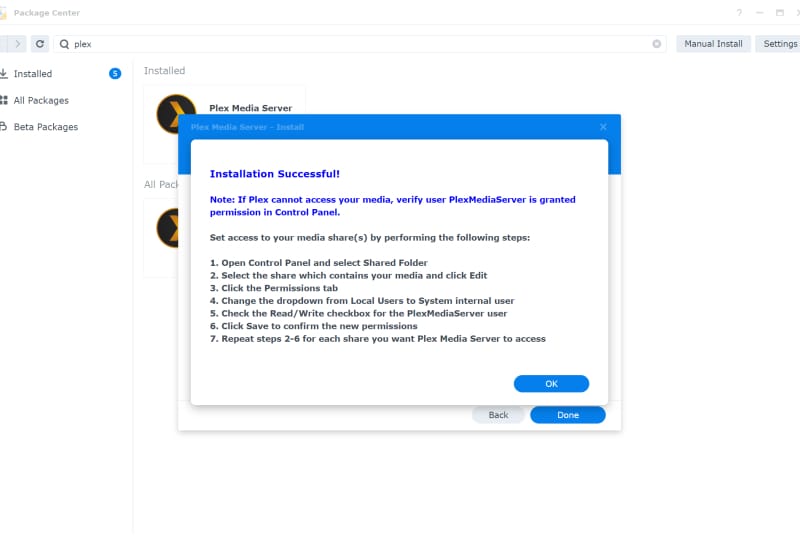
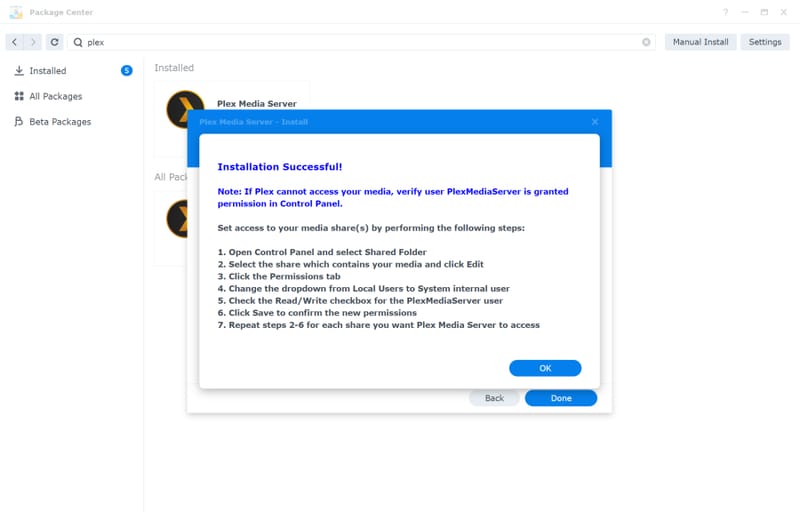
- Wait for the installation to finish, then click OK to confirm.
Configure shared folder permissions
Plex needs explicit permission to read (and sometimes write to) the shared folders where your media lives. This is a step people often skip, and it is the most common reason a freshly installed Plex server cannot see any files.
- Open Control Panel and go to Shared Folder.
- Select the shared folder containing your media files and click Edit.
- Go to the Permissions tab and choose System internal user from the drop-down menu.
- Find PlexMediaServer in the list and set it to either Read/Write or Read Only, depending on whether Plex needs to write back to that folder, then click Save.
- Repeat this for every shared folder you want Plex to be able to access.
Create your media libraries
Plex organises content into libraries, and each library points to one or more folders on your NAS. It helps to keep separate shared folders for movies, TV shows and music before you start this step, since that makes browsing and matching far more reliable.
- Open Plex Media Server from DSM.
- Click the Settings icon in the top right corner and select Libraries under the Manage section.
- Click Add Library, choose the library type (movies, TV shows, music, or other) and click Next.
- Give the library a name and choose the language Plex should use when fetching information from the internet, then click Next.
- Click Browse for Media Folder, select the folder on your NAS that holds the relevant files, and click Add.
- Click Add Library to finish. If Plex cannot browse your files, hover over the new library, click the options icon, and choose Scan Library Files to force it to re-index.
Once your libraries are set up, Plex will scan the folders and start pulling in artwork, descriptions and other metadata automatically. Well-organised, clearly named files make this process far more accurate, so it is worth reading a guide on how to name your media files correctly for Plex if your collection has inconsistent file names.
Access Plex from your devices
- Download the Plex app on your phone, tablet or streaming device from the relevant app store.
- Sign in using the email address linked to your Plex account.
- Select your Synology server from the list of available servers and start browsing your library.
You can also access Plex through a web browser by visiting the Plex web app and signing in with the same account. If you want to watch your content when you are away from home, you will need to set up Plex remote access outside your home, which involves a slightly different configuration to local streaming.
Moving from Video Station to Plex
If you previously used Synology’s own Video Station, Plex will automatically detect and index the same video files once your libraries are configured. However, the two applications use separate databases, so some things will not carry over automatically. Playlists, parental controls and TV recording settings all need to be rebuilt inside Plex, and any metadata you manually edited in Video Station may not transfer. It is worth treating the move as a fresh start for your library organisation rather than expecting a like-for-like migration.
| Feature | Video Station | Plex Media Server |
|---|---|---|
| Account type | DSM account | Plex account, with an optional Plex Home for shared access |
| Remote access | QuickConnect through DSM | Port forwarding or Plex’s own remote access setup |
| Library permissions | Set per DSM user by an administrator | Managed through the Plex account once the server is claimed |
| Casting and playback | DLNA/UPnP, AirPlay, Chromecast | DLNA/UPnP via the Plex app, AirPlay, Chromecast |
Tips and troubleshooting
- If a library shows as empty after adding a folder, double-check the shared folder permissions for the PlexMediaServer system user before assuming the files are missing.
- Keep movies, TV shows and music in separate shared folders. Mixing content types in one folder often confuses Plex’s automatic matching.
- Run a manual library scan after adding new files in bulk, rather than waiting for Plex’s scheduled scan.
- If metadata looks wrong (incorrect posters or titles), it is almost always a file naming issue rather than a Plex fault.
- For a NAS handling multiple simultaneous streams, especially transcoded ones, check that your Synology model has enough CPU power; some lower-powered models struggle with more than one or two transcodes at once.
Frequently asked questions
Do I need a Plex account to use Plex on a Synology NAS?
You can run Plex locally without an account by choosing the normal installation option, but signing in with a Plex account and claiming the server unlocks remote access, shared user libraries, and easier management across devices.
Why can’t Plex see my media files after installation?
This almost always comes down to shared folder permissions. Go to Control Panel, open Shared Folder, and make sure the PlexMediaServer system user has Read/Write or Read Only access to the folder holding your files.
Can I run Plex and Video Station at the same time on the same Synology NAS?
Yes, but the two applications use separate databases and do not share metadata, playlists or settings, so it is generally simpler to fully switch to one or the other rather than maintaining both long term.
Which Synology NAS models work best for Plex?
Any Synology NAS running a supported version of DSM can install Plex Media Server, though models with more capable processors handle transcoding and multiple simultaneous streams more comfortably. It is worth checking a comparison of the best NAS devices for running Plex if you are choosing hardware specifically for media streaming.