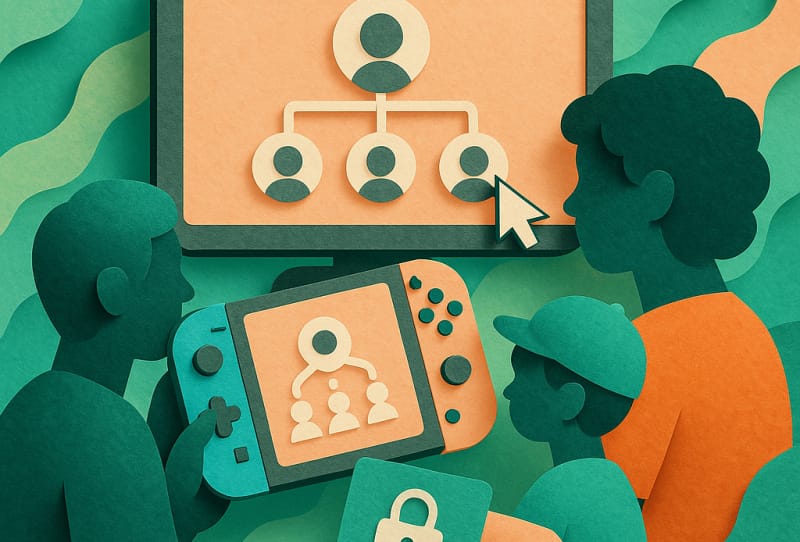
If your household has more than one person playing on a Nintendo Switch, setting up a family group lets everyone share benefits like Nintendo Switch Online and keeps things tidy for parents managing kids’ accounts. This guide walks you through how to add family members to your Nintendo Account, whether you’re linking another adult, adding a child, or just want everyone under one shared setup.
Table of Contents
What you’ll need
- A Nintendo Account for yourself (this becomes the family group organiser)
- Nintendo Accounts for any adult family members you want to add, or the ability to create new ones for children
- Access to email for each family member, since invitations are sent this way
- A Nintendo Switch console or a web browser to manage settings via the Nintendo Account website
Setting up your family group
A Nintendo family group is the feature that ties multiple Nintendo Accounts together under one organiser. It allows shared access to things like Nintendo Switch Online membership and gives parents tools to manage children’s accounts and play time. Most Nintendo Accounts are not automatically part of a family group, so you’ll usually need to create one before adding anyone else.
- Sign in to your Nintendo Account, either through the Nintendo Account website or directly on your Nintendo Switch under System Settings.
- Look for the family group or family settings option. On the console this is typically found in System Settings, while on the website it sits under your account management area.
- Choose the option to create a new family group if you don’t already belong to one. This makes you the organiser, meaning you control invitations and settings for everyone added.
- Confirm your details as the organiser before moving on to inviting other members.
Adding an adult family member
- From your family group management screen, select the option to add a member.
- Choose to invite someone who already has their own Nintendo Account.
- Enter the email address linked to that person’s Nintendo Account, or send them an invitation link if that option is available.
- Ask the invited family member to check their email and follow the link to accept the invitation.
- Once accepted, their account appears in your family group, and shared benefits such as Nintendo Switch Online can extend to their profile depending on how membership sharing is set up.
Adding a child who doesn’t have an account yet
- From the family group screen, select the option to create a new account for a child rather than inviting an existing one.
- Enter the child’s basic details, such as their name and date of birth, when prompted. Nintendo uses this to apply appropriate account settings automatically.
- Set up sign-in details for the child’s new account, which the organiser typically controls rather than the child themselves.
- Review and adjust parental controls, including play time limits, communication features, and eShop restrictions, since these are usually more restrictive by default for younger accounts.
- Save the settings, then have the child sign in to this new account on the console to start using it.
Managing the family group afterwards
Once everyone is added, you can return to the family group settings at any time to adjust permissions, remove a member, or change how purchases and subscriptions are shared. As the organiser, you also have the option to install or use the Nintendo Switch Parental Controls app on a smartphone, which mirrors many of the same settings and makes checking on play activity easier without needing to log in on the console itself.
Tips and troubleshooting
- Only one person can be the organiser of a family group, so decide in advance who in the household will manage invitations and settings.
- If an invitation email doesn’t arrive, check spam folders first, then confirm the email address entered matches the one linked to that person’s Nintendo Account exactly.
- A Nintendo Account can usually only belong to one family group at a time, so someone already part of another group will need to leave it before joining yours.
- If you’re setting up a Nintendo Switch on your TV for the first time as part of a new family setup, it’s worth creating the organiser account and family group before adding user profiles for everyone else on the console.
- Double check parental control settings after adding a child account, since defaults can be stricter or looser than what your household actually needs.
Frequently asked questions
How many people can join a Nintendo family group?
Nintendo family groups are designed to cover a typical household, allowing several members including the organiser. Exact limits can change over time, so check the current details on Nintendo’s official family group support page if you’re planning a larger group.
Do all family members need their own Nintendo Switch console?
No. Family group membership is tied to Nintendo Accounts, not consoles. Multiple family members can have their own user profile and account on a single shared Switch, or each have separate consoles while still belonging to the same family group.
Can a child account be upgraded to a full adult account later?
Yes. As a child grows older, the account can be updated with accurate birth details and, once they reach the appropriate age, transitioned to have fewer restrictions. This is managed through the same family group and account settings used to create it.
Will adding family members affect existing save data or purchases?
No, adding someone to a family group does not merge or delete save data or purchase history. Each Nintendo Account and user profile keeps its own games, saves, and purchases, though certain benefits like Nintendo Switch Online can be shared across the group depending on your settings.