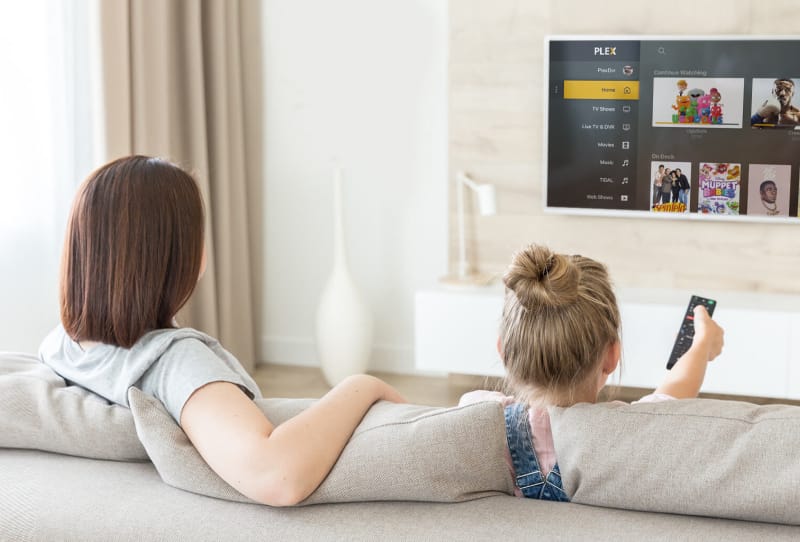
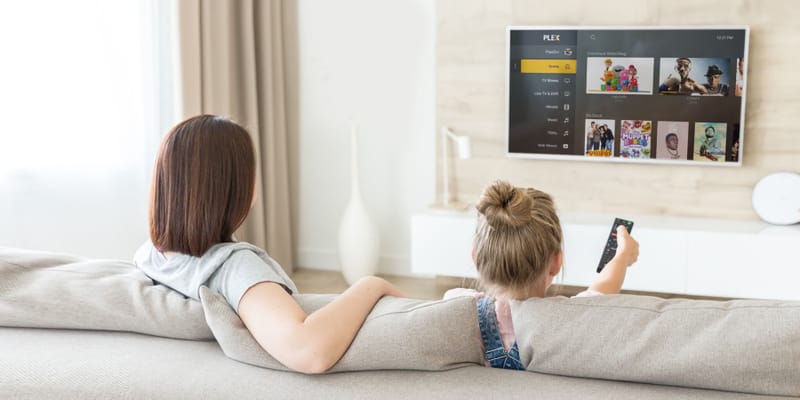
Setting up Plex on a smart TV lets you stream your own movies, TV shows, music, and photos straight to the biggest screen in the house, without cables or a separate streaming box. This guide walks you through the whole process, from getting a Plex server running to installing the app on your television and signing in for the first time. It suits anyone with a smart TV running Samsung, LG, Sony, Android TV, Google TV, or Amazon Fire TV software.
Table of Contents
What you’ll need
- A smart TV connected to the internet, ideally via Ethernet or a strong Wi-Fi signal
- A free Plex account, which you can create a free Plex account for in a couple of minutes
- A working Plex Media Server, running on a computer, NAS device, or another always-on machine on your home network
- A media library already added to that server, with reasonably well-organised file names
Set up your Plex Media Server first
Before a smart TV can play anything, there needs to be a running Plex Media Server somewhere on your network holding your files. If you already have one set up, skip ahead to the next section.
- Sign up for a Plex account using an email address, or continue with an existing Google or Apple account.
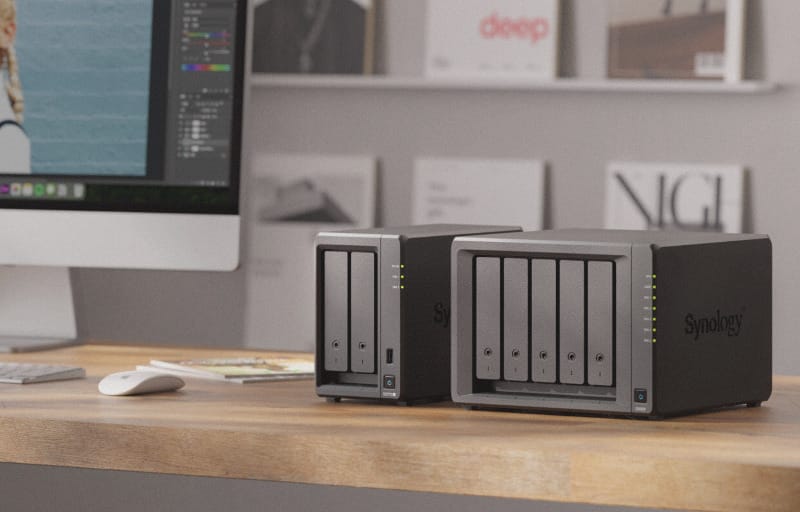
- Install Plex Media Server on a computer or NAS. If you haven’t done this yet, follow a guide to set up a Plex Media Server on your PC, or, if you use network storage, set up Plex on a Synology NAS instead.
- Run through the setup wizard the first time the server starts. It will ask you to sign in, name your server, and start building your first library.
- Add your movies and TV shows to the appropriate libraries. It helps a lot to name your TV shows correctly for Plex, since accurate file names let Plex pull in matching artwork, episode titles, and descriptions automatically.
Install the Plex app on your smart TV
Once your server is running and your libraries are populated, the next step is getting the Plex app onto the television itself.
- Turn on the smart TV and confirm it’s connected to the same home network as your Plex server, or at least has a working internet connection.
- Open the TV’s built-in app store. Depending on the brand, this might be labelled as a smart hub, content store, channel store, or simply the Play Store.
- Search for “Plex” and select the official Plex app, published by Plex Inc.
- Download and install the app, then wait for it to finish before opening it.
The table below gives a general idea of where to look on common smart TV platforms.
| TV platform | Where to find the app store |
|---|---|
| Samsung (Tizen) | Samsung Smart Hub / Apps |
| LG (webOS) | LG Content Store |
| Android TV or Google TV | Google Play Store |
| Amazon Fire TV | Amazon Appstore |
| Sony (Android TV based) | Google Play Store |
| Roku-based smart TVs | Roku Channel Store |
Sign in and connect to your server
- Open the Plex app on your smart TV once it has finished installing.
- Sign in using the same account you used for your Plex Media Server. Many TV apps show an on-screen code and ask you to enter it at plex.tv/link on a phone or computer, while others let you type your email and password directly on the TV.
- After signing in, Plex should automatically detect your server if the TV and server are on the same network. Select it from the list of available servers.
- Browse to one of your libraries and start playing something to confirm the connection works and playback is smooth.
For a full walkthrough of Plex’s own setup process, the Plex’s official quick-start guide covers server installation in more detail.
Tips and troubleshooting
- If your server doesn’t appear on the TV, make sure both devices are on the same network and that the server computer or NAS is actually switched on and running.
- Buffering or stuttering playback usually points to a weak Wi-Fi connection. Where possible, connect the TV or the server via Ethernet instead.
- If Plex isn’t available in your TV’s app store, the television may be too old to support it. A streaming device such as a Fire TV stick or an Android TV box plugged into the TV’s HDMI port is a simple workaround.
- Refresh your library on the server after adding new content, since the TV app won’t show files the server hasn’t scanned yet. This guide on how to refresh your Plex library after adding content covers the process.
- If you plan to watch away from home later, it’s worth reading up on how to set up remote access in Plex once local streaming is working well.
Frequently asked questions
Do I need a Plex Pass to use Plex on a smart TV?
No. A free Plex account is enough to stream your own library to a smart TV app on your home network. A Plex Pass unlocks extra features like offline downloads and some advanced server tools, but it isn’t required for basic playback.
Can I use the Plex app on a smart TV without a separate server?
No. The smart TV app is a player, not a server, so it needs a running Plex Media Server somewhere on your network (or accessible remotely) holding your actual media files.

Why can’t I find the Plex app in my TV’s app store?
Some older smart TVs, or TVs running less common operating systems, don’t support the Plex app. In that case, a separate streaming device connected to the TV’s HDMI port is usually the easiest fix.
Can I watch Plex on a TV without an internet connection?
Playback on a smart TV app generally requires a network connection to reach the Plex server, even if that server is on the same local network. For truly offline viewing on a portable device, look into how to download content from Plex for offline viewing instead.