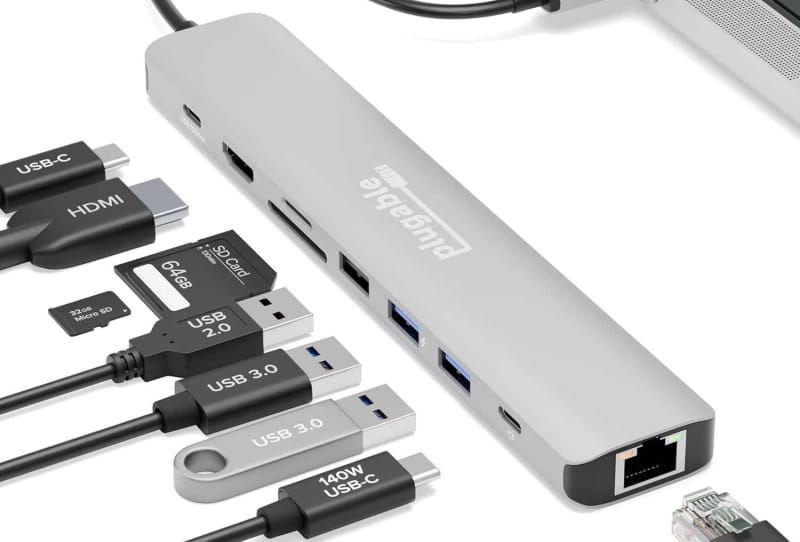
The best USB-C hub for MacBook Pro is the one that matches three things: the ports you actually plug in every day, the display setup you want, and enough pass-through power to keep the laptop charged while everything else runs. This guide walks through how to work that out for yourself, rather than just naming one “winner”, so you end up with a hub that suits how you actually use your MacBook Pro.
Key takeaways
- ✓Thunderbolt and USB4 ports can move data at up to 80Gbps and charge devices at up to 240W
- ✓Most MacBook Pro models only drive one extra external display unless the hub uses USB4 or DisplayLink technology
- ✓Look for at least 85 to 100W of pass-through power delivery so the hub doesn't drain the laptop's battery
- ✓A 10Gbps USB-C or USB-A hub suits everyday peripherals, while Thunderbolt hubs suit video editors and multi-monitor desks
- ✓The same buying logic applies to any modern USB-C laptop, including Windows machines like the HP ZBook Ultra G3A or Panasonic Let's Note SC7
Table of Contents
What you’ll need
- A MacBook Pro with Thunderbolt or USB4 ports (most models released in recent years)
- A list of the peripherals you regularly connect, such as monitors, external drives, SD cards or Ethernet
- The USB-C charger that came with your MacBook Pro, or one capable of similar wattage
- A short, high-quality USB-C cable if the hub doesn’t have one built in
Step 1: Work out which ports you actually need
Before comparing hubs, write down what you plug in on a normal day. Ports fall into a few common categories: HDMI for external monitors, USB-A for older accessories, an SD or microSD card reader for cameras, Ethernet for a wired network connection, and extra USB-C ports for drives or docking a phone. A hub with nine ports looks impressive, but it’s wasted bulk if you only ever need three.
- List every cable or card you connect to your MacBook Pro in a typical week.
- Group them by connector type (HDMI, USB-A, USB-C, SD, Ethernet).
- Count how many of each you need at the same time, not just in total.
- Use that list as your minimum port requirement when comparing hubs.
Step 2: Decide how many displays you need
This is where a lot of people get caught out. Many MacBook Pro models only drive one extra external display natively, even though the laptop itself has a built-in screen. If you want to run two external monitors from a single hub, you need one specifically built to get around that limit, usually by using USB4 or DisplayLink-style technology rather than a simple HDMI pass-through. Hubs marketed for dual-screen Mac setups handle this natively, without extra software, and can typically push two 4K displays at 60Hz. If you only need one extra screen, any hub with an HDMI port rated for 4K at 60Hz will do the job, and you’ll have an easier time picking an external monitor to go with it.
Step 3: Check the power delivery rating
A USB-C hub that sits between your charger and your MacBook Pro needs to pass enough power through to keep the battery topped up while everything else draws from it. Look for pass-through power delivery of at least 85 to 100W for everyday use, and closer to 180W if you’re running a Thunderbolt dock with multiple accessories attached. A hub with weak pass-through power can leave your MacBook Pro slowly draining even while it’s “charging”, which usually shows up as the battery percentage creeping down during heavy use.
Step 4: Match data speed to your workflow
USB-C and its faster Thunderbolt variants are rated differently depending on the chip inside the hub. A basic 5Gbps or 10Gbps USB-C or USB-A port is fine for keyboards, mice, external hard drives and most everyday transfers. If you regularly move large video files, work with external SSDs, or need near-instant transfer speeds, look for a hub built around Thunderbolt or USB4, which can reach 40Gbps and, in the newest Thunderbolt 5 hardware, up to 80Gbps. These faster hubs cost more and draw more power, so only pay for that speed if your workflow genuinely needs it.
Step 5: Choose a form factor that suits where you work
If you move between locations, a small, lightweight adapter with four to seven ports is easier to carry than a full dock. If your MacBook Pro mostly lives at a desk, a larger multiport hub or dock with Ethernet, multiple display outputs and several USB-C and USB-A ports will serve you better long term. The table below breaks down the general categories to help you decide which fits your setup.
| Hub type | Best for | Typical features |
|---|---|---|
| Compact 4 to 7 port USB-C adapter | Travel and portability | HDMI, USB-C, USB-A, SD card, moderate pass-through power |
| 8 to 9 port everyday hub | General desk use | Ethernet, 4K HDMI at 60Hz, multiple USB-A and USB-C ports, 85 to 125W power delivery |
| Thunderbolt or USB4 dock | Video editing, multi-monitor setups | 40 to 80Gbps data speeds, 150W plus power delivery, dual display support |
| Single-purpose adapter | One specific need | A single USB-A or HDMI port, minimal bulk, no pass-through charging |
Tips and troubleshooting
- If an external display flickers or won’t turn on, try a different HDMI port on the hub, since some hubs allocate bandwidth unevenly between ports.
- If your MacBook Pro isn’t charging through the hub, check that it supports enough pass-through wattage and that your original charger is plugged into the hub’s power input, not a secondary port.
- SD card readers rated UHS-I are noticeably slower than UHS-II, which matters if you’re offloading large photo or video files regularly.
- Hubs can run warm under sustained heavy use, particularly compact ones with a lot of ports crammed into a small body. This is usually normal, but avoid covering the hub or stacking cables tightly around it.
- If you’re deciding between several options, the guide to choosing the right USB-C hub for your setup walks through the same priorities in more depth.
Frequently asked questions
Do all MacBook Pro models support the same USB-C hub features?
Not quite. Support for things like 80Gbps Thunderbolt 5 speeds or driving two external displays from one hub depends on the ports built into your specific MacBook Pro. Check your model’s exact Thunderbolt or USB4 rating before buying a hub built around top-end speeds, since a slower port will simply cap the hub’s performance.
Will a USB-C hub work with other laptops, not just a MacBook Pro?
Yes. USB-C and Thunderbolt are open standards, so the same hub generally works across brands, as long as the laptop has a compatible port. This applies to Windows machines too, including devices like the HP OmniBook 5, HP ZBook Ultra G3A and Panasonic Let’s Note SC7, which all use USB-C ports for data, video and charging in a similar way to current MacBook Pro models.
Can a USB-C hub slow down my MacBook Pro?
The hub itself doesn’t slow the laptop down, but if multiple high-bandwidth devices share one hub, they can compete for the same data lane and reduce transfer speeds for each device. Spreading demanding peripherals, such as an external SSD and a high-resolution monitor, across separate Thunderbolt or USB4 ports avoids this bottleneck.
Is a Thunderbolt hub worth it over a standard USB-C hub?
It depends on your workload. If you edit video, back up large files regularly, or want to run two external monitors from one hub, a Thunderbolt or USB4 hub is worth the extra cost. For general browsing, typing and the occasional file transfer, a standard 10Gbps USB-C hub covers everything most people need.