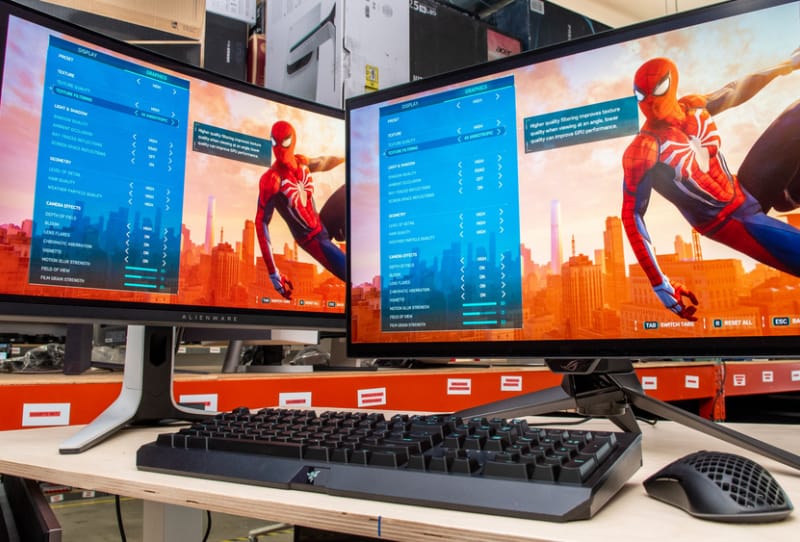
The best gaming monitors for competitive play share four traits: a high refresh rate, a fast response time, low input lag, and a resolution your graphics card can push consistently above 100 frames per second. This guide is for anyone building or upgrading a setup for games like tactical shooters or fast-paced arena titles, where reaction time and clarity of motion matter more than cinematic visuals. Whether you’re comparing specific models or simply trying to understand which specs separate the best gaming monitors for competitive play from the rest of the market, the fundamentals below apply across brands and price points.
Key takeaways
- ✓A refresh rate of 144Hz to 240Hz or higher noticeably improves target tracking in fast FPS games
- ✓Response time under about 1ms grey-to-grey helps prevent ghosting during quick camera turns
- ✓Lower resolutions like 1080p or 1440p let a mid-range GPU sustain higher, steadier frame rates
- ✓VRR technology such as G-Sync or FreeSync reduces screen tearing when frame rates fluctuate
- ✓The monitor can never show more frames than the graphics card produces, so match panel and GPU together
Picking the right panel isn’t about chasing the biggest or flashiest screen on the shelf. Competitive players care about how quickly a monitor reacts and how clean motion looks when everything on screen is moving fast. The steps below walk through the specs that actually matter, then show how to set things up once you’ve chosen a panel. Treat each spec as a filter: the best gaming monitors for competitive play tend to clear every one of these bars at once, rather than excelling at just one and falling short on the rest. If you’re comparing shortlisted models side by side, running through this guide first will help you work out which specs are marketing noise and which ones genuinely affect how a monitor performs in ranked matches. It’s also worth remembering that the “best” monitor isn’t a single universal model, it’s whichever panel best matches your GPU’s real output, your preferred genre, and the resolution you can sustain a high frame rate at.
Table of Contents
What you’ll need
- A monitor that supports at least 144Hz, ideally higher for competitive titles. Many of the best gaming monitors for competitive play now sit between 180Hz and 360Hz, with a handful of 500Hz-class panels aimed squarely at esports players chasing every last fraction of a frame.
- A graphics card capable of hitting frame rates close to your monitor’s refresh rate, since an unmatched pairing leaves performance on the table. As a rough guide, a mid-range GPU paired with a competitive-friendly 1080p title should comfortably clear 144 frames per second on lowered settings, while chasing 240Hz or more usually calls for a higher-tier card or a lighter esports title.
- A DisplayPort or HDMI cable rated for the resolution and refresh rate you want, as an older or mislabelled cable can quietly cap your panel’s performance. DisplayPort 1.4 or newer is generally the safer choice for high refresh rate competitive monitors, since some older HDMI cables struggle to carry 240Hz or higher without compression.
- A PC or console that supports variable refresh rate (VRR), if you plan to use it, along with drivers kept reasonably up to date.
- A desk and mounting setup that lets you sit at a consistent distance, since eye distance affects how much benefit you get from a given screen size and resolution. A monitor arm can also help by letting you fine-tune height and distance rather than settling for whatever a fixed stand allows.
- A clear sense of your budget tier before you start comparing models, since knowing roughly how much you want to spend narrows the field quickly and stops spec sheets from overwhelming the decision.
- A way to verify claimed specs against independent reviews, since grey-to-grey response times, input lag figures, and even refresh rate ceilings are sometimes measured differently between manufacturers. Cross-checking a shortlisted model against a review that uses consistent, repeatable testing methods will give you a more reliable picture than the spec sheet alone.
Step-by-step: choosing a gaming monitor for competitive FPS
- Decide on refresh rate first. Competitive FPS players benefit most from 144Hz, 240Hz, or even higher, since a faster refresh rate shows more updates per second and makes tracking moving targets easier.
- Match resolution to real-world frame rates. A 1080p or 1440p panel is easier for a mid-range graphics card to drive at high frame rates than 4K, and a steady high frame rate matters more in competitive play than extra sharpness.
- Check the response time, usually listed as grey-to-grey (GtG). A response time close to 1ms or lower helps avoid ghosting and trailing during fast camera movements.
- Confirm VRR support. Look for NVIDIA G-Sync or AMD FreeSync compatibility, which smooths out screen tearing and stuttering when frame rates dip or spike.
- Look at input lag figures where available. Lower input lag means less delay between a mouse movement and the on-screen response, which is critical when split-second aim matters.
- Consider screen size and shape carefully. Smaller, flat panels around 24 to 27 inches let you see the whole screen without moving your eyes much, which many competitive players prefer over large curved displays.
- Verify the port and cable can handle your chosen resolution and refresh rate together. Older HDMI or DisplayPort versions can bottleneck a high refresh panel, so check the monitor’s supported cable standard before buying accessories.
- Once set up, enable the monitor’s native refresh rate in your operating system or console display settings, turn off unnecessary post-processing modes like motion smoothing, and switch on VRR if your system supports it.
- Re-check your settings after any driver or firmware update. Updates occasionally reset refresh rate, HDR, or VRR toggles back to default, which can undo the tuning you did at setup.
- Give the monitor a short trial period in your actual competitive titles before committing to it long term. Specs translate differently from game to game, and a panel that feels great in one shooter can feel slightly soft or laggy in another depending on how that game handles frame pacing.
Matching your monitor to your PC’s real output
A high refresh rate monitor for competitive FPS is only as useful as the frame rate your system can actually deliver. If your graphics card only manages 90 frames per second in a demanding title, a 240Hz panel won’t show any benefit until you either lower in-game settings or upgrade hardware. This is worth checking before you buy, especially with pre-built systems. Someone running a system like the CyberPowerPC SLC8500WST, for example, should check what frame rates its graphics card realistically produces in their preferred games before choosing a matching refresh rate, since pairing a modest GPU with a very high refresh monitor wastes potential. Readers building their own machine can also look into overclocking your GPU safely, which can squeeze extra frames out of existing hardware without a full upgrade. It’s also worth benchmarking your actual competitive titles rather than relying on average frame rates from review sites, since esports titles are often far lighter on hardware than AAA single-player games and may let a modest GPU hit much higher frame rates than expected.
CPU performance deserves a mention here too, since competitive shooters are often more CPU-bound than graphically demanding single-player games at the low settings most ranked players use. A capable GPU paired with an ageing CPU can still bottleneck frame rates well below what a high refresh monitor is capable of displaying, so it’s worth checking processor benchmarks for your specific games rather than assuming the graphics card alone determines your ceiling. System memory and storage can play a smaller supporting role too; slow RAM or a near-full drive can cause occasional frame time spikes that feel like stutter even when average frame rates look fine, so it’s worth ruling these out if a high refresh monitor still feels inconsistent.
Panel types compared for competitive FPS
Panel technology affects both response time and picture quality, and the right choice depends on how much you prioritise speed over visuals. This is often where the best gaming monitors for competitive play distinguish themselves from general-purpose displays, since a panel built for everyday use rarely optimises for the same priorities as one built for esports.
| Panel type | Typical strength | Consideration for FPS |
|---|---|---|
| TN | Fast response times, high refresh rates | Weaker colour and viewing angles, but historically favoured for pure speed |
| Fast IPS | Good colour, wide viewing angles, competitive response times | Now common on high-refresh esports monitors, a strong all-round choice |
| VA | Strong contrast and deep blacks | Slower response time can cause more visible ghosting in fast motion |
| OLED | Near-instant pixel response, excellent contrast | Very fast and increasingly available at high refresh rates, though brightness in very bright rooms can be lower than LCD |
Manufacturers keep pushing refresh rates higher across these panel types. Options like Alienware’s high refresh rate OLED monitors and ASRock’s 720Hz Taichi OLED monitors show how far OLED response times and refresh rates have come, making them worth considering alongside traditional fast IPS panels for competitive play.
Aspect ratio and curvature are worth a mention too, since they come up often when comparing competitive monitors. Standard 16:9 flat panels remain the default choice for most FPS players because they match the aspect ratio most games and esports broadcasts are designed around. Ultrawide and curved monitors can offer a wider field of view, but some competitive titles either don’t support the extra width properly or actively disadvantage ultrawide players in ranked settings, so it’s worth checking your specific game’s stance before buying one for ranked play.
OLED’s rise in competitive setups is worth a closer look, since it changes some long-held assumptions about panel choice. For years, TN panels were the default recommendation purely because they offered the fastest pixel response times available. OLED now matches or beats that speed while also delivering far better colour and contrast, which is why it’s increasingly found on dedicated esports monitors rather than only premium cinematic displays. The trade-offs to weigh are long-term brightness in sunlit rooms and the small risk of burn-in with static on-screen elements like HUDs, both of which matter less in a dim gaming room with varied content than they would on a desktop monitor left on a single bright interface all day.
What separates the best gaming monitors for competitive play
When comparing specific models, it helps to boil the specs above down into a short checklist. A monitor that scores well against most of these points is generally a safe pick for competitive FPS, regardless of brand or marketing claims:
- Refresh rate of 144Hz or higher, with 240Hz and above preferred for fast-paced arena shooters.
- Grey-to-grey response time at or near 1ms, or an OLED panel with near-instant pixel switching.
- Confirmed VRR support that works over the port and cable you intend to use, not just in spec sheet marketing.
- A resolution your GPU can sustain at high, stable frame rates in your specific games, not just in benchmarks.
- Low measured input lag, ideally verified by independent reviews rather than manufacturer claims alone.
- A flat panel in the 24 to 27 inch range, unless your game and seating distance specifically suit a larger or curved display.
- A dedicated low-latency or “competition” picture mode that disables unnecessary image processing by default, rather than requiring you to dig through menus to find it.
Budget also shapes which of these boxes you can realistically tick. Entry-level competitive monitors typically deliver a solid 144Hz to 165Hz refresh rate with fast IPS or TN panels and basic VRR support, which is more than enough for most ranked play. Mid-range options push into the 240Hz to 280Hz range with better colour accuracy and lower measured input lag, while premium models add 360Hz or OLED panels aimed at players who want the smallest possible edge. Spending more tends to bring diminishing returns past the 240Hz mark unless your GPU and reflexes can genuinely make use of it, so it’s worth matching your budget to the frame rates you can actually sustain rather than the highest number on the box.
| Budget tier | Typical refresh rate | Best suited to |
|---|---|---|
| Entry-level | 144Hz – 165Hz | Players moving up from 60Hz who want the biggest jump in smoothness for the least outlay |
| Mid-range | 240Hz – 280Hz | Regular ranked players with a GPU that can sustain high frame rates in their main titles |
| Premium | 360Hz and above, or high refresh OLED | Dedicated esports players and streamers chasing marginal gains and top-tier picture quality |
Tips and troubleshooting
- If motion still looks blurry at a high refresh rate, check that VRR and any motion-blur reduction features aren’t conflicting with each other, as some monitors don’t allow both at once.
- Screen tearing at high frame rates usually means VRR isn’t enabled in both the monitor’s menu and your graphics driver settings, so check both places.
- Running two displays for streaming or reference material? See the guide on connecting multiple monitors to your gaming PC for cabling and settings advice.
- If frame rates feel inconsistent, lower demanding graphics settings such as shadows and reflections before lowering resolution, since these often cost more performance for less visual benefit in fast-paced shooters.
- Double-check your cable, not just the monitor’s spec sheet. An older cable can cap you at a lower refresh rate or resolution than the panel supports.
- If you’ve recently added peripherals or background software, check they aren’t adding extra latency of their own; overlays, capture software, and some mouse utilities can introduce delay that’s easy to mistake for a monitor problem.
- If a new monitor still feels less responsive than expected, check that it’s running in its dedicated “fast” or “competition” picture mode, since some panels ship in a cinematic or vivid mode by default that enables processing which adds input lag.
- If you’re switching between a high refresh competitive monitor and a different panel for single-player or console gaming, keep a note of your preferred settings for each, since swapping back and forth can make it easy to leave VRR or refresh rate on the wrong profile.
- If you suspect your mouse or in-game sensitivity feels different after upgrading monitors, check your polling rate settings too, since a much higher refresh rate can make inconsistencies in mouse polling more noticeable than they were on a slower panel.
Frequently asked questions
What refresh rate do I need for competitive FPS games?
Most competitive players aim for at least 144Hz, with 240Hz or higher offering a further, smaller improvement in motion clarity. The jump from 60Hz to 144Hz is the most noticeable, while gains above 240Hz become harder to perceive without very high frame rates to match.
Is 1080p or 1440p better for competitive FPS?
1080p makes it easier for a mid-range graphics card to sustain very high frame rates, which is why many competitive players still prefer it. 1440p offers sharper image quality and is a reasonable middle ground if your GPU can maintain high frame rates at that resolution too.
Does response time matter more than refresh rate?
Both matter together. A high refresh rate with a slow response time can still show ghosting, while a fast response time on a low refresh rate panel won’t take full advantage of quick pixel switching. Look for a monitor that balances both rather than maximising just one figure.
Do I need G-Sync or FreeSync for competitive gaming?
VRR is helpful whenever frame rates fluctuate, since it prevents screen tearing without adding the input lag that traditional V-Sync can introduce. Many competitive players still play with VRR off at very high, stable frame rates, so treat it as a tool for smoothing inconsistent performance rather than a requirement.
Is a TN, IPS, or OLED panel best for competitive play?
Fast IPS panels are generally the safest all-round choice, combining competitive response times with good colour and viewing angles. TN remains a budget-friendly option for pure speed, while OLED now offers the fastest response times of all three along with excellent contrast, making it a strong premium pick provided you’re comfortable with its brightness and burn-in trade-offs.