Running two or three monitors on a gaming PC opens up a lot of possibilities, from an ultra-wide competitive view to a dedicated screen for chat, streaming tools, or a browser while you play. This guide walks you through how to connect multiple monitors to your gaming PC, covering the hardware side and the Windows display settings you need to get everything working smoothly.
Table of Contents
What you’ll need
- A gaming PC with a graphics card that has more than one display output
- Two or more monitors, each with a stand or mounting arm
- Cables matching the ports on your graphics card and monitors (DisplayPort, HDMI, or occasionally USB-C)
- Enough desk space or a monitor arm setup to position each screen comfortably
Check your graphics card’s outputs
Before buying cables or rearranging your desk, look at the back of your PC and count the display outputs on your graphics card. Most modern cards include a mix of DisplayPort and HDMI connections, and some also feature a USB-C port with DisplayPort support. Almost all dedicated graphics cards released in recent years can drive at least three monitors at once, so the limiting factor is usually the number and type of ports rather than the card’s processing grunt.
- Locate the graphics card at the rear of the case, usually below the motherboard’s built-in ports.
- Note down how many DisplayPort and HDMI outputs are available.
- Check the cable requirements of each monitor you plan to connect, since older monitors may only accept HDMI or DVI.
- If your monitors and outputs don’t match, source an adapter or a different cable rather than forcing an incompatible connection.
If you’re still finalising your hardware, it’s worth reading up on choosing compatible gaming PC parts, since the number of outputs varies quite a bit between graphics card models.
Connect each monitor
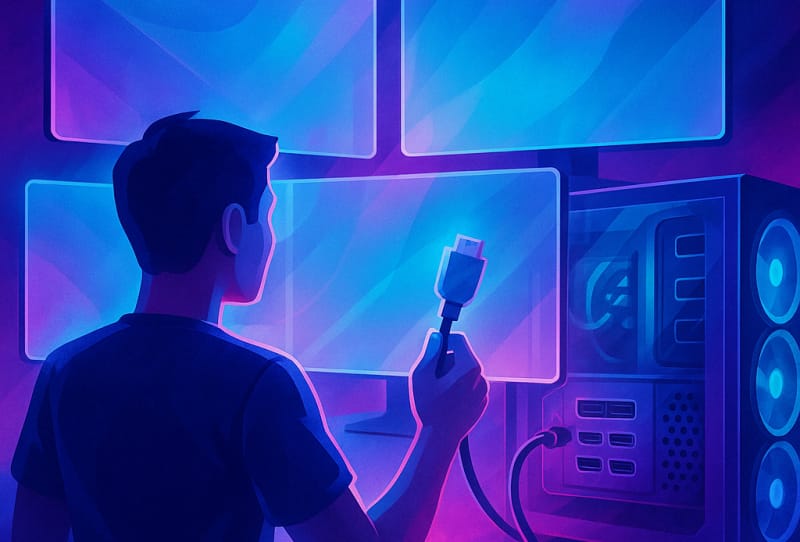
- Turn off your PC and each monitor before connecting cables, to avoid any accidental damage to the ports.
- Plug one end of each cable into a display output on the graphics card, not the motherboard’s video output (motherboard outputs only work if you’re using integrated graphics, which most gaming PCs bypass entirely).
- Connect the other end of each cable to the corresponding input on each monitor.
- Connect each monitor to power and switch them on.
- Power on your PC and confirm each screen lights up and displays an image, even if it initially mirrors another screen.
Set up your displays in Windows
Once every monitor is physically connected and powered on, Windows should detect them automatically. From here, you configure how they behave together.
- Right-click on an empty area of the desktop and select the display settings option.
- Confirm that Windows has detected all connected monitors. If one is missing, select the option to detect displays.
- Choose to extend your displays rather than duplicate them, which lets you use each monitor as a separate part of one larger desktop.
- Drag the on-screen monitor icons to match the physical layout on your desk, so your mouse cursor moves naturally between screens.
- Set your main display, which is where your taskbar, login screen, and most games will open by default.
- Adjust the resolution and refresh rate for each monitor individually, since mismatched monitors often need different settings to look their best.
For a more detailed walkthrough of the built-in tools, Microsoft’s Windows display settings support page covers extending, duplicating, and arranging screens in more depth.
Choose how games use your monitors
Most games only use one monitor at a time by default, which is exactly what you want for competitive titles. A few racing and flight simulation games support spanning across three monitors for a wider field of view, but this usually needs to be enabled separately in the game’s own display or graphics menu, not just in Windows. If you’re chasing that wraparound view, check the game’s settings for a surround or panoramic display option, and be aware that it demands considerably more graphics performance than a single screen.
NVIDIA and AMD both offer their own multi-monitor tools through their graphics control panels, which can help with tasks like matching colour and brightness across different monitor models. NVIDIA’s multi-monitor gaming resources outline how their technology handles multiple displays if you want to dig further into the options available for your card.
Tips and troubleshooting
- If a monitor isn’t detected, try a different cable or port before assuming there’s a hardware fault, since a single faulty cable is a common culprit.
- Mixing monitors with different refresh rates is fine for general use, but keep your main gaming display on its highest supported refresh rate for the smoothest experience.
- If text looks blurry on one screen, check that its resolution and scaling settings match its native specifications.
- Avoid running high-refresh-rate monitors through underpowered adapters or splitters, as these can cap the refresh rate below what the monitor supports.
- Once your monitors are running well, revisit your PC gaming settings for better performance, since driving multiple displays adds extra load on your graphics card even when only one screen is showing a game.
Frequently asked questions
Do I need a powerful graphics card to run multiple monitors?
Not necessarily. Most dedicated graphics cards can output to two or three monitors without much extra strain, since simply displaying a desktop across multiple screens uses far less processing power than gaming does. The card only comes under real pressure if you’re gaming across multiple screens at once or running very high resolutions on every display.
Can I connect monitors with different resolutions and sizes?
Yes, Windows handles mixed monitor setups without issue. You can set the resolution, refresh rate, and scaling independently for each screen, though you may notice a slight difference in text size or sharpness between monitors of different sizes and resolutions.
Why does my game only show on one monitor?
This is normal behaviour for the vast majority of games, which are designed to run full-screen on a single display for the best performance and least distraction. If you want a game to span multiple monitors, check its in-game display settings for a surround or multi-display option, since this needs to be turned on within the game itself.
What’s the difference between extending and duplicating displays?
Extending treats your monitors as one large combined desktop, so you can drag windows between them and use each screen for something different. Duplicating shows the exact same image on every monitor, which is useful for presentations but not something most gamers use day to day.