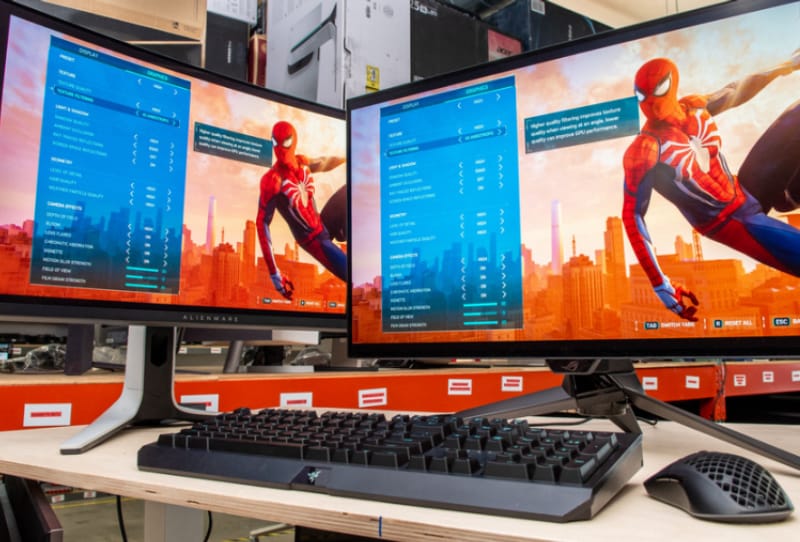
The best gaming monitors for competitive FPS prioritise a high refresh rate (240Hz or more), a fast response time (1ms or lower), and a resolution your GPU can drive without dropping frames, typically 1080p or 1440p at 24 to 27 inches. This guide is for anyone upgrading from a standard 60Hz or 144Hz screen and wanting an edge in games like Counter-Strike, Valorant, or Apex Legends, without getting lost in marketing jargon.
Key takeaways
- ✓Refresh rate and response time matter more than resolution for competitive FPS play
- ✓240Hz to 360Hz panels with sub-1ms response times are the current sweet spot for esports titles
- ✓1080p or 1440p at 24 to 27 inches gives the best balance of frame rate and visibility
- ✓OLED panels now offer fast response times but check for brightness and burn-in risk in static HUDs
- ✓Matching your monitor's refresh rate to a GPU that can actually push high frame rates is essential
Panel technology has shifted a lot recently. OLED monitors that once lagged behind fast TN and IPS panels on motion clarity have caught up, and some now hit 240Hz or 360Hz with genuinely fast pixel response. That means the old advice of “always buy TN for competitive play” no longer holds up as strongly as it used to. The steps below walk through what actually matters and how to shortlist a monitor that suits your setup and budget.
Table of Contents
What you’ll need
- A graphics card capable of pushing high frame rates in your chosen game (competitive FPS titles are usually less demanding than AAA games, so even a mid-range GPU can hit high frame rates at 1080p)
- A DisplayPort cable, since most high refresh rate monitors need DisplayPort rather than HDMI to hit their full refresh rate
- A sense of your desk space and preferred screen size, since bigger is not automatically better for competitive play
- Your current monitor’s specs on hand, so you can compare like for like
Step 1: Decide on a refresh rate target
- Work out what your GPU and CPU can realistically sustain in your main game. There is little point buying a 360Hz panel if your system caps out at 150 frames per second.
- Treat 144Hz as the practical entry point for competitive play, 240Hz as the current mainstream sweet spot, and 360Hz as the ceiling for players chasing every last millisecond of advantage.
- Remember that the jump from 60Hz to 144Hz is far more noticeable than the jump from 240Hz to 360Hz, so factor in diminishing returns if you are working with a tighter budget.
Step 2: Pick a response time and panel type
- Look for a quoted grey-to-grey response time of 1ms or less. This reduces motion blur and ghosting behind fast-moving targets.
- Compare panel types. TN panels are historically the fastest and least expensive, IPS panels balance speed with better colour and viewing angles, and modern OLED panels now offer extremely fast response times with strong contrast.
- If you choose OLED, check the monitor’s brightness handling and any burn-in mitigation features, since competitive games often display static HUD elements like crosshairs and health bars for long sessions.
- Avoid heavily curved screens if you play games with flat, precise aiming reticles, since some competitive players find curves introduce subtle visual distortion at the edges.
Step 3: Choose the right resolution and size
- Stick to 1080p if you want the absolute highest frame rates on a modest GPU, since it is the least demanding resolution to push past 240 frames per second.
- Consider 1440p if you have a stronger graphics card and want sharper visuals without sacrificing much frame rate headroom.
- Keep screen size between 24 and 27 inches for competitive play. Smaller screens let you take in the whole frame at a glance, which matters more than raw screen real estate in fast-paced shooters.
- Avoid ultrawide or very large 4K panels for competitive FPS unless the game specifically supports and benefits from the wider field of view, since larger panels can make peripheral vision harder to track quickly.
Step 4: Check adaptive sync and connectivity
- Confirm the monitor supports an adaptive sync technology that matches your GPU brand, such as the NVIDIA G-SYNC monitor program or AMD FreeSync technology, to reduce screen tearing without adding input lag.
- Check that the monitor has a DisplayPort input rated for the full refresh rate and resolution combination you plan to use.
- Look for a low-latency or “competitive” picture mode in the on-screen menu, which usually strips out extra processing that can add a frame or two of delay.
Step 5: Set up the monitor for competitive play
- Set the refresh rate manually in your graphics driver and Windows display settings, since some monitors default to a lower rate out of the box.
- Enable the adaptive sync option in both the monitor’s menu and your GPU control panel.
- Turn off any motion smoothing, dynamic contrast, or HDR-simulation features for competitive titles, since these can add input lag despite looking better in casual games.
- Run a quick in-game benchmark or aim trainer to confirm your frame rate matches the monitor’s refresh rate before jumping into ranked matches.
Reference table: refresh rate and use case
| Refresh rate | Best suited to | GPU demand |
|---|---|---|
| 144Hz | Entry-level competitive play, budget builds | Low to moderate |
| 240Hz | Mainstream competitive FPS, most esports titles | Moderate to high |
| 360Hz | High-level competitive play, aim-critical titles | High, needs a strong GPU at 1080p |
For a deeper breakdown of how these specs interact, the earlier guide on how to choose the best gaming monitor for competitive FPS on this site covers panel testing methods in more detail. If you are also chasing lower system latency, it is worth reading up on how to reduce input lag on your gaming PC, since the monitor is only one part of the latency chain.
Tips and troubleshooting
- If your frame rate never gets close to your monitor’s refresh rate, the bottleneck is almost always the GPU or CPU, not the monitor itself.
- If the picture looks blurry during fast movement despite a fast-rated panel, check that overdrive or “response time” settings in the monitor menu are not set too low or too high, since both extremes cause artefacts.
- If colours look washed out after enabling a competitive picture mode, that is often expected, since these modes prioritise clarity and speed over colour accuracy.
- If you are building or upgrading a whole rig around a new monitor, it also pays to check whether your motherboard and memory can keep up, since a fast monitor paired with a bottlenecked system wastes its potential.
Frequently asked questions
Is 1440p or 1080p better for competitive FPS?
1080p is generally easier to push to very high frame rates on mid-range hardware, which is why many competitive players still favour it. 1440p offers sharper image quality and is a fine choice if your GPU can sustain high frame rates at that resolution without compromise.
Do I need OLED for competitive gaming?
No. OLED is not essential, but modern OLED gaming monitors have closed the gap on response time and now suit competitive play well, provided you manage brightness and static image settings to avoid burn-in over time.
Does screen size matter for FPS gaming?
Yes, to a degree. Many competitive players prefer 24 to 27 inch screens because the whole frame stays within easy eye movement, which can help with faster target acquisition compared to very large displays.
Is a curved monitor bad for competitive FPS?
Not necessarily bad, but many competitive players prefer flat panels because they feel curvature can subtly distort straight lines and aiming references near the edges of the screen, particularly on ultrawide curved models.