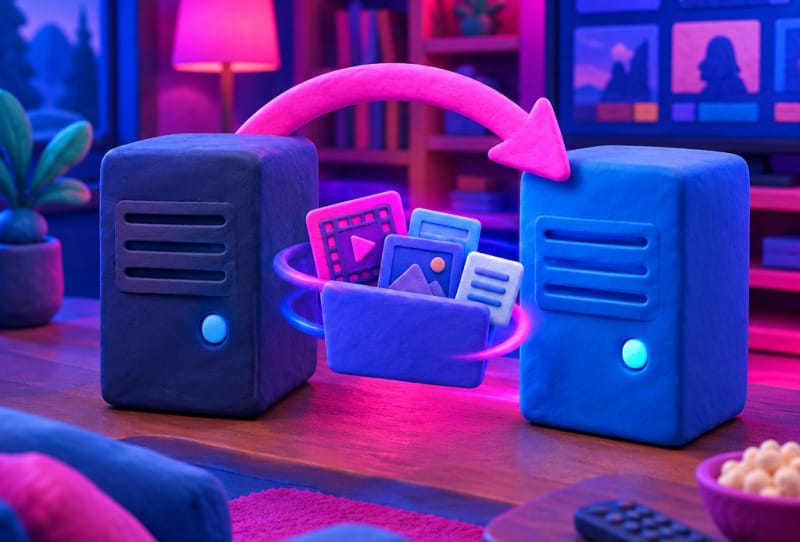
To migrate your Plex server, copy the Plex data folder from the old device to the new one, install Plex Media Server fresh on the destination, then restore that data folder before pointing your libraries back at your media. This guide walks through the whole process, whether you are moving from an old PC to a new computer, shifting to a NAS, or swapping hardware entirely, so you keep your watch history, user accounts, and library settings intact.
Key takeaways
- ✓Migrating Plex means copying its data folder, not just reinstalling the app on the new device
- ✓Your watch history, user accounts and library settings live in the Plex data directory, separate from your media files
- ✓Keeping the same folder structure and drive letters on the new device avoids having to rescan every library
- ✓Deauthorise or stop the old server only after confirming the new one plays media and shows correct history
- ✓A fresh backup before you start is the single best protection against losing years of metadata and watch progress
Table of Contents
What you’ll need
- Access to the old device with Plex Media Server currently running
- The new device with enough storage space for your Plex data folder and, ideally, your media library
- An external drive, network share, or large USB stick to transfer files if the two devices are not on the same network
- Your Plex account login details
- Administrator access on both the old and new devices
Step 1: Prepare before you migrate your Plex server
- Open Plex on the old server and make a note of your library names, the folder paths each library points to, and any custom settings such as transcoder behaviour or remote access ports.
- Stop the Plex Media Server application or service on the old device so no files are being written while you copy data.
- Locate the Plex data directory on the old device. This folder (often named something like “Plex Media Server”) holds your metadata, watch history, user accounts, and preferences, and is separate from the actual video and music files in your library.
- Create a full copy of that data folder as a safety net. It is far easier to follow a guide on how to back up your Plex server configuration than to rebuild years of metadata and viewing history from scratch.
Step 2: Install Plex on the new device
- Download and install Plex Media Server on the new device using the official installer from the Plex media server downloads page, choosing the version that matches the new device’s operating system.
- Run through the initial setup wizard just enough to confirm the install works, then close it without creating new libraries. You do not want the new server generating its own fresh data folder that you will have to overwrite.
- Stop the Plex service again on the new device before moving data across, for the same reason you stopped it on the old one.
Step 3: Move your data and media
- Transfer the Plex data folder from the old device to the equivalent location on the new device, replacing the placeholder folder that was created during installation. Use a wired network connection, external drive, or NAS share for large transfers, since Plex data folders with big libraries can run into many gigabytes.
- If your media files (movies, TV shows, music) are stored on a separate drive or NAS rather than inside the data folder, physically move or reconnect that drive to the new device, or make sure the new device can reach the same network share.
- Where possible, keep the folder structure and drive letters or mount points identical to the old setup. This single step avoids most of the headaches people run into with broken library paths after a move.
- Start Plex Media Server on the new device once the data folder is in place.
Step 4: Reconnect your libraries and go live
- Open the Plex web app or desktop app and check that your existing libraries, watch history, and user accounts have carried across correctly.
- If Plex flags any library as having missing files, update the library path to match where the media now lives on the new device rather than deleting and recreating the library, which would wipe watch progress for that content.
- If the new server shows up unclaimed or asks you to sign in again, follow the steps to claim your Plex server and link it to your account.
- Test playback on a couple of devices, including anything used for remote streaming, to confirm transcoding and remote access both still work.
- Once you are confident everything plays correctly, shut down Plex permanently on the old device and remove it from your account’s list of servers to avoid confusion later.
Tips and troubleshooting
If the new server cannot see your media after the move, the most common cause is a mismatched folder path rather than a corrupted library. Double check the exact path Plex expects against where the files actually sit, and consult the guide to fix Plex if it can’t find your media files if the issue persists.
Moving to a dedicated NAS instead of a desktop computer is a popular upgrade path, since it frees up a PC and usually improves uptime. If that is your plan, the guide on setting up Plex on a Synology NAS covers the NAS-specific setup steps in more depth.
If you are migrating to a Mac mini, MacBook Pro, or other compact machine and plan to connect several external drives for your media library, a decent USB-C hub for a MacBook Pro or similar laptop is worth having on hand, since built-in ports on slim machines are often limited.
Avoid running both the old and new Plex servers claimed to the same account at the same time for longer than necessary. It can create duplicate server entries in your account and confuse apps trying to find the right one to connect to.
If permissions errors appear when Plex tries to read the moved data folder, particularly on Linux or NAS operating systems, check that the Plex service account has read and write access to the new folder location.
Frequently asked questions
Will I lose my watch history when I migrate my Plex server?
No, as long as you copy the Plex data folder across rather than just reinstalling the app fresh. Watch history, ratings, and user accounts are all stored in that data folder, not in the media files themselves.
Do I need to re-add all my libraries on the new server?
Not if the data folder transfers correctly. Your existing library definitions move with it. You may only need to update the folder path if the media files are stored in a different location on the new device.
Can I migrate Plex between different operating systems, such as Windows to a NAS?
Yes, the core data folder structure is generally compatible across platforms, though exact file paths differ. Keep a backup before attempting a cross-platform move and check Plex’s official support documentation for any platform-specific notes.
What happens to remote access and shared users after migration?
Remote access and shared libraries are tied to your Plex account and the claimed server, so they typically reconnect automatically once the new server is online and claimed. It is still worth testing remote playback and checking that friends you have shared your library with can still connect.