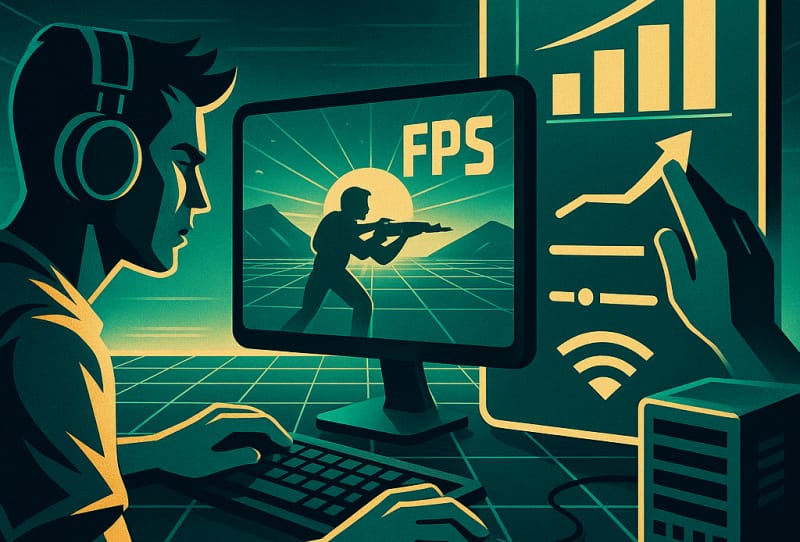
Choppy frame rates and laggy gameplay can ruin an otherwise good gaming session, whether you are playing competitively or just trying to relax after work. This guide walks you through practical, lasting ways to reduce lag and improve FPS in your games, covering your hardware, your settings, and your network connection. It is written for PC gamers of all experience levels, though many tips apply to consoles too.
Table of Contents
What you’ll need
- A PC or console with up-to-date drivers or system software
- Access to your graphics card control panel or in-game video settings
- A stable internet connection, ideally wired
- A basic system monitoring tool (many are built into Windows or available free)
Check what’s actually causing the problem
Before changing anything, work out whether you are dealing with lag (network delay, often shown as ping) or low FPS (a rendering performance issue). They feel similar but need different fixes. A frame rate counter, available in most game launchers or graphics card overlays, tells you your FPS in real time. A high ping with steady FPS points to a network issue, while stuttering frame rates with low ping usually means your hardware is struggling to keep up.
- Open your graphics card’s overlay or a third-party monitoring tool to display FPS during gameplay.
- Note whether frame rates drop during specific moments, such as busy scenes or explosions, which suggests a hardware bottleneck.
- Check your in-game ping or network stats if the game shows them, to rule out connection issues.
Update your drivers and game software
Outdated graphics drivers are one of the most common causes of poor performance, and they are also one of the easiest fixes.
- Visit your graphics card manufacturer’s official site or use its companion app, such as NVIDIA’s DLSS technology settings panel or AMD’s Adrenalin software, to check for the latest driver.
- Install any available driver update and restart your PC afterwards.
- Make sure the game itself is fully updated, since patches often include performance fixes.
- Update your operating system, as outdated system files can also affect performance.
Adjust in-game graphics settings
Visual settings have the biggest direct impact on FPS. You do not need to sacrifice everything, but a few targeted changes usually make a noticeable difference.
- Lower your resolution slightly or keep it native but reduce render scale if the game offers it.
- Turn down or disable shadows, ambient occlusion, and anti-aliasing, since these are often the heaviest settings on frame rate.
- Disable motion blur and depth of field, which cost performance without helping competitive play.
- If your graphics card supports upscaling technology such as DLSS or FSR, enable it to gain FPS with minimal visual loss.
- Cap your frame rate to match your monitor’s refresh rate to avoid unnecessary strain and screen tearing.
Reduce background load on your system
Programs running in the background quietly eat into the CPU, memory, and network resources your game needs.
- Close unnecessary browser tabs, chat apps, and downloads before launching a game.
- Disable overlays you are not using, such as chat or recording overlays, since these can add overhead.
- Check your startup programs and disable any that are not essential, to free up resources on boot.
- Run a malware scan occasionally, since unwanted background processes can silently drain performance.
Improve your network connection
If lag is a network problem rather than an FPS problem, the fix usually lies outside the game itself.
- Connect your PC or console to your router with an ethernet cable rather than relying on Wi-Fi, since wired connections are more stable and consistent.
- Restart your router if you have not done so recently, as this clears temporary congestion issues.
- Close other devices or downloads on your network that might be competing for bandwidth during play.
- Choose game servers closer to your physical location where the option is available, to reduce ping.
Consider hardware upgrades
If software tweaks only get you so far, your hardware may genuinely be the limiting factor. A graphics card or CPU that is several generations old will struggle with modern titles regardless of settings. Adding more RAM can also help if your system is swapping to disk during gameplay, and an SSD reduces stutter caused by slow game loading. Some newer tools now attempt to automate these adjustments; for example, automated tools designed to boost FPS can tune settings on your behalf without manual trial and error.
Tips and troubleshooting
- Test one change at a time so you know exactly what improved things and what did not.
- Keep an eye on your CPU and GPU temperatures, since overheating hardware throttles performance to protect itself.
- If a specific game runs poorly while others run fine, check for a game-specific patch or known issue before changing your entire setup.
- Reinstalling a troublesome game can sometimes resolve stubborn performance issues caused by corrupted files, especially after installing and updating your games through Steam.
- If you enjoy fine-tuning further, you can also enable the developer console in Steam games to check performance stats directly.
Frequently asked questions
What is the difference between lag and low FPS?
Lag refers to delay caused by your network connection, often measured as ping, while low FPS is a rendering performance issue caused by your hardware or settings struggling to keep up with the game’s demands.
Does closing background apps really improve FPS?
Yes, background apps use CPU, memory, and sometimes network bandwidth, all of which your game could otherwise use, so closing unnecessary programs frees up resources for smoother gameplay.
Is a wired connection really better than Wi-Fi for reducing lag?
In most cases yes, since ethernet connections are more stable and less prone to interference or signal drop-outs than Wi-Fi, which directly helps reduce lag spikes.
Should I upgrade my hardware or just change settings first?
Always try software and settings adjustments first, since they cost nothing and often solve the problem. Only consider a hardware upgrade if your system still struggles after driver updates, settings changes, and background optimisation.
For readers who enjoy exploring related gaming setups, you might also find it useful to look into playing console games on your PC as another way to get the most out of your existing hardware.