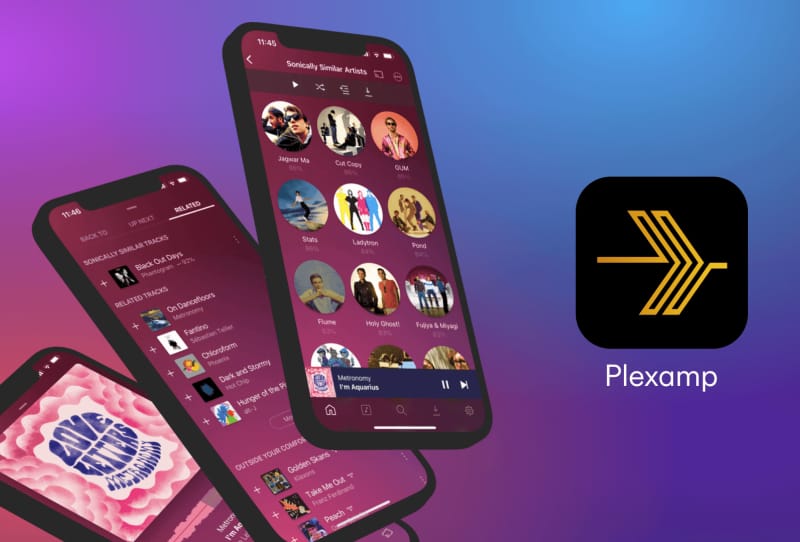
PlexAmp is a dedicated music player built by the team behind Plex, designed for anyone who wants a richer way to enjoy a personal music collection than a generic media app can offer. This guide walks you through how to set up PlexAmp for music streaming, from connecting it to your library through to tuning playback and unlocking the extra features available to Plex Pass members.
Table of Contents
What you’ll need
- A Plex account (free to create)
- A running Plex Media Server with a music library already added, or access to one on your network or via remote access
- The PlexAmp app installed on the device you want to listen from (desktop, mobile, or a supported streaming device)
- An internet connection, especially if you plan to stream from outside your home network
- Optionally, a Plex Pass subscription if you want features like offline downloads, the ten-band equaliser, or Sonic Sage playlists
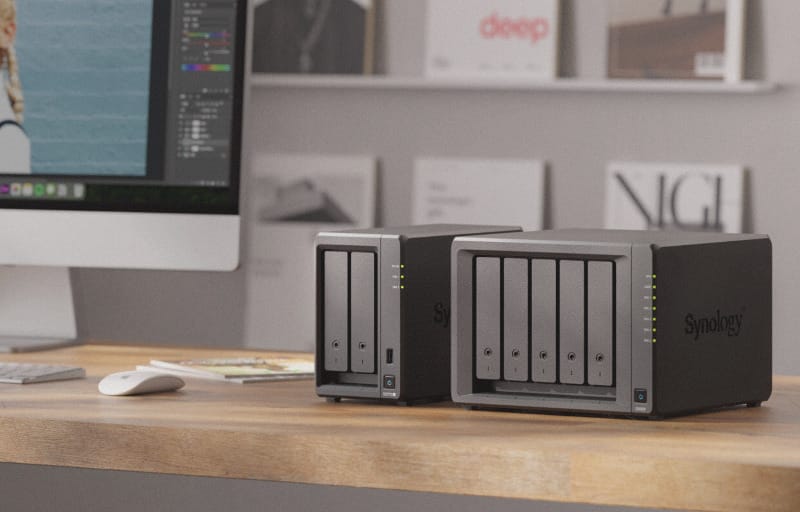
If you don’t yet have a server running, it’s worth sorting that out first. You can set up a Plex Media Server on your PC or, if you’d rather keep it running on dedicated hardware, run your Plex server on a Synology NAS. Either way, make sure your music files are organised into a library on the server before moving on.
Step 1: Download and install PlexAmp
- Head to Plexamp’s official page and choose the download for your platform, whether that’s Windows, macOS, Linux, iOS, Android, or a supported car or smart speaker integration.
- Install the app as you would any other software or mobile app for your device.
- Open PlexAmp once installation finishes.
Step 2: Sign in and connect to your server
- Sign in with your Plex account when prompted. This is the same account used for your Plex Media Server, so use matching credentials.
- PlexAmp will scan for available servers linked to your account. Select the server that holds your music library.
- Choose the specific music library you want PlexAmp to use as its main source. You can add more than one library later if needed.
- Give PlexAmp a moment to sync metadata such as album art, artist details, and play counts from your server.
Step 3: Configure playback and library settings
- Open the app’s settings menu and review the audio options, including gapless playback, loudness levelling, and Sweet Fades, all of which are available for free and help tracks flow into each other naturally.
- Turn on advanced pre-caching if you have a less stable connection, so playback keeps going smoothly through brief network drops.
- Set up smart playlists and stations to have PlexAmp automatically build listening queues based on your library.
- If you’re on a mobile device, check the visualiser and theme options under display settings to personalise how the now-playing screen looks.
Step 4: Explore Plex Pass features (optional)
PlexAmp works fully as a free app, but a Plex Pass subscription unlocks a further layer of tools built around Plex’s sonic analysis technology. The table below breaks down what you get either way.
| Free with PlexAmp | Unlocked with Plex Pass |
|---|---|
| Gapless playback and Sweet Fades | Artist and album mix builders |
| Loudness levelling | Sonically similar artists, tracks, and albums |
| Smart playlists and stations | Sonic Sage and Sonic Adventure playlist tools |
| Unlimited streaming and visualizers | Offline downloads and Guest DJ |
| Chromecast, AirPlay, and Siri support | Lyrics, autoplay, and a ten-band equaliser |
- If you have a Plex Pass, sign in with the same account in PlexAmp and the extra options will appear automatically in the app’s menus.
- Try Track Radio or Album Radio on a song or album you like to see how the sonic matching builds a listening session around it.
- If you run a small always-on device such as a Raspberry Pi, look into PlexAmp’s headless mode, which lets it run without a screen as a dedicated music endpoint.
Step 5: Set up listening away from home
To stream your library when you’re out and about, your Plex server needs remote access configured. You can follow the steps to set up remote access in Plex so PlexAmp can reach your server securely over the internet rather than only on your home network. If streaming feels slow or buffers frequently while away from home, it’s also worth taking a look at ways to improve your home internet for streaming, since your home connection’s upload speed affects how well remote playback performs.
Tips and troubleshooting
- If PlexAmp can’t find your server, confirm the Plex Media Server is actually running and that both devices are signed into the same Plex account.
- Missing album art or artist details usually clears up once the server finishes refreshing metadata for the library.
- For skipping or stuttering playback, try lowering the streaming quality in settings or enabling pre-caching.
- Keep both PlexAmp and Plex Media Server updated, since playback and library features are tied to compatible versions on both ends.
- If a feature mentioned in the app seems greyed out, check whether it’s a Plex Pass-only feature rather than a setup issue.
Frequently asked questions
Do I need a Plex Media Server to use PlexAmp?
Yes, if you want to stream your own music collection, you need a Plex Media Server with a music library set up and running, since PlexAmp is the player rather than the storage and organisation layer.
Is PlexAmp free to use?
PlexAmp itself is free and includes gapless playback, loudness levelling, smart playlists, and unlimited streaming. A Plex Pass subscription adds extra features like offline downloads, sonic matching tools, and a ten-band equaliser.
Can I use PlexAmp without an internet connection?
Offline playback is available to Plex Pass subscribers, who can download playlists or stations in advance. Without Plex Pass, PlexAmp generally needs a connection to your server to stream.
Can PlexAmp play music on smart speakers or in the car?
Yes, PlexAmp supports casting through Chromecast and AirPlay, along with CarPlay and Android Auto integration, so you can keep listening as you move between devices.