Sharing your Plex library with friends and family lets them browse and stream your movies, TV shows, and music without needing their own copy of everything. This guide walks you through granting access, choosing what to share, and sorting out common hiccups along the way. It suits anyone running their own Plex Media Server who wants to open it up to people outside their household.
Table of Contents
What you’ll need
- A Plex Media Server already set up and signed in to your Plex account
- A stable internet connection, since sharing usually means data will travel outside your home network
- Remote Access enabled on your server if the person you’re sharing with does not live on your local network
- The email address or Plex username of the person you want to invite
- A Plex Pass subscription if you want to apply content restrictions or limit downloads (optional)
If you haven’t set up your server yet, start with a guide on setting up a Plex Media Server before attempting to share anything. And if your friend lives elsewhere, you’ll need to enable Remote Access first, otherwise the share will only work while they’re connected to your home network.
How to share Plex library with friends
- Open the Plex Web App and sign in with the account tied to your server.
- Go to Settings, then select your server’s name from the left-hand menu, and confirm it’s signed in under General.
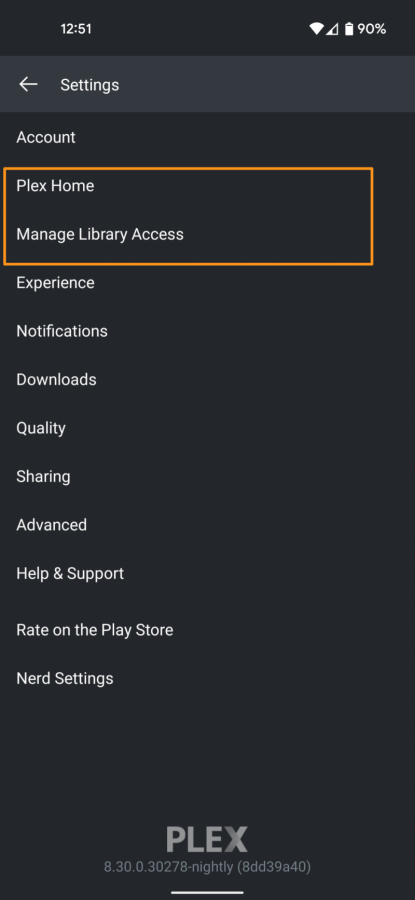
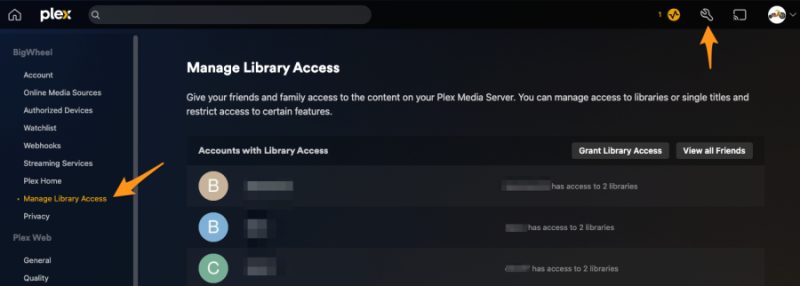
- Navigate to Settings, then Manage Library Access. On mobile, this option sits within the app’s settings menu.
- Click the Grant Library Access button to open the sharing wizard.
- Enter the username or email address of the person you want to invite. If they already have a Plex account, a green check mark will confirm the match. If they don’t, they can create a free account when they accept your invite.
- Select the server you want to share from the list of servers linked to your account.
- Choose whether to share the whole server or just specific libraries. Selecting the server name shares everything, while unselecting it lets you tick individual libraries instead.
- If you have a Plex Pass, set any restrictions you want, such as blocking downloads, limiting content by rating, or filtering by a specific label you’ve applied to your media.
- Optionally, send a Friend request alongside the invite. Friends can see each other’s watch history, watchlists, and ratings if both parties allow it.
- Click Send to finish the setup and email the invitation.
- On the final screen, copy the invite link if you’d rather send it directly through text or chat instead of relying on email. Click Finish once you’re done.
Invites that haven’t been accepted yet will appear under Library Request Sent at the bottom of the Manage Library Access page, so you can keep track of who still needs to respond.
Editing or removing access later
- Go back to Settings, then Manage Library Access.
- Under Accounts with Library Access, click anywhere on a person’s row (avoiding the X icon) to change which libraries they can see or adjust their restrictions.
- To remove someone’s access entirely, click the X on the right-hand side of their row.
- Remember that removing library access does not remove them as a Friend. Manage that separately from the People page in your account settings.
How your friend accepts the invitation
- They’ll receive an email with an invitation link. Clicking it takes them to a sign-in or sign-up page.
- If they don’t already have a Plex account, they can sign up using an email address, or sign in with an existing Apple or Google account.
- Alternatively, they can accept the invite directly inside the Plex Web App or mobile app, under Manage Library Access, in the Library Invitations Received section.
- Once accepted, your shared library will appear in their Plex app, ready to browse and stream.
Tips and troubleshooting
- If a friend outside your home can’t see your server, double check that Remote Access is switched on and working, since a share without it will only function locally.
- Make sure the invite email hasn’t landed in a spam or junk folder if your friend says they never received anything.
- If you want tighter control over what’s shared, such as blocking mature content or stopping downloads, you’ll need an active Plex Pass subscription to unlock those restriction options.
- Keeping your media well organised makes a shared library far easier to browse. It helps to name your TV shows and movies correctly so titles, posters, and metadata all display properly for everyone using the server.
- If several people start streaming from your server at once and things start to lag, it’s worth looking at ways to optimise your Plex database so playback stays smooth for all viewers.
- Pending invitations don’t expire immediately, but if someone loses the link, you can always resend it or generate a new one through Manage Library Access.
Frequently asked questions
Do my friends need a Plex account to access my library?
Yes, but it doesn’t need to be a paid one. Anyone you invite can create a free Plex account when they accept your invitation, and that’s all that’s required to view a shared library.
Can I share only part of my library instead of everything?
Yes. When setting up the share, you can unselect the whole server and instead tick only the specific libraries you want that person to see, such as just your TV shows and not your home videos.
Do I need a Plex Pass to share my library?
No, basic sharing is free and available to any Plex Media Server owner. A Plex Pass subscription is only needed if you want extra controls, such as content rating restrictions, label-based filtering, or blocking downloads.
Why can’t my friend see my shared library?
The most common cause is Remote Access not being properly configured on your server, which stops people outside your home network from connecting. Check your Remote Access status and confirm the invitation was actually accepted before troubleshooting further.
For more detail on any of these settings, Plex’s official support page on managing library access, and the page covering restrictions on shared libraries, are both useful references for less common scenarios. You can also visit Plex’s official support page on managing library access directly for the latest interface changes.