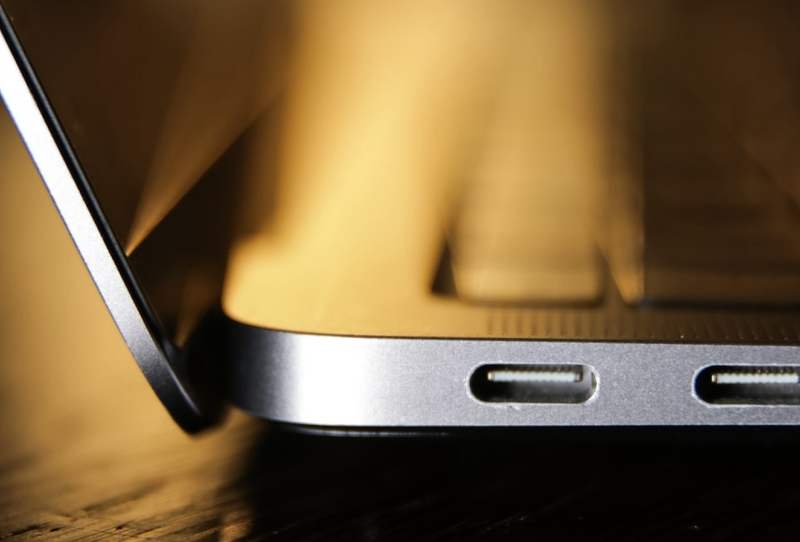
Dual USB-C ports rarely make it onto a shopping checklist next to processor speed or screen resolution, yet they quietly decide how frustrating a laptop is to live with day to day. Anyone who has had to choose between charging a laptop and plugging in a monitor through the same single port knows the problem well. A second USB-C connector fixes that conflict, and it does so in ways that go well beyond simple convenience.
The appeal is obvious once someone actually needs it. A single port forces a choice: power the laptop or connect an external display, a dock, or a drive. Two ports remove that trade-off entirely, letting a laptop stay plugged in while still running a monitor, an SSD or a USB-C hub at the same time. For anyone juggling a multi-monitor setup at a desk, or working from cafes with a portable screen in tow, that flexibility matters more than most spec sheets suggest.
Table of Contents
What dual USB-C ports actually solve
The most common scenario is straightforward. A portable monitor needs both a video signal and power, and if a laptop only has one USB-C port capable of handling both, the user is stuck carrying extra cables. A typical workaround involves an HDMI to mini-HDMI cable for video and a separate USB-A to USB-C cable for power, essentially replicating what a single port with a second twin could have done on its own.
There’s also the question of failure. USB-C ports get plenty of daily wear from constant plugging and unplugging, and a port that fails on a single-port laptop can leave the device unable to charge at all. A second port acts as a practical backup, not just an extra convenience.
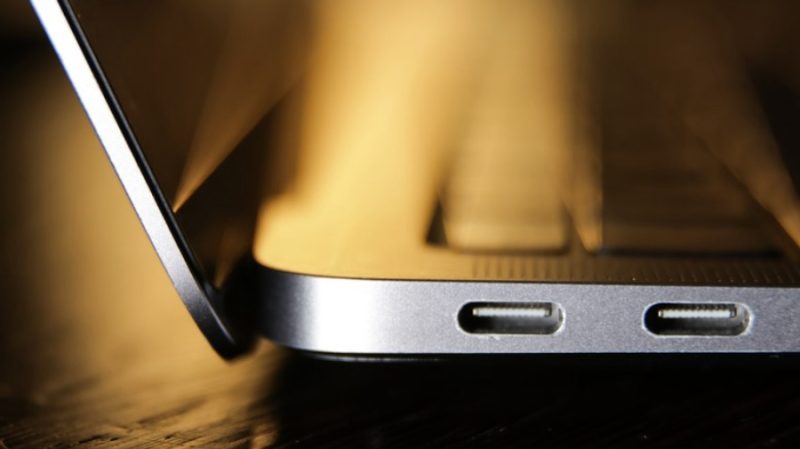
Placement flexibility is another underrated benefit. With ports on both sides of the chassis, a charger can be plugged in from whichever side is nearer the power outlet, avoiding trailing cables across a desk or awkward seating arrangements in a shared space.
Why some laptops still skip the second port
Cost is the main reason manufacturers cut corners here. Adding a second USB-C port that supports both charging and data means including an extra Power Delivery controller, more circuit board space, and additional engineering validation. For budget and even some mid-range laptops, that expense is hard to justify when a single port technically covers the basics.
It’s also worth remembering that not every USB-C port is created equal. USB-C describes a connector shape, not a fixed set of capabilities. A port only outputs video if it supports DisplayPort Alt Mode, or if it’s a Thunderbolt or USB4 port. Two identical-looking ports on the same laptop can behave completely differently, which catches plenty of buyers out after the purchase is already made.
Which laptops already get it right
Fortunately, dual USB-C ports have become close to standard on mid-range, premium and professional laptops, with many supporting Thunderbolt 4, Thunderbolt 5 or USB4.
| Laptop | USB-C Port Count | Standard Supported |
|---|---|---|
| MacBook Air (M2/M3) | 2 | Thunderbolt |
| MacBook Pro (Pro/Max chips) | 3 | Thunderbolt |
| Dell XPS 13 | 2 | Thunderbolt 4 |
| Dell XPS 14 / 16 | 3 | Thunderbolt 4 |
| Lenovo ThinkPad X1 Carbon / X1 Nano | 2 | Thunderbolt 4 |
| Lenovo Yoga 9i | 3 | Thunderbolt 4 |
| Asus Zenbook 14 / Zenbook Duo | 2 | Thunderbolt 4 / USB-C |
| Asus ROG Zephyrus G14 / G16 | 2 | USB-C |
Apple made dual-port configuration standard across the entire MacBook Pro lineup, and its Air models follow the same approach. Dell’s XPS range and Lenovo’s ThinkPad and Yoga families show the same pattern, and gaming laptops such as the Asus ROG Zephyrus series prove the feature isn’t confined to slim productivity machines. Readers weighing up a gaming-focused option might also find it useful to look at how the Gigabyte Gaming A16 Pro handles its own port layout, since gaming laptops don’t always prioritise this the way ultraportables do.

Working around a single USB-C port
For anyone stuck with only one capable port, a USB-C hub is the simplest fix. Multi-port hubs are compact, plug into the existing port, and typically include their own USB-C pass-through for charging alongside extra USB-A ports and an SD card slot. They won’t solve everything, but they remove the daily juggling act.
Thunderbolt 4 and USB4 docks go a step further. These stationary units connect through a single cable and draw power from a wall outlet, supporting high-speed data transfer, multiple displays, wired Ethernet, audio and laptop charging all at once. Before buying either option, it pays to confirm the hub or dock supports Power Delivery pass-through at the laptop’s required wattage, and that it has enough ports to cover whatever the laptop itself is missing. Understanding the USB-C fast charging standards at play also helps avoid buying a hub that can’t actually deliver enough power.
What it means for laptop buyers
Dual USB-C ports aren’t a premium indulgence anymore; they’re a practical feature that shapes how usable a laptop is on a daily basis. For anyone who works with an external monitor, a dock, or portable storage, checking port configuration should sit alongside checking the CPU and RAM. It’s one of the easier specs to overlook, and one of the quickest to regret once a laptop is already unboxed and in daily use.
Buyers researching their next machine through a guide on choosing the right gaming laptop or comparing charging setups via a piece on charging other devices from a laptop charger would do well to add port count and Thunderbolt or USB4 support to that same checklist. The USB Implementers Forum maintains the official specifications for these standards, and checking a laptop’s exact port capabilities against them before buying remains the safest way to avoid an unwelcome surprise later.