This guide explains how to enable console commands in Roblox, covering the built-in developer console and command bar inside Roblox Studio, as well as how in-game admin commands actually work when you are playing a game rather than building one. It is written for anyone who wants to test scripts, debug a project, or understand why random “cheat codes” do not work in most Roblox experiences.
It helps to clear up a common misunderstanding first. Roblox is not like a single game with one universal console you can open to type commands into any experience. The console and command tools described here belong to Roblox Studio, the free creation software used to build Roblox games. In-game commands you might see other players use are almost always set up by the creator of that specific game, not by Roblox itself.
Table of Contents
What you’ll need
- A Roblox account
- Roblox Studio installed on a Windows or Mac computer
- A place (project) open in Studio, either a new baseplate or an existing game you own or have edit access to
- Basic familiarity with navigating menus and tabs in Studio
Enable the developer console (Output window) in Roblox Studio
The Output window, sometimes called the developer console, shows script errors, warnings, and print statements while you build and test a game. It is the closest thing Roblox has to a true console.
- Open Roblox Studio and load the place you want to work on.
- Go to the View tab along the top ribbon.
- Select Output from the ribbon options. A panel will appear, usually docked at the bottom of the screen.
- Press Play or Run to test your game. Any errors, warnings, or messages printed by your scripts will appear in this window in real time.
- Use the filter icons in the Output panel to show or hide errors, warnings, and information messages, which makes it easier to spot the message you need.
Use the command bar to run Luau commands
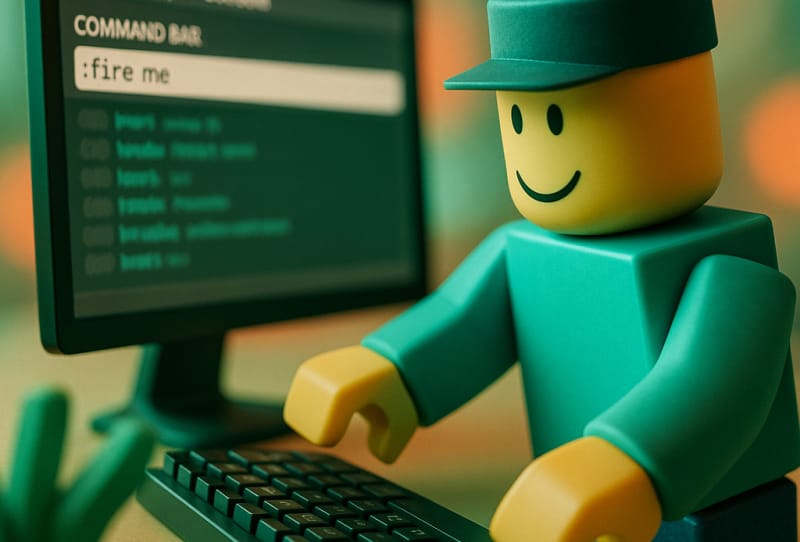
The command bar lets you type and run a single line of Luau code directly, which is useful for quickly testing behaviour without writing a full script.
- With your place open in Studio, go to the View tab again.
- Select Command Bar from the ribbon. A small input field will appear, typically near the bottom of the Studio window.
- Click into the command bar and type a valid Luau command, such as one that prints a message or changes a property of an object in the workspace.
- Press Enter to run the command. Any output or errors will show up in the Output window, so keep both panels visible while testing.
- Use the command bar during Play testing sessions to adjust values on the fly, such as moving a part or changing a variable, without editing the underlying script each time.
Refer to the official Roblox Studio documentation for a full breakdown of Luau syntax and command bar behaviour, since script structure can be fiddly for newcomers.
How in-game admin commands work
If you have ever seen a player in a Roblox game type something into the chat and instantly fly, spawn items, or teleport other players, that is not a Roblox-wide feature. It is a custom admin system built into that specific game by its creator, usually through a script or module inserted into the game’s code. These systems grant certain commands to the game owner or to players the owner has approved, often through a rank system or a list of user IDs.
If you own a game and want to add commands like this yourself, you would insert an admin script or module into your place inside Studio, then configure it to recognise your account or trusted testers. This is entirely up to individual creators and varies widely between games, so there is no single official command list that works everywhere.
Attempting to force commands into someone else’s game through third-party exploit tools is against Roblox’s terms of use and can result in account bans, so it is best avoided entirely. Anyone learning to build with Roblox’s tools for creators will find that legitimate scripting inside Studio is the reliable way to add these features.
Tips and troubleshooting
- If the Output or Command Bar options are greyed out, make sure you have a place actually open in Studio rather than sitting on the home screen.
- Commands typed into the command bar only run inside your local Studio test session, not in the published, live version of the game.
- If nothing appears in Output after running a command, double check for typos, since Luau is sensitive to correct syntax and capitalisation.
- Keep the Output window open while testing scripts, since it is the fastest way to catch a broken command or a script error before you publish.
- If you are trying to get admin commands working in your own game, test with a second account or a friend first, so you can confirm permissions are set correctly before inviting the public.
Frequently asked questions
Can I use console commands in any Roblox game as a regular player?
No. Regular players cannot type universal console commands into any Roblox game. Any commands you see working belong to an admin system that the game’s creator built and controls, and access is usually limited to the owner or approved testers.
Is the Roblox Studio command bar the same as a cheat console?
Not quite. The command bar is a legitimate development tool for running Luau code while building and testing a game in Studio. It is not designed for use inside a published, live experience by players.
Why can’t I find the Output or Command Bar options?
These tools live under the View tab in Roblox Studio and only appear once you have a place loaded. If you cannot see them, confirm you are inside an open project rather than the Studio launch screen, and check that your version of Studio is fully updated.
Will using third-party command or exploit tools get me banned?
Yes, it can. Injecting unauthorised scripts or commands into someone else’s game violates Roblox’s terms of service and puts your account at risk of suspension or a permanent ban, so it is safest to stick to the official tools inside Roblox Studio.