If several people in your household use the same Plex server, you probably don’t want everyone seeing the same libraries, the same viewing history, or content that isn’t age appropriate. This guide walks you through how to manage Plex user permissions, from setting up managed accounts under Plex Home to sharing libraries with friends outside your household and locking down what each person can watch or change. It’s aimed at anyone running their own Plex Media Server who wants more control over who sees what.
Table of Contents
What you’ll need
- An active Plex account with server owner (admin) access
- A Plex Media Server already set up with at least one library
- The Plex app or Plex web app to access account and server settings
- Email addresses or Plex usernames for anyone you plan to invite as a friend
Understanding Plex user types
Before you start changing settings, it helps to know the different kinds of users Plex supports. The server owner has full administrative control, including server settings, library management, and the ability to add or remove other users. Managed users, created through Plex Home, are typically household members such as kids who use a simplified profile without needing their own separate Plex account. Friends are people you invite using their email or Plex username, and you choose exactly which libraries they can access. Each of these roles behaves differently when it comes to permissions, so picking the right type for each person is the first real decision when you manage Plex user permissions.
Setting up Plex Home for managed users
- Sign in to your Plex account through the Plex app or the Plex web app.
- Open the account or user settings area and look for the Plex Home or family sharing option.
- Choose to create a new managed user for anyone in your household who doesn’t need their own independent Plex login.
- Give the managed user a name and, if the option is available, set a PIN to protect that profile from unauthorised access.
- Select which libraries on your server this managed user is allowed to see, and confirm the setup.
Inviting friends and setting shared library access
- From your server settings, find the section for sharing or managing users.
- Select the option to invite a friend and enter their email address or Plex username.
- Choose exactly which libraries to share with that person. You don’t have to give access to everything on your server.
- Decide whether to allow features like syncing content for offline viewing or downloading media, since these can be toggled per user.
- Send the invite and wait for the person to accept it from their own Plex account before their access becomes active.
If you regularly add and remove libraries, it’s worth reviewing how you’re creating and managing multiple Plex libraries first, since permissions are applied at the library level rather than to individual files or folders.
Setting content restrictions for each user
- Open the settings for a specific managed user or friend from your list of shared users.
- Look for content rating or restriction controls tied to that user’s profile.
- Set an age-based limit so titles above a certain rating are hidden or blocked from that account.
- Apply the restriction and check it by signing into that user’s profile to confirm the content is filtered as expected.
For a deeper look at rating systems and how filtering works across different regions, see this guide on how to restrict content in Plex by age rating, which pairs well with the user permission steps above.
Adjusting server-wide and library-level permissions
- Go into your Plex Media Server settings and locate the users or sharing management page.
- Review each user listed and confirm which libraries they currently have access to.
- Remove access to any library that a user no longer needs, rather than leaving broad permissions in place.
- If a user should never be able to change server settings, confirm they’re set up as a managed user or friend rather than being given admin rights.
- Save your changes and, if possible, ask each affected user to refresh their app to see the updated access.
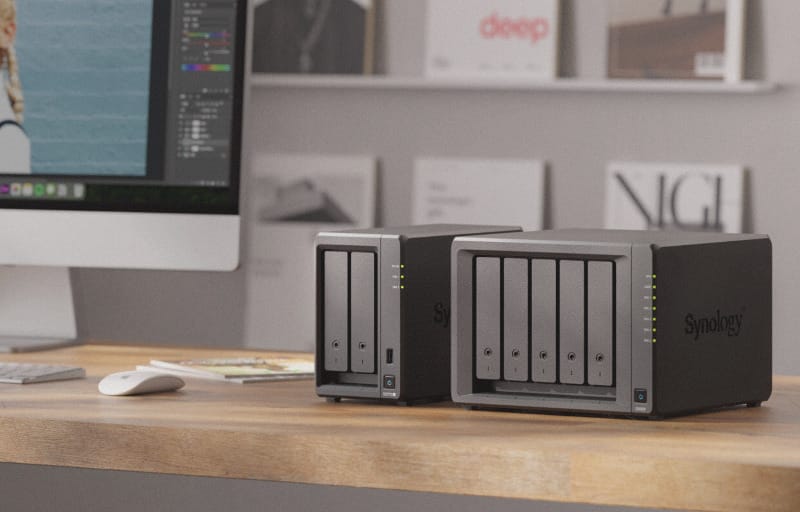
If you run Plex from a NAS device shared by multiple household accounts, it’s also worth checking how you’re configuring NAS user accounts and permissions, since NAS-level access and Plex-level access are separate systems that both need attention.
Tips and troubleshooting
- If a shared user says they can’t see a library, double check that the invite was accepted and that the specific library was actually selected during setup, not just the server itself.
- PINs on managed user profiles are a simple way to stop kids from switching into an adult profile without permission.
- Removing a user’s access doesn’t delete their watch history immediately in every case, so don’t rely on this as a way to hide viewing activity.
- After making significant permission changes, it’s a good habit to back up your Plex server configuration, so you can restore your setup quickly if something goes wrong later.
- If permissions seem to apply inconsistently across devices, try signing out and back into the Plex app on the affected device to force it to refresh the account’s access list.
Frequently asked questions
What’s the difference between a managed user and a friend in Plex?
A managed user is created and controlled entirely by the server owner through Plex Home, and is meant for household members who don’t need an independent Plex account. A friend is an existing Plex account holder who accepts an invite to access specific shared libraries, and they manage their own login separately.
Can I limit what a shared user can watch without blocking them entirely?
Yes. Instead of removing access to a whole library, use content rating restrictions on that user’s profile so only titles below a chosen rating are visible to them, while everything else on the server stays accessible to other users.
Do shared users need their own Plex account?
Friends need their own Plex account to accept an invite and sign in, while managed users under Plex Home do not need a separate account since their profile lives under the server owner’s account.
Can I remove a user’s access at any time?
Yes, the server owner can revoke a user’s library access or remove them entirely from the shared users list at any time through the server’s sharing settings, and this takes effect the next time that user’s app refreshes their permissions.