The quickest way to reduce input lag on PC gaming is to turn off V-Sync, switch to wired peripherals, and match your in-game frame rate to your monitor’s refresh rate. This guide is for anyone whose keyboard, mouse or controller feels slightly delayed on screen, whether you’re chasing competitive reaction times or just want your games to feel tighter.
Key takeaways
- ✓Input lag is caused by hardware and software delays, not network connection issues
- ✓Disabling V-Sync is one of the fastest ways to cut noticeable input lag
- ✓Wired keyboards, mice and controllers almost always respond faster than wireless ones
- ✓Competitive gamers aim for under 15 milliseconds of input lag, casual play under 40ms
- ✓Matching your frame rate to your monitor's refresh rate reduces perceived delay
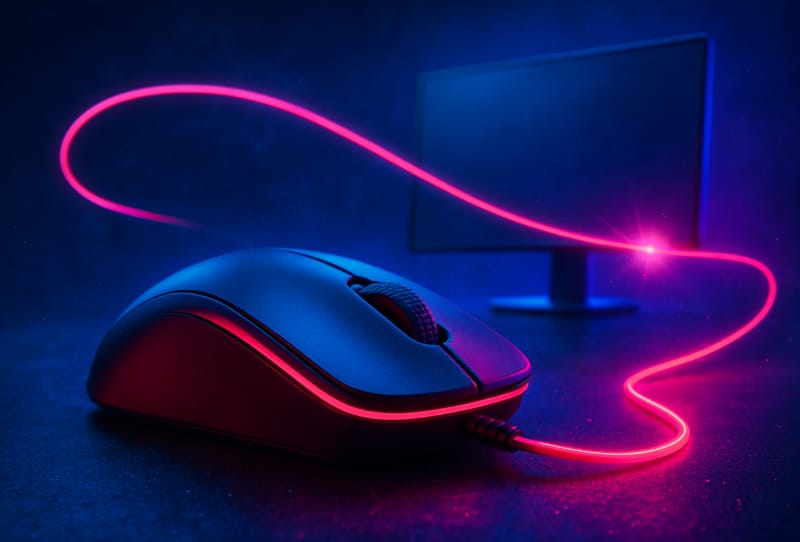
Input lag is the gap between pressing a button and seeing the result appear on your display. It’s separate from network lag, which is caused by your internet connection, and it can affect single-player games just as much as online ones. According to Intel’s guide to fixing input lag, professional competitive players aim to keep this delay under 15 milliseconds, while casual players generally won’t notice anything under about 40 milliseconds. Once it climbs past 50 to 70 milliseconds, the delay becomes obvious and frustrating.
Table of Contents
What you’ll need
- Access to your game’s video settings menu
- Your monitor’s on-screen display menu or remote
- A wired keyboard, mouse or controller (or fresh batteries for wireless ones)
- A few minutes to test settings in-game
Turn off V-Sync first
V-Sync stops screen tearing by forcing your graphics card to match your monitor’s refresh rate, but it also adds a buffering delay that can make inputs feel sluggish. It’s usually the single biggest cause of noticeable lag, so start here.
- Open your game’s video or display settings menu.
- Find the V-Sync option and switch it off.
- Play for a few minutes and check whether the controls feel more immediate.
- If you notice screen tearing without V-Sync, look for a newer alternative such as Intel Adaptive Sync, G-Sync, or FreeSync, which sync frame delivery without the same input delay penalty.
Check your display and connection
Your monitor contributes its own fixed delay before it even displays a frame, and some settings make that worse. Many gaming-focused monitors sit around 10 to 15 milliseconds of built-in latency, but televisions and budget displays can add far more if their processing features are left on.
- Confirm your monitor’s refresh rate in its display menu and set your game to match or exceed it where possible.
- If you’re using a TV, enable “Game Mode” in its picture settings, since this bypasses extra image processing that adds delay.
- Switch from a wireless display connection to a wired one if you have the option, since wireless links add extra latency, particularly at higher resolutions.
- Avoid daisy-chaining extra adapters or switches between your PC and display where you can, since each one adds a small processing delay.
If you’re planning a second display for chat, streaming or reference material, it’s worth reading through how to connect multiple monitors to your gaming PC so your primary gaming screen stays configured for the lowest possible lag.
Test your keyboard, mouse and controller
Hardware faults in input devices are rare, but wireless connections, low batteries and cheap dongles can all add a small but noticeable delay.
- Swap in a different wired mouse, keyboard or controller temporarily to see if the lag disappears.
- If it does, the original wireless device or its connection is likely the culprit, not your PC or game settings.
- Charge or replace batteries in wireless peripherals, since low charge can increase polling delays.
- Use the manufacturer’s dedicated USB dongle rather than a generic Bluetooth connection where available, as dedicated dongles are typically tuned for lower latency.
This applies across brands and device types, whether you’re running a gaming mouse, a mechanical keyboard, or a retro-styled pad like an 8BitDo controller. If a wired connection consistently feels sharper, it’s confirmation the wireless link was adding the delay rather than your PC hardware.
Match your frame rate to your monitor
Sending frames to your display faster or slower than it can refresh adds inconsistency that feels like lag even when your hardware is fast. Setting an appropriate frame rate cap through your game or graphics driver software keeps frame delivery steady and reduces the delay between input and on-screen response. This is particularly noticeable on high-performance systems, including prebuilt machines such as a CyberPowerPC SLC8500WST, where the graphics card can often produce far more frames than the monitor can display unless the frame rate is properly capped.
| Input lag level | Approximate delay | Typical experience |
|---|---|---|
| Excellent (competitive) | Under 15ms | Feels instantaneous, preferred by esports players |
| Good (casual) | 15 to 40ms | Comfortable for most single-player and online games |
| Noticeable | 50 to 70ms | Delay becomes apparent in fast-paced games |
| Poor | Over 70ms | Controls feel sluggish or disconnected |
Tips and troubleshooting
- If lag only appears in one specific game, check that title’s own graphics settings before assuming it’s a system-wide issue.
- Background overlays, recording software, or capture tools can add a small amount of processing delay, so close anything you don’t need while testing.
- Outdated graphics drivers occasionally reintroduce lag after a game patch, so keep drivers current.
- If frame rates are inconsistent rather than just delayed, the bottleneck may be elsewhere in your system. It’s worth reading how to reduce lag and improve FPS in your games for a broader performance check.
- Rule out your network early if you play online, since network lag feels similar to input lag but has a different cause. A guide on how to set up a gaming router for low lag covers this separately.
Frequently asked questions
What is the main cause of input lag on a gaming PC?
V-Sync is one of the most common causes, since it introduces a buffering delay to stop screen tearing. Wireless peripherals, mismatched frame rates, and TV picture processing are the other frequent culprits.
Does a higher refresh rate monitor reduce input lag?
Yes. A higher refresh rate displays more frames per second, which shortens the gap between an action being processed and appearing on screen, directly cutting perceived input lag.
Is wireless input lag noticeable with modern mice and controllers?
With good quality modern wireless hardware and fresh batteries, the difference is usually imperceptible. Problems tend to show up with low batteries, cheap dongles, or generic Bluetooth connections rather than the wireless technology itself.
Does upgrading my GPU reduce input lag?
A faster graphics card can help by producing frames more consistently, but it won’t fix lag caused by V-Sync, a slow display, or wireless peripherals. If you do want more headroom, learn how to overclock your gaming PC GPU safely once other lag sources are ruled out.