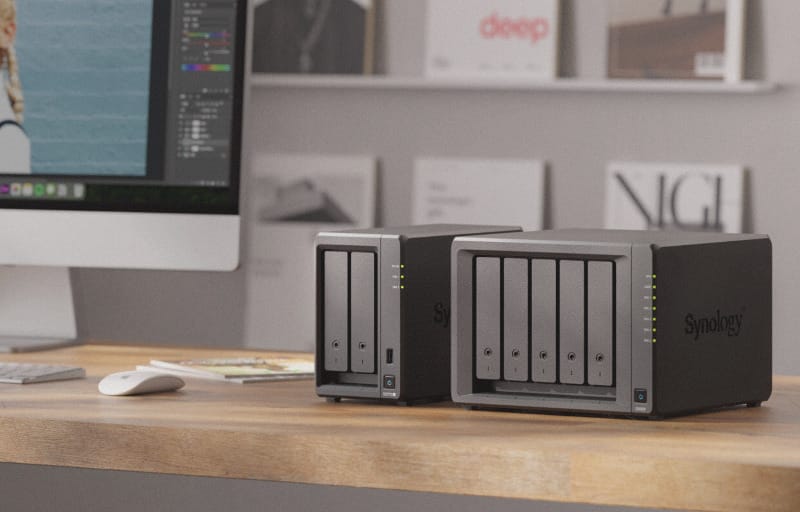
Wake-on-LAN lets your NAS sit in a low-power or fully shut-down state until you actually need it, then wake up on command over the network. This guide walks you through how to configure NAS Wake-on-LAN settings on the device itself, in its network adapter options, and in your router, so you can save power without losing quick access to your files. It suits anyone running a home or small office NAS who wants it available on demand rather than running continuously.
Table of Contents
What you’ll need
- A NAS that supports Wake-on-LAN (most Synology, QNAP, and Asustor models do, check your model’s specifications if unsure)
- A wired Ethernet connection between the NAS and your router or switch, since Wake-on-LAN generally does not work reliably over Wi-Fi
- Administrator access to the NAS operating system
- The MAC address of the NAS network adapter you want to wake
- A device or app you’ll use to send the wake signal, such as a phone app, a PC utility, or router-based scheduling
Understanding how Wake-on-LAN works on a NAS
Wake-on-LAN operates by sending a specially formatted network packet, often called a magic packet, to the MAC address of the NAS network card. When the network adapter detects this packet, even while most of the system is powered down, it signals the motherboard to complete the boot process. For this to work, the NAS must be in a sleep or safe-shutdown state that keeps a small amount of standby power flowing to the network interface, rather than being fully unplugged.
Because the trigger depends on the device recognising its own MAC address, and because that signal usually needs to travel across the local network rather than the wider internet, getting the setup right on both the NAS and the network is important before you rely on it.
Enable Wake-on-LAN on the NAS itself
- Log in to your NAS administration interface using an account with administrator privileges.
- Open the system or hardware settings section, then look for a power management or general settings area.
- Find the option labelled Wake-on-LAN or WOL and switch it on. On some NAS platforms this sits alongside power schedule settings, so check nearby menus if you cannot find it immediately.
- If your NAS has more than one network port, confirm which port or ports have Wake-on-LAN enabled, since each adapter may need to be switched on separately.
- Save the setting and, if prompted, restart the NAS so the change takes effect at the hardware level.
Record the MAC address and IP details
- Go to the network settings section of the NAS interface.
- Locate the network interface details and note down the MAC address exactly as shown, since even a single incorrect character will stop the wake packet from working.
- Note the NAS’s IP address as well. If your network uses DHCP, consider setting a static IP or a DHCP reservation for the NAS so its address does not change, since some wake-up methods and router rules rely on a consistent address.
- Write down both values somewhere safe, such as a notes app, since you’ll need them for the app or utility that sends the wake signal.
Check router and network settings
- Confirm the NAS is connected to your router or switch with an Ethernet cable rather than Wi-Fi, since wireless adapters rarely support Wake-on-LAN reliably.
- Log in to your router’s administration page and check whether it has an option related to Wake-on-LAN broadcast forwarding, sometimes needed if you want to send wake commands from outside the local network.
- If you plan to wake the NAS only from devices on the same home network, this step is less critical, since the magic packet can simply be broadcast locally.
- If you want to trigger a wake-up while away from home, look into whether your router supports forwarding a specific port for Wake-on-LAN traffic, and pair this with a way to send the packet remotely, such as a mobile app connected via VPN. For background on making your NAS reachable from outside your home, see this guide on how to access your NAS remotely over the internet.
Test the wake-up function
- Put the NAS into standby or shut it down using its own power management settings, rather than pulling the power cable, so the network adapter stays in a low-power listening state.
- Using a Wake-on-LAN app or utility on another device on the same network, enter the NAS’s MAC address and send a wake packet.
- Wait a short while, since boot time varies by model, then check whether the NAS becomes reachable again on the network.
- If it does not wake, revisit the NAS Wake-on-LAN setting, double-check the MAC address, and confirm the cable connection is solid.
Tips and troubleshooting
- Always use a wired connection. Wireless network cards typically cannot maintain the standby state required to receive a magic packet.
- Double-check the MAC address every time you note it down, since a single mistyped character is the most common reason wake attempts fail.
- Some NAS devices only support Wake-on-LAN from a full shutdown, others from sleep mode too, so check your specific model’s supported power states.
- If your NAS has multiple LAN ports in a link aggregation or failover setup, Wake-on-LAN behaviour can vary between ports, so test each one individually.
- A router firmware update or reset can sometimes disable a Wake-on-LAN forwarding rule you had previously configured, so recheck settings after any router changes.
- If you use your NAS for other automated services, review how those interact with power schedules. It’s worth revisiting your NAS user accounts and permissions setup at the same time to make sure remote wake tools only have the access they need.
Frequently asked questions
Does Wake-on-LAN work over Wi-Fi?
Generally, no. Most wireless adapters power down completely rather than staying in the low-power listening state that Wake-on-LAN requires, so a wired Ethernet connection between the NAS and your router or switch is strongly recommended for reliable results.
Can I wake my NAS from outside my home network?
It is possible, but it takes extra setup. You typically need a way to reach your home network remotely, such as a VPN connection, plus a router or device on your network capable of forwarding or sending the magic packet locally once your remote command arrives.
Why does my NAS not wake up even though Wake-on-LAN is enabled?
The most common causes are an incorrect MAC address, a wireless rather than wired connection, the NAS being in a power state that does not support waking, or a network switch or router that is not passing the magic packet through correctly. Work through each of these in order before assuming a hardware fault.
Is Wake-on-LAN worth setting up on a home NAS?
If you use your NAS occasionally rather than constantly, enabling Wake-on-LAN lets you keep it powered down most of the time and only bring it online when needed, which can reduce running time and wear. It pairs well with a broader setup that includes connecting your NAS to your home router correctly and reviewing your overall home NAS setup for reliability.