Setting up a gaming live stream on TikTok lets you broadcast your gameplay to followers in real time, whether you’re playing a mobile title on your phone or a PC game at your desk. This guide walks you through the whole process, from meeting TikTok’s LIVE requirements to getting your gameplay on screen with clear audio and a stable connection. It’s written for anyone starting out, so no prior streaming experience is assumed.
Table of Contents
What you’ll need
- A TikTok account that meets the platform’s eligibility requirements for going LIVE
- A stable internet connection, ideally a wired connection if streaming from a PC
- A smartphone (for mobile gameplay streams) or a gaming PC with capture and streaming software (for PC gameplay streams)
- A microphone, either built into your device or an external one, if you want to talk over your stream
- Optional: a capture card if you’re streaming from a console
Check your eligibility and prepare your account
- Open the TikTok app and make sure you’re logged into the account you want to stream from.
- Check whether your account meets TikTok’s current LIVE eligibility requirements. TikTok periodically adjusts these, and they can include a minimum follower count and age requirement, so check the LIVE section of your account settings if the option isn’t visible yet.
- Verify your account if prompted, since TikTok sometimes asks for phone number or ID verification before unlocking LIVE features.
- Update your profile bio and profile picture so viewers who discover your stream know what kind of content to expect.
Streaming mobile gameplay directly from your phone
- Open the game you want to play on your phone and get it running in the background or on a split screen if your device supports it.
- Open TikTok and tap the create (plus) button, then select the LIVE option from the menu.
- Look for a screen-recording or game-broadcast option within the LIVE setup screen, which allows TikTok to capture your device’s display instead of your camera.
- Add a title for your stream that describes the game and what viewers can expect.
- Grant TikTok permission to record your screen and audio when prompted by your phone’s operating system.
- Start the stream, then switch to your game. Your gameplay will now be visible to viewers, often with a small overlay showing your camera and chat.
- Keep an eye on chat between rounds or loading screens so you can respond to viewers.
Streaming PC or console gameplay to TikTok
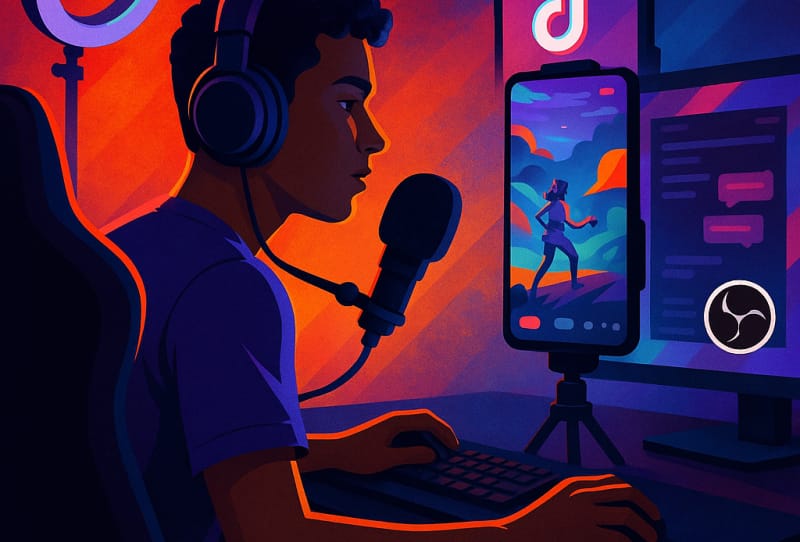
- Download streaming software such as TikTok’s own LIVE Studio tool, or a general-purpose option like OBS Studio.
- In TikTok’s creator or LIVE settings, locate the option to stream from a PC, which will generate a server URL and stream key unique to your account.
- Open your streaming software and enter that server URL and stream key into the stream settings, usually under a section labelled for custom or RTMP streaming.
- Add a video source in your software, either a game capture, display capture, or a capture card feed if you’re streaming from a console.
- Add your microphone as an audio source and test levels so your voice isn’t too quiet or clipping.
- Arrange your scene with any overlays, webcam feed, or alerts you want visible during the stream.
- Set your output resolution and bitrate to match your internet upload speed, favouring stability over the highest possible quality if your connection is limited.
- Click start streaming in your software once everything looks right, then confirm the stream appears live on your TikTok profile.
If you’re building or upgrading a rig specifically for this purpose, it helps to look at setting up a gaming PC correctly from the start, and to think about choosing compatible gaming PC parts so your system can handle gameplay and encoding at the same time without stuttering.
Tips and troubleshooting
- If your stream lags or drops frames, lower your bitrate or resolution before blaming your internet provider, since encoding load on your device is often the real bottleneck.
- Use a wired ethernet connection for PC streams whenever possible, as Wi-Fi introduces more variability in upload speed.
- Test your audio levels before every stream. Viewers will tolerate rough visuals far more than they’ll tolerate distorted or inaudible sound.
- Keep your TikTok app and any streaming software updated, since platform changes can affect how LIVE features behave.
- If the LIVE option doesn’t appear, double check your account meets current eligibility requirements rather than assuming there’s a technical fault.
Frequently asked questions
Do I need a certain number of followers to go live on TikTok?
TikTok sets eligibility requirements for LIVE access that can include a minimum follower count, and these thresholds are adjusted from time to time. Check the LIVE section of your account settings to see your current status, since the exact figure isn’t fixed permanently.
Can I stream console gameplay to TikTok?
Yes, using a capture card connected to your PC, with the card’s feed added as a video source in streaming software before sending the output to TikTok’s server and stream key.
Why does my TikTok gaming stream keep buffering for viewers?
This usually points to your upload bitrate being set too high for your internet connection. Lowering the bitrate and resolution in your streaming software settings typically resolves buffering issues for viewers.
Is TikTok LIVE Studio better than OBS for gaming streams?
Both work well. TikTok LIVE Studio is designed specifically for the platform and can be simpler to set up, while OBS offers more flexibility with scenes, sources, and plugins if you want finer control over your stream layout.