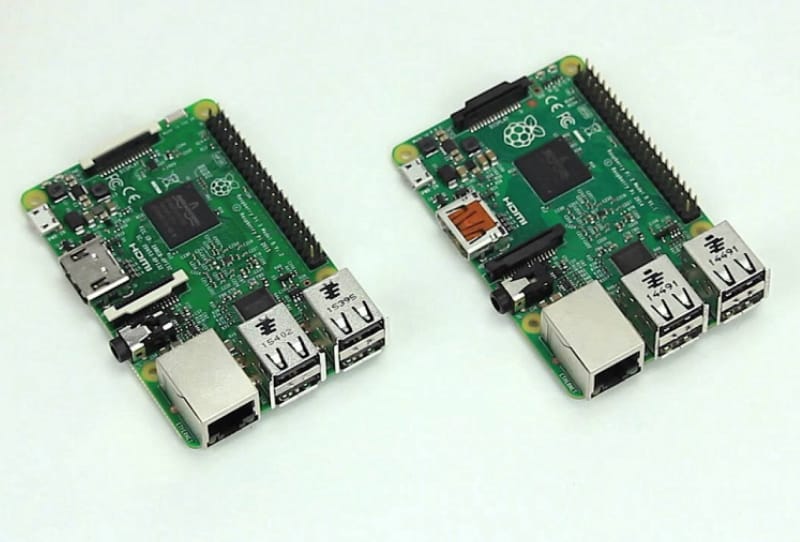
You can set up Plex server on a Raspberry Pi by installing Raspberry Pi OS, adding the official Plex apt repository, installing the plexmediaserver package, then mounting and fixing permissions on your media folder. This guide is for anyone who wants a low-power, always-on media server without buying a dedicated NAS, and it walks through every stage from a fresh operating system to a working Plex library.
Key takeaways
- ✓Plex on Raspberry Pi works best for direct play, since the Pi's processor struggles with transcoding heavy formats like AV1
- ✓You install Plex on a Pi through the official Plex apt repository rather than the Raspberry Pi OS default package list
- ✓Giving your Pi a static IP first prevents Plex from losing its connection after a reboot or DHCP lease change
- ✓Folder permissions need to be set to 755 for directories and 644 for files so the Plex user can read your media
- ✓A wired NAS or USB drive mounted to the Pi usually performs better than relying on Wi-Fi for large media libraries
A Raspberry Pi makes a genuinely capable little media server, as long as you understand its one real limitation. The Pi’s processor is fine for streaming files directly to modern devices, but it struggles badly with transcoding, which is what happens when Plex has to convert a file into a format your playback device cannot read natively. Formats like AV1 in particular are still poorly supported in hardware and will push a Pi’s CPU to its limit. Keep your library in widely compatible formats and stick to direct play where possible, and a Raspberry Pi 4 or newer will handle a home Plex server comfortably.
Table of Contents
What you’ll need
- A Raspberry Pi (a Pi 4 or later is recommended for smoother performance)
- A microSD card flashed with Raspberry Pi OS, set up using Raspberry Pi Imager
- A wired Ethernet connection for reliability (Wi-Fi works but is less consistent for large libraries)
- A USB hard drive or a network share, such as a NAS, to store your media files
- Terminal access to the Pi, either directly or over SSH
- A Plex account to claim the server once it is running
Prepare the Raspberry Pi
- Flash Raspberry Pi OS to your microSD card and boot the Pi, connecting it to your network with an Ethernet cable where possible.
- Give the Pi a static IP address through your router’s DHCP reservation settings, or configure one directly on the Pi itself. This stops Plex losing its address after a reboot, which otherwise breaks client connections and remote access.
- Open a terminal on the Pi, or connect over SSH from another computer.
- Update the package list by running sudo apt update.
- Upgrade any outdated packages with sudo apt upgrade -y so you are working from a current, stable base.
Install Plex Media Server on the Pi
Plex is not included in the default Raspberry Pi OS repositories, so you need to add the official Plex source before installing it.
- Install curl if it is not already present, using sudo apt install curl -y. This tool downloads the GPG key used to verify the Plex repository.
- Download and store the Plex signing key by running:
curl https://downloads.plex.tv/plex-keys/PlexSign.key | gpg –dearmor | sudo tee /usr/share/keyrings/plex-archive-keyring.gpg > /dev/null - Add the Plex repository to your package sources with:
echo “deb [signed-by=/usr/share/keyrings/plex-archive-keyring.gpg] https://downloads.plex.tv/repo/deb public main” | sudo tee /etc/apt/sources.list.d/plexmediaserver.list - Refresh the package list again by running sudo apt update. You should now see references to both the arm64 and armhf Plex packages, depending on whether your Raspberry Pi OS install is 64-bit or 32-bit.
- Install Plex itself with sudo apt install plexmediaserver -y. The installer will create a dedicated “plex” user and group that the server uses to read your files.
Mount your media and fix permissions
Before Plex can see your movies or shows, it needs access to wherever they are stored, and the folder permissions need to allow the plex user to read them.
- Mount your media source to a folder on the Pi, such as /mnt/media. This can be a USB drive plugged directly into the Pi, or a network share from a NAS such as a Synology unit or a QNAP box (the same general approach applies whether your NAS runs something like a Synology DS925NEO+ or another model). If you would rather run Plex on the NAS itself, read the guide to setting up Plex on a Synology NAS instead.
- Switch to the superuser with sudo su so you can adjust permissions across the whole media directory.
- Set directory permissions to allow reading and traversal with:
find /mnt/media -type d -exec chmod 755 {} \; - Set file permissions so Plex can read but not alter your media with:
find /mnt/media -type f -exec chmod 644 {} \; - Exit the superuser session by typing exit, confirming the terminal prompt returns to your normal username.
Finish setup in the Plex web interface
- Find your Pi’s IP address by running hostname -I if you don’t already have it noted down.
- From another computer on the same network, open a browser and go to that IP address on port 32400, followed by /web.
- Sign in with your Plex account and follow the prompts to name the server and add a library, pointing it at the media folder you mounted earlier.
- Once the server shows up under your account, claim your Plex server and link it to your account if it hasn’t already been claimed automatically during sign-in.
Tips and troubleshooting
If a library scans but shows no media, double check the permissions steps above, since this is the single most common cause of Plex “seeing” an empty folder on a Pi. If playback stutters on a TV or media player on your network, such as a smart TV app or a dedicated box like a Dune HD Homatics Box R 4K Plus, try forcing direct play by avoiding unusual codecs and container formats, since the Pi has limited transcoding headroom. Keep your Pi’s software updated, and once your library is stable, consider setting up a routine to back up your Plex server configuration so a corrupted SD card does not cost you your watch history and settings. If you want to share access, you can later invite friends to your Plex server once everything is running smoothly.
Frequently asked questions
Can a Raspberry Pi handle Plex transcoding?
Not well. The Pi’s processor is designed for efficiency rather than heavy video conversion, so it copes fine with direct play but struggles when Plex needs to transcode a file for an incompatible device or format.
Which Raspberry Pi model is best for Plex?
A Raspberry Pi 4 or a newer model is the practical minimum for a smooth experience, since earlier boards often cannot keep up with multiple simultaneous streams or larger libraries.
Do I need a NAS to use Plex on a Raspberry Pi?
No, a USB hard drive connected directly to the Pi works fine for smaller libraries. A NAS becomes more useful once your collection grows large or you want the storage accessible to other devices on your network.
Why can’t Plex find my media after mounting the drive?
This is almost always a permissions issue. Make sure directories are set to 755 and files to 644 so the dedicated plex user account created during installation can actually read the mounted folder.