Inviting friends to Plex means two slightly different things, and understanding the difference will save you a lot of confusion. You can add someone as a Plex “friend” for social features like activity feeds and watchlists, or you can grant them access to your actual media library so they can stream your movies and shows. Some people search for how to add friends on Plex simply wanting to share their server, while others genuinely just want the social side of things, so it’s worth being clear about which one you actually need before you start sending requests. This guide walks through both, so you can invite friends to Plex the right way depending on what you actually want to share.
Table of Contents
What you’ll need
- An active Plex account, signed in on the Plex website or app
- A Plex Media Server set up and signed into your account, if you plan to share a library
- Your friend’s Plex username, the email address linked to their account, or a way to send them a link
- A stable internet connection on both ends, especially if your friend will connect remotely
- A few minutes to confirm which libraries or features you actually want to share, since Plex treats friending and library access as separate permissions
How to send a friend request on Plex
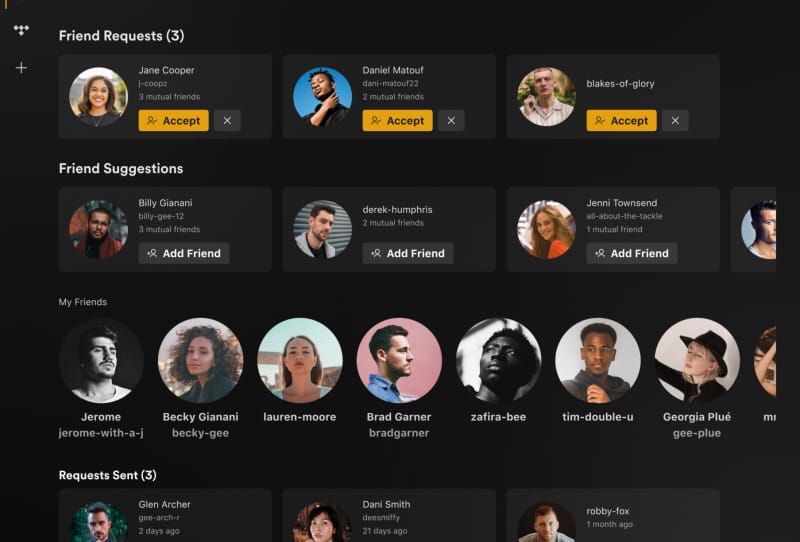
Becoming Plex friends is a social connection. It lets you see each other’s activity, watchlists, and recommendations, but on its own it does not give anyone access to your media. This is useful if you just want to follow what someone is watching or exchange recommendations without opening up your server. If your main goal is simply to add friends on Plex for these social features, this is the process you want, rather than the library sharing steps further down.
- Sign in to your Plex account and open the People page from your account settings.
- Use the search bar to look for your friend by username. Plex matches partial usernames as well as profile location and bio details, so try a few variations if you can’t find them straight away.
- If they appear under Friend Suggestions, click Add Friend to send a request instantly.
- If you can’t find them, use the Invite People to Plex button. This lets you send an invite via email, Facebook, or Twitter, or generate a link you can send however you like. Keep in mind this link only stays valid for 72 hours, so send it soon after creating it.
- Wait for your friend to accept. They will get an in-app notification and an email, and can approve the request from either.
- Once accepted, check the People page again to confirm the status has changed to “Friends” rather than “Pending”, so you know the connection has actually gone through.
How to grant a friend access to your Plex library
If your real goal is letting someone watch your movies, TV shows, or music, you need to share your library rather than just add them as a friend. These are separate systems in Plex, so you can grant access without being friends, or be friends without sharing anything. This is the step most people actually mean when they talk about wanting to add friends on Plex so they can stream from the same server.
- Sign in to the Plex account that your server is registered to, and open the library sharing section of your account settings.
- Choose to invite a new person, then enter their Plex username or the email address tied to their account.
- Select exactly which libraries you want them to see. You do not have to share everything on your server, only tick what you’re comfortable with.
- If you want tighter control, use the advanced sharing options to set content ratings limits or restrict specific libraries further, which is handy if the invite is going to a younger family member.
- During this process, Plex will also ask if you’d like to become friends with that account. This step is optional, so choose based on whether you also want the social features.
- Send the invite. Your friend will get a notification and an email prompting them to accept.
- Once accepted, your friend can open their own Plex app, find your server listed under their available servers, and start browsing and streaming straight away.
If you haven’t set up sharing before, it helps to read through the process for sharing your Plex library with friends in more detail, since library permissions and content filters can affect what each person sees.
Helping friends connect from outside your home
Friends who don’t live with you will usually need remote access working correctly on your server before they can stream anything. If your invite goes through but your friend can’t actually load content, the issue is often related to your network rather than the invite itself. It’s worth checking your remote access status by setting up remote access in Plex so the server can be reached over the internet, not just on your home Wi-Fi.
Once everyone can connect reliably, you might also want to look into how to watch together on Plex with friends remotely, which is a popular next step for households and friend groups who want to watch the same content in sync from different locations.
Tips and troubleshooting
- Make sure your Plex Media Server is signed into the same account you’re using to send invites. A server signed into the wrong account won’t show up when sharing libraries.
- Invite links for adding friends expire after 72 hours, so if your friend missed it, generate a fresh one rather than trying to reuse an old link.
- If a friend keeps sending requests after you’ve rejected them, open their profile from the request notification and block their account to stop further requests.
- To stop seeing a friend’s activity in your feed without removing them entirely, use the mute option on their profile rather than unfriending them.
- If you want to avoid random friend requests altogether, set your Account Visibility preference to “Friends only” in your profile settings so you don’t appear in search results or suggestions.
- Removing a friend does not automatically remove their library access, and removing library access does not automatically remove the friendship. Check both settings separately if you want to fully cut someone off.
- Double check spelling when entering a username or email, since a small typo will often send the invite to the wrong account or simply fail silently.
- If a pending invite seems stuck, cancel it from the Pending section of your sharing settings and resend it rather than waiting indefinitely.
Frequently asked questions
Do I have to be friends with someone to share my Plex library with them?
No. Friending and library sharing are separate features in Plex. You can grant someone access to your libraries without ever becoming friends, and you can be friends with someone without sharing any media at all.
How long does a Plex friend invite link last?
An invite link created through the Invite People to Plex option is only valid for 72 hours. If your friend doesn’t use it in that time, you’ll need to generate a new link.
Can I remove a friend without losing their library access, or vice versa?
Yes. Removing a friend leaves any existing library access in place, and removing library access doesn’t end the friendship. If you want to cut ties completely, you need to handle both separately in your account settings.
Why can’t my friend see my server after I invited them?
This is usually a remote access or network issue rather than a problem with the invite itself. Confirm your server shows as reachable outside your home network, and double check that you selected the correct libraries to share when sending the invite.