Watching a movie with mates or family used to mean everyone in the same room, or a very awkward “ready, set, go” countdown over a phone call. Plex removes that hassle with a feature that keeps everyone’s playback perfectly in sync, no matter where they are. This guide walks you through how to watch together on Plex, from starting a session to inviting friends and fixing common hiccups along the way.
This feature suits anyone with a Plex account who wants to share a movie night with people in another house, city, or country. It works with both personal media on a Plex Media Server and content from Plex’s free streaming library, so you do not need everyone to own the same files.
Table of Contents
What you’ll need
- A Plex account, with everyone joining also needing their own account
- A supported Plex app updated to its latest version (this includes Android, iOS, Apple TV, Fire TV, Android TV, Roku, Xbox, PlayStation 5, select Smart TVs, and the Plex web app)
- An existing friend connection with each person you want to invite
- Shared access to any personal media you plan to watch, if it lives on your own Plex Media Server
- A stable internet connection for everyone joining the session
How to start a Watch Together session
- Open the Plex app and browse to the movie, show, or episode you want to watch.
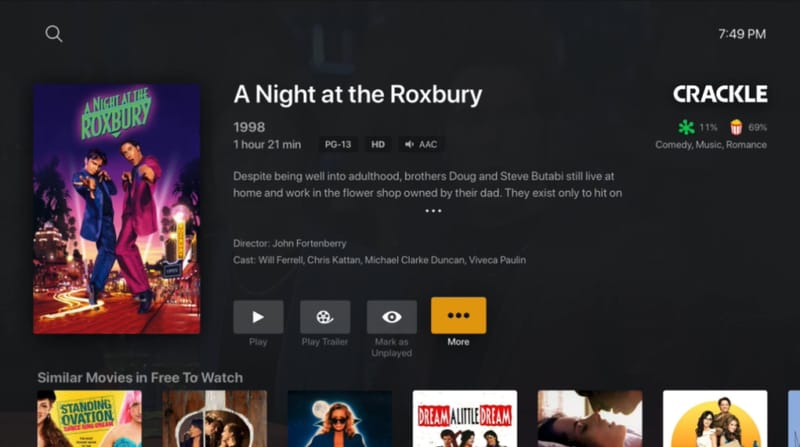
- On the details screen for that title, select the “More” option (often shown as three dots or an ellipsis icon).
- Choose “Watch Together” from the menu that appears.
- Select the friends you want to invite to the session from your existing friends list.
- Confirm the invitation to send it. Invited friends will see a new “Watch Together” row appear near the top of their app’s home screen.
If you plan on watching something from your own server rather than Plex’s free streaming catalogue, make sure you have already taken the time to share your Plex library with friends beforehand. Without that access, invited friends won’t be able to stream the content even if they accept the session invite.
Joining and managing the session
- Wait for a notification or check the home screen for the new Watch Together row after receiving an invite.
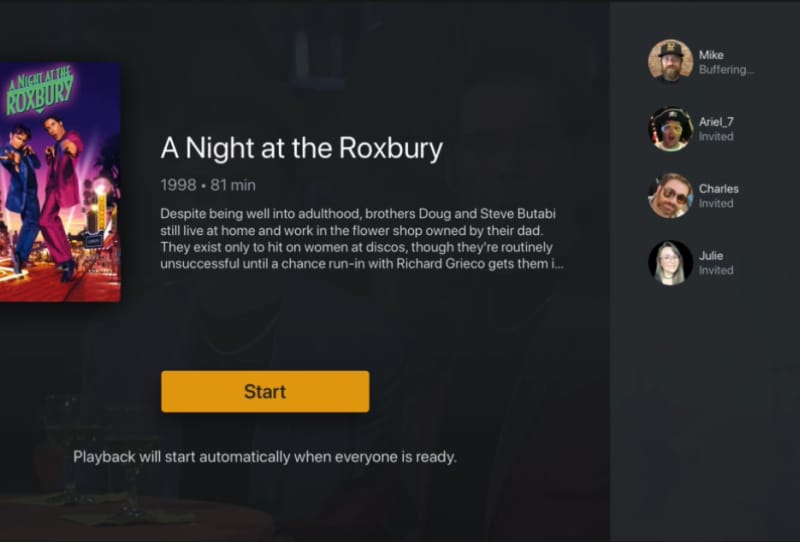
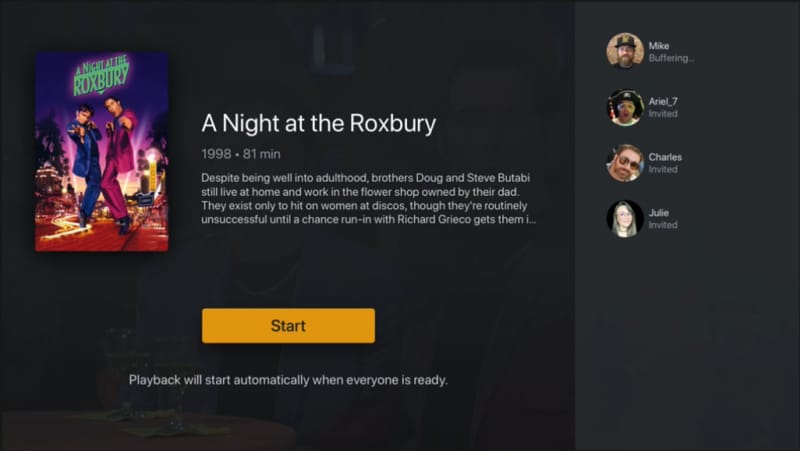
- Select the session to enter the shared lobby, where you can see who else has joined.
- Mark yourself as ready once you’re set to begin, or start the session immediately and let others catch up from their own lobby screen.
- Once everyone is ready, playback begins automatically for the whole group at the same time.
- During playback, any participant can pause, resume, skip, or scrub through the timeline, and this action instantly updates everyone else’s playback to match.
Because control is shared, it helps to agree beforehand on who handles pausing for bathroom breaks or snack runs, since anyone in the session has the same level of control over the timeline.
Tips and troubleshooting
- If a friend just accepted your friend request or a library share, both of you may need to restart the Plex app before Watch Together will let you select them for a session.
- If the Watch Together row does not appear on the home screen after receiving an invite, try restarting the app; this is a known quirk in some cases.
- Keep every device updated. Since this feature depends on matching capabilities across apps, an outdated app on just one person’s device can prevent the session from working properly.
- Enable push notifications on mobile so you’re alerted the moment someone starts a session and invites you.
- If personal media won’t play for an invited friend, double-check that you’ve actually shared that specific library with them, not just accepted their friend request.
- Not every Plex client supports this feature, and availability has been changing, so if a friend’s device doesn’t show the option, check they’re using one of the currently supported platforms and try the Plex web app as a reliable fallback.
If you’re building out your media collection to make these sessions more enjoyable, correctly naming your files also helps Plex match posters, summaries, and episode details properly. Guides on naming TV shows and movies for Plex can help avoid mismatched or missing metadata before your next watch party.
Frequently asked questions
Do all participants need a Plex Pass to use Watch Together?
No special subscription tier is required just to join or host a basic session; the feature has generally been available to Plex account holders, though access to specific content and libraries still depends on what has been shared with each person.
Can I watch together using content from Plex’s free streaming library?
Yes. The feature works with Plex’s free “Movies & TV” streaming catalogue as well as personal media stored on a Plex Media Server, so you don’t need to own the same files as your friends to start a session.
Why can’t I select a friend when starting a session?
You can only invite people you’re already connected with as Plex friends. If someone was added recently, both of you may need to restart the app before that connection is fully recognised by the Watch Together feature.
What happens if my internet connection drops mid-session?
You’ll likely fall out of sync or get disconnected from the lobby. Rejoining the session from the Watch Together row on your home screen should reconnect you and resync your playback with the rest of the group.
For further detail straight from the source, Plex’s own Watch Together support page and its accompanying Watch Together FAQ are worth bookmarking, since supported apps and features can shift over time. If you’re still setting up your server for the first time, it’s also worth reviewing how to set up Plex remote access so friends outside your home network can join without issues.