Watching Plex on your TV turns your own media collection, and Plex’s free streaming content, into a proper home cinema experience instead of something confined to a laptop screen. This guide walks you through getting the Plex app installed on your television, linking it to your account, and troubleshooting the most common hiccups along the way. It suits anyone who already has a Plex Media Server running (or is about to set one up) and wants to enjoy it on the big screen.
Table of Contents
What you’ll need
- A Plex account (free to create) signed in and ready to use
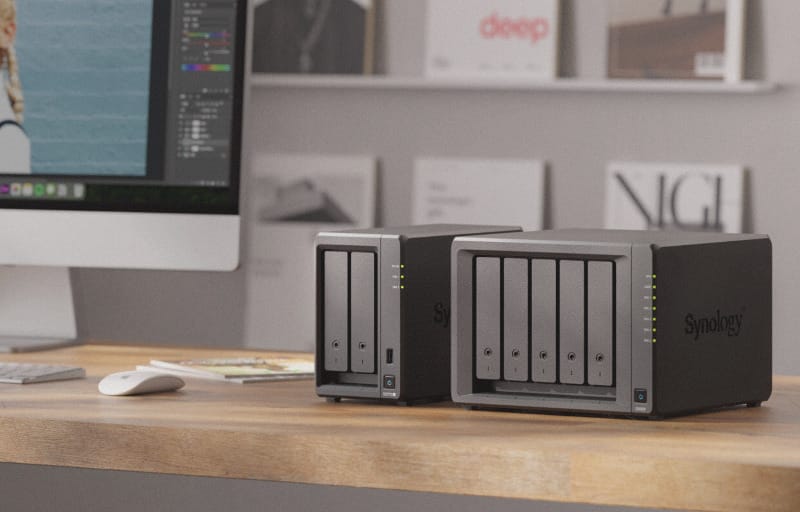
- A Plex Media Server already set up and running on a computer or NAS device, with some content added to its library
- A smart TV, streaming device (such as a Fire TV, Apple TV, Chromecast with Google TV, or Android TV box), or a games console with Plex support
- A stable home Wi-Fi or Ethernet connection for both the TV device and the server
- A second device such as a phone or laptop to help with account linking
Step 1: Check that your Plex server is running
- Before doing anything on the TV, confirm your Plex Media Server is switched on and connected to the same network (or reachable remotely).
- Make sure at least some movies or TV shows have been added to your library so there’s something to test playback with.
- If you haven’t set up a server yet, consider a guide such as setting up Plex on a Synology NAS before continuing.
Step 2: Install the Plex app on your TV
- Open the app store or channel store built into your TV or streaming device (this might be called an app store, channel store, or marketplace depending on the platform).
- Search for “Plex” and select the official Plex app from the results.
- Download and install the app, then wait for it to finish and appear on your home screen or app list.
- Launch the Plex app for the first time to begin the setup process.
Step 3: Link the app to your Plex account
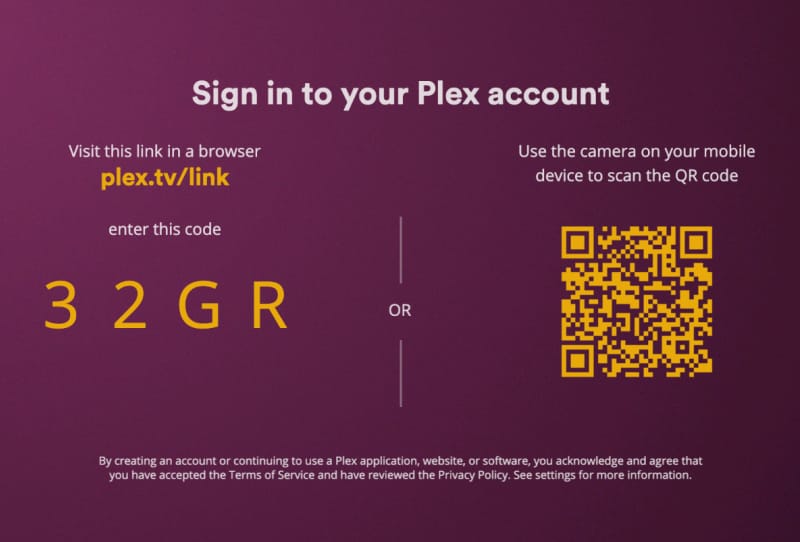
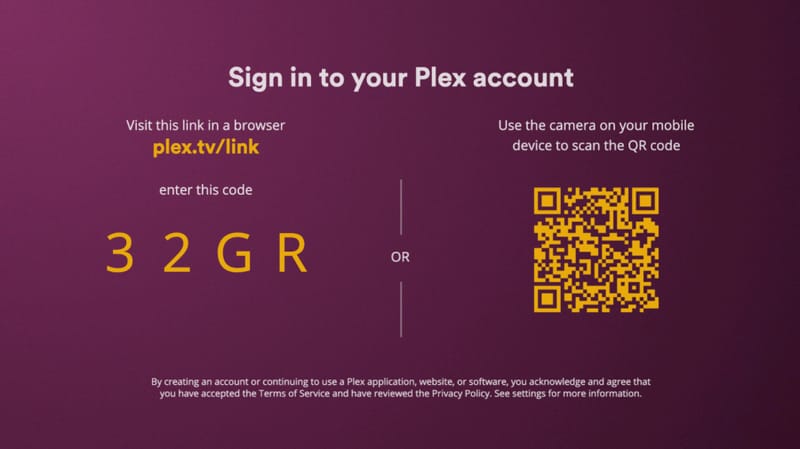
Most TV and streaming device apps use a simple 4-character link code rather than asking you to type a password with a remote control, which makes signing in far less fiddly.
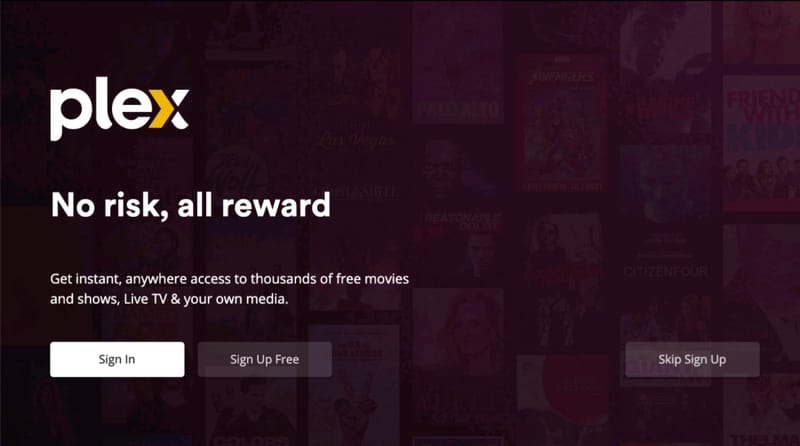
- On the TV app’s welcome screen, choose the option to sign in.
- A 4-character code will appear on screen, sometimes alongside a QR code you can scan with your phone’s camera.
- On your phone, tablet, or computer, open a web browser and go to plex.tv/link, making sure you’re signed in to the correct Plex account.
- Type in the 4-character code shown on your TV and submit it.
- Within a few seconds, the Plex app on your TV should automatically refresh and confirm it’s now linked to your account.
This process mirrors the steps Plex documents for connecting a Plex app to your account, and it applies to most big-screen platforms including smart TVs, streaming boxes, and consoles.
Step 4: Find your server and start watching
- Once signed in, the Plex app should automatically detect your Plex Media Server, provided both the app and server are linked to the same account and connected to the internet.
- Select your server from the list to load your personal library of movies, shows, and other media.
- Browse your collection using the on-screen menus, or use the search function to jump straight to a title.
- Select a title and press play to begin streaming it to your TV.
If your server is signed in and both the app and server are linked to your account, you’ll also be able to use features like Plex remote access to reach your library from outside your home network, which is handy for travel or watching at a friend’s place.
Watching Plex’s free content on your TV
Beyond your own media library, the Plex app also gives access to free ad-supported movies, shows, and Live TV channels, all accessible from the same home screen once you’re signed in. You don’t need your own server running to use these features since they stream directly from Plex’s own service.
Tips and troubleshooting
- If your server doesn’t appear on the TV app, double check that both the server and the TV app are signed in to the exact same Plex account.
- Restarting the Plex app or the TV itself often resolves temporary connection issues.
- If newly added content isn’t showing up, try to refresh your Plex library from the server settings.
- For buffering or playback stutters, check your home network speed and consider connecting your streaming device via Ethernet rather than Wi-Fi if possible.
- If you’re a Plex Pass subscriber, sign in with the same account on your TV app to unlock any extra features tied to your subscription.
- Some smart TV and console apps only work correctly when both the app and the server are signed in to Plex, so this step is not optional on those platforms.
Frequently asked questions
Do I need a Plex Media Server to watch Plex on my TV?
Not necessarily. You can use the free Plex app on your TV to stream Plex’s own ad-supported movies, shows, and Live TV without a personal server. However, to watch your own media collection, you’ll need a Plex Media Server set up and running somewhere on your network or accessible remotely.
Why can’t my TV find my Plex server?
This usually happens when the app and server aren’t signed in to the same Plex account, or when they’re not on the same network and remote access hasn’t been enabled. Confirm both are signed in correctly and check your network connection on both ends.
Can I watch Plex on a TV that doesn’t have a Plex app?
Yes. You can cast content from a phone, tablet, or computer running the Plex app to compatible smart TVs, or use a separate streaming device such as a Fire TV, Apple TV, or Chromecast to add Plex support to an older television.
Can I download shows to watch offline on my TV app?
Offline downloads are generally supported on mobile and tablet apps rather than most TV apps. If you want to learn more about saving content for offline use, see the guide on how to download content from Plex for offline viewing.