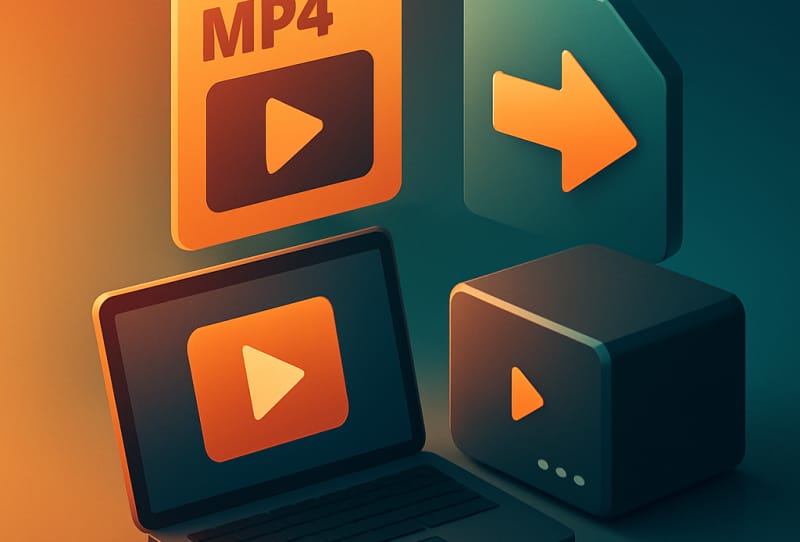
Plex can play an impressive range of video files, but not every format behaves itself on every device. This guide walks you through how to convert video formats for Plex playback, so your library streams cleanly to phones, smart TVs, and dedicated media players without forcing your server to work overtime. It is written for anyone building or tidying up a Plex library who keeps running into stuttering playback, failed streams, or unnecessary server transcoding.
Table of Contents
What you’ll need
- A computer with enough free storage to hold both the original and converted files temporarily
- A video conversion tool, such as the free and open-source HandBrake
- Your source video files, ideally already named clearly
- A Plex Media Server set up and running, with your library already added
- Optionally, a fast external or portable drive, such as a Lexar Muse SSD, for shifting large batches of converted files without waiting around
Why you might need to convert video formats for Plex
Plex is built to “direct play” files whenever possible, meaning it sends the file straight to your device without altering it. That is the fastest and most efficient way to watch anything, because it puts no load on your server’s processor. The trouble starts when a file’s container, video codec, or audio codec is not supported by the device you are watching on. In that case, Plex has to transcode the file in real time, converting it on the fly. Transcoding works, but it demands far more processing power, and on modest hardware it can cause buffering, stuttering, or a drop in resolution.
Converting problem files once, ahead of time, avoids repeated transcoding every time you press play. It is especially worthwhile for older recordings, camera footage, or files you have collected from various sources that use inconsistent codecs.
Checking what your device actually supports
- Open the file’s properties or use a media info tool to see its container (such as MKV, MP4, or AVI) and its video and audio codecs.
- Check the compatibility notes for the Plex app or device you use most, whether that is a smart TV app, a set-top box, or a dedicated player like a Dune HD Homatics Box R 4K Plus.
- Compare those details against Plex’s own guidance, laid out in Plex’s official documentation on video transcoding.
- If the codec or container is not well supported, mark that file as a candidate for conversion.
Converting a file with HandBrake
- Install and open HandBrake, then load the source video file.
- Choose a widely compatible output preset, generally an MP4 or MKV container paired with H.264 or H.265 video.
- Select an appropriate audio track and codec, keeping AAC as a safe, broadly supported choice.
- Adjust the quality slider or bitrate setting to balance file size against visual quality; a moderate setting is usually enough for everyday viewing.
- Set a destination folder for the converted file, separate from your original so you can compare them side by side.
- Start the conversion and wait for it to finish; longer or higher-resolution files will take more time.
- Play the converted file locally first to confirm the picture and sound are correct before removing the original.
Choosing formats that work well with Plex
Some containers and codecs are simply easier for the widest range of devices to play without conversion. The table below is a general guide, not an exhaustive list, but it reflects the combinations that tend to cause the fewest playback problems.
| Container | Video codec | Audio codec | General compatibility |
|---|---|---|---|
| MP4 | H.264 | AAC | Very high across phones, TVs, and streaming boxes |
| MKV | H.264 or H.265 | AAC or AC3 | High, though some older smart TV apps struggle with MKV |
| MP4 | H.265 (HEVC) | AAC | Good on newer devices, smaller file sizes for the same quality |
| AVI | Older codecs (e.g. DivX) | MP3 | Often needs conversion for modern clients |
Organising and storing your converted library
Once you start converting files in bulk, storage and file management quickly become part of the job. Converted files, particularly anything re-encoded at high quality, can take up considerable space, so it helps to work from a drive with fast read and write speeds, such as a Lexar Muse portable SSD, when moving large batches between your computer and your Plex server. After conversion, remember to name your files correctly for Plex so the server matches everything to the right metadata, and then add and organise movies in your Plex library as a final step.
Tips and troubleshooting
- If most of your playback issues happen on one specific device, it may be simpler to try enabling hardware transcoding in Plex rather than converting your entire library.
- Always keep the original file until you have confirmed the converted version plays correctly.
- Avoid converting everything to the highest possible quality by default; larger files cost you storage and network bandwidth for little visible benefit on smaller screens.
- If Plex still cannot see a converted file, check that it landed in the correct library folder, or see the guide on Plex not finding your media files.
- Batch conversion tools can process a whole folder overnight, which saves you from babysitting individual files.
Frequently asked questions
Does Plex convert files automatically?
Plex only converts, or transcodes, a file when it needs to, and it does this in real time as you watch rather than saving a new copy. This is convenient but can strain your server’s processor, especially with multiple simultaneous streams.
What is the best format to convert videos to for Plex?
MP4 with H.264 video and AAC audio remains the safest, most broadly compatible choice across almost every device. H.265 offers smaller files at similar quality but is not supported by every older client.
Will converting a video reduce its quality?
Any re-encoding involves some quality loss, though it is usually negligible at a sensible bitrate. Using a modern codec like H.264 or H.265 with a moderate quality setting keeps the difference difficult to notice during normal viewing.
Can I convert video formats directly on my Plex server?
Plex itself does not offer a manual, permanent conversion feature; it only transcodes on the fly for playback. For a lasting converted copy, you need a separate tool such as HandBrake before adding the file to your library.