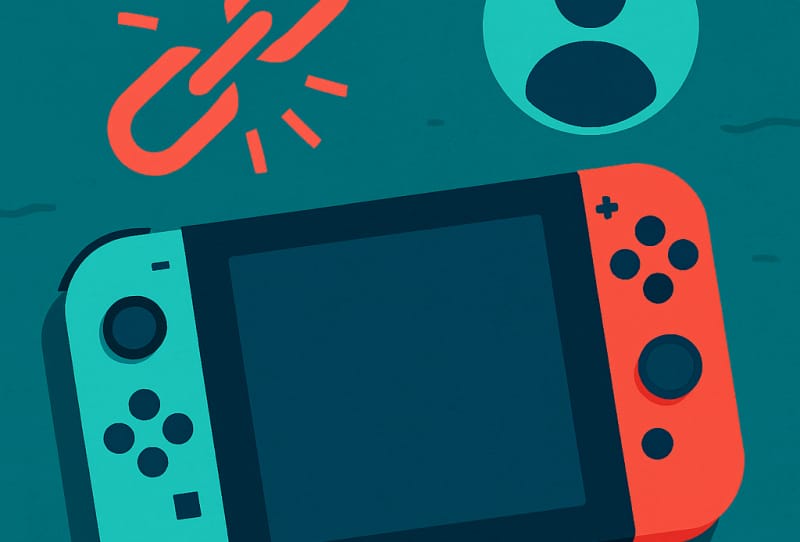
Unlinking a Nintendo Switch system separates a Nintendo Account from a particular console, freeing that account to be used as the primary account on another Switch or preventing a previous owner from accessing purchases and save data. This guide walks through when you need to do it, how to unlink directly on the console, and how to do it remotely if the console is no longer in your hands.
Table of Contents
Why you might need to unlink a Nintendo Switch system
The most common reason is selling, gifting, or trading in a console. Maybe you’re upgrading and want to make room for a new physical release, such as a copy of the Ocarina of Time remake with its textured foil cover art, and need the old system cleared of your account details first. Other reasons include troubleshooting a corrupted account link, moving your primary console designation to a different Switch, or removing an account that was linked by mistake. Whatever the reason, unlinking is the step that detaches your Nintendo Account, download rights, and save data access from that specific hardware.
What you’ll need
- Your Nintendo Account username and password
- Access to the Switch console itself, or internet access if the console is elsewhere
- A Nintendo Switch Online membership if you want to back up cloud saves beforehand (optional but recommended)
- A few minutes of uninterrupted time, since the process shouldn’t be rushed if you’re preparing to hand over a console
Before you unlink: back up your data
Once a Nintendo Account is unlinked from a console, local save data tied to that user profile can become inaccessible if you later reset the system. If you have a Nintendo Switch Online membership, use the cloud save feature to back up compatible game saves before doing anything else. This step matters most if you’re planning to also factory reset the console afterwards, since a reset wipes local saves permanently.
How to unlink a Nintendo Switch system on the console
- Turn on the Switch and go to System Settings from the home menu.
- Scroll down and select Users.
- Choose the user profile linked to the Nintendo Account you want to remove.
- Select the option to manage or edit the Nintendo Account linked to that profile.
- Choose the option to unlink the Nintendo Account from the console, and confirm when prompted.
- Sign in with your Nintendo Account credentials if asked, to verify the request.
Once confirmed, that Nintendo Account is no longer tied to the console, and the console can be freely relinked to a different account or set up fresh for a new owner.
How to unlink remotely from the Nintendo Account website
If you no longer have the console in hand, perhaps it was sold without deregistering, lost, or stolen, you can still remove the link using Nintendo’s account management tools online.
- Go to the Nintendo Account website and sign in.
- Navigate to the section that lists linked or registered consoles.
- Find the Switch system you want to remove and select the option to deregister or unlink it.
- Confirm the action when prompted.
This method is particularly useful for peace of mind if a console has changed hands without the previous steps being followed, since it cuts off access to your purchases and personal data from that hardware.
Tips and troubleshooting
- If you’re selling or giving away a console, also perform a factory reset (often called Initialize Console) after unlinking, so the new owner starts with a clean system.
- Remove any saved payment methods from the console before unlinking, since these can otherwise remain associated with the hardware.
- Only one console can be the primary system for a Nintendo Account at a time. If you’re struggling to set a new primary console, unlinking the old one first usually resolves the conflict.
- If the unlink option is greyed out or missing, make sure you’re signed in as the correct user profile and that the console has an active internet connection.
- Consider reviewing how linking multiple Nintendo Switch systems works if you’re setting up local play across several consoles after unlinking one.
Frequently asked questions
Does unlinking a Nintendo Switch system delete my save data?
Unlinking on its own does not delete local save data stored on the console. However, if you follow up with a factory reset, all local saves are wiped, so back up anything important through Nintendo Switch Online cloud saves beforehand.
Can I unlink a Switch if I no longer have access to it?
Yes. Sign in to the Nintendo Account website and remove the console from your list of linked or registered systems. This is the recommended approach if a console has been sold, lost, or stolen without being deregistered first.
Will unlinking affect my digital game purchases?
Your digital purchases remain tied to your Nintendo Account, not the console itself, so they aren’t lost when you unlink. You’ll simply need to redownload them and sign in on whichever console you’re using next.
Do I need to unlink before selling my Nintendo Switch?
It’s strongly recommended. Unlinking your account and performing a factory reset ensures the new owner can’t access your saves, purchases, or personal details, and lets them set up the console under their own Nintendo Account cleanly. For full details on the official process, see Nintendo’s official support page.